Showing posts with label 8. Show all posts

Monday, March 17, 2014

How to restore the forgotten password on Windows 8

http://.blogspot.com


 The steps are as follows:

  1. Put Windows 8 Installation DVD into the last DVDRoom Boot
  2. Click the Repair 
  3. On the Menu Choose an Option click Troubleshoot 
  4. Click Advanced Options 
  5. Select the Command Prompt 
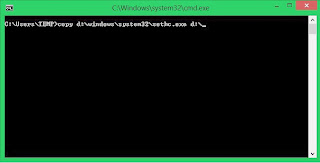
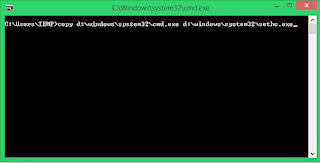
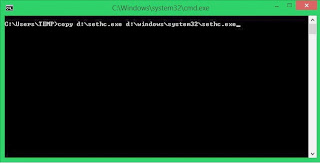
  6. Know first drive used windows, by default it will use drive c: but here I demonstrated when Windows is installed on drive D:  
  7. Type the following command

http://.blogspot.com
 
http://.blogspot.com


8.When finished we click Restart

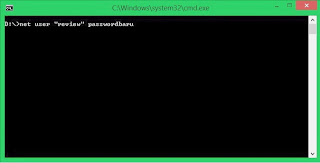
 9. After restarting it will reappear Login Form .. We Press the Shift key five (5) times at the keyboard until the Command Prompt again

10. Type the command like this USERNAME PASSWORD Net User (username should be the same as the username that we want to use, and for the password it will be the username new password). For more details please see the picture below.


http://.blogspot.com

11. Please restart and enter the password that we created earlier

http://.blogspot.com
Read more »

Saturday, March 15, 2014

Videocon Launches 8 New Smartphones under the Infinium Series

Videocon has recently launched 8 new smartphones belonging to its Infinium series. They are all dual SIM smartphones with dual standby feature and priced at Rs.6000 onwards. Let us have a quick look at the key features of these devices:

Videocon A52: It sports a WVGA touch display of 5 inches. This device runs on a dual core processor of 1 Giga Hertz. Videocon A52 functions on Android 4.2 Jelly Bean OS. It comes with a RAM of 512MB, internal memory of 4GB and 32GB expandable memory. This smartphone features a 5MP primary camera and a secondary camera of 1.3MP.

Videocon A53: It comes with a qHD touch display of 5.3 inches. This device runs on a dual core processor of 1.2 Giga Hertz. Videocon A53 functions on Android 4.1 Jelly Bean OS. It comes with a RAM of 1GB, internal memory of 4GB and 32GB expandable memory. This smartphone features an 8MP primary camera and a secondary camera of 2MP.

Videocon A54: It comes with a qHD touch display of 5.3 inches. This device runs on a quad core processor of 1.2 Giga Hertz. Videocon A54 functions on Android 4.1 Jelly Bean OS. It comes with a RAM of 1GB, internal memory of 4GB and 32GB expandable memory. This smartphone features an 8MP primary camera and a secondary camera of 1.3MP.

Videocon-Infinium-Series

Videocon A55 qHD: It comes with a qHD touch display of 5 inches. This device runs on a dual core processor of 1.3 Giga Hertz. Videocon A55 qHD functions on Android 4.2 Jelly Bean OS. It comes with a RAM of 1GB, internal memory of 4GB and 32GB expandable memory. This smartphone features an 8MP primary camera and a secondary camera of 1.3MP.

Videocon A55 HD: It comes with a HD touch display of 5 inches. This device runs on a quad core processor of 1.2 Giga Hertz. Videocon A55 HD functions on Android 4.2.1 Jelly Bean OS. It comes with a RAM of 1GB, internal memory of 4GB and 32GB expandable memory. This smartphone features an 8MP primary camera with LED flash and a secondary camera of 3.2MP.

Videocon A42: It comes with a FWVGA touch display of 4.5 inches. This device runs on a dual core processor of 1.2 Giga Hertz. Videocon A42 functions on Android 4.2.2 Jelly Bean OS. It comes with a RAM of 512MB, internal memory of 4GB and 32GB expandable memory. This smartphone features a 5MP primary camera with LED flash and a secondary camera of 1.3MP.

Videocon A48: It comes with a FWVGA IPS touch display of 4.5 inches. This device runs on a dual core processor of 1 Giga Hertz. Videocon A48 functions on Android 4.2.2 Jelly Bean OS. It comes with a RAM of 512MB. This smartphone features a 5MP primary camera with autofocus and a secondary camera of 1.3MP.

Videocon A31: It comes with a WVGA IPS touch display of 4 inches. This device runs on a dual core processor of 1.2 Giga Hertz. Videocon A31 functions on Android 4.2.2 Jelly Bean OS. It comes with a RAM of 512MB and 4GB internal storage. This smartphone features a 5MP primary camera with autofocus and a secondary camera of 1.3MP.
Read more »

Wednesday, March 12, 2014

How to Solve Application Problems That Could Not Be Opened in Windows 8

http://.blogspot.com

Step-by-Step as follows:

1. Run (Win + R)
2. Type secpol.msc and press [Enter]
3. Double-click on Local Policies subsequent double-click on the Security Options and look for the option "User Account Control: Run all administrators in Admin approval mode"

http://.blogspot.com

4. select disable
5. Reboot the computer.
6. Good luck
Read more »

Tuesday, March 11, 2014

Free 8 Websites To Convert YouTube Videos into MP3 Online

Youtube is most famous video sharing website. Every month youtube gets more than 50 million visitors. Youtube has millions of videos from different categories. All songs, self created videos, party videos, talent videos, promotional videos, business videos, personal videos, how to tutorials and news events are available at youtube.

Mostly people use to visit youtube just to listen songs of their choice. Because, there are millions of songs uploaded at youtube. It’s easy to get any song you want. While listening those songs with videos, you must be thinking of downloading youtube videos into mp3. It’s not great to download videos and then convert youtube videos into mp3. There are many websites related to youtube which providing the service of converting youtube videos into mp3 online itself. You just have to copy the video link and past it on such youtube video converter websites.

I have listed few free websites below through which you can easily convert youtube videos into mp3 online for free, Instead of downloading videos and then convert them into mp3 through some video converter :

1. Make it mp3

make-it-mp3

2. Mp3ify

2

3. Video Droid

3

4. Vid To Mp3

4

5. Youtube mp3

5

6. Youtube to mp3

6

7. Youtube to mp3

7

8. Zamzar

8

Happy Downloading ;) Thanks for staying :)
Read more »

Sunday, March 9, 2014

Lava Iris 503 and Iris 352e launched for Rs 8 990 and Rs 4 290

Lava is one of the premium makers of budget and mid-range smartphones. Latest news is that the company has now launched its two new devices in the market. These smartphones have been named Lava Iris 503 and Lava Iris 352e. They are available at the price of Rs. 8,990 and Rs. 4,290 respectively. Let us have a quick look at some of the major features of these two smartphone devices:

Lava Iris 503
Lava-Iris-503
  • It sports a capacitive touch display of 5 inches with a resolution of 960 x 540 pixels.
  • It has been powered by a dual core processor of 1.2 Giga Hertz.
  • It runs on Android 4.2 Jelly Bean operating system.
  • It comes with a 512 MB RAM, 4 GB internal memory and up to 32 GB expandable memory.
  • It features a rear camera of 5 mega pixels with auto focus, LED flash and BSI sensor. It also comes with a front facing camera of 1.2 mega pixels.
  • It offers connectivity features, such as Bluetooth, Wi-Fi, GPS and 3G.
  • It has been equipped with a battery of 2000 mAh battery.
Lava Iris 352e
Lava-Iris-352e
  • It sports a capacitive touch display of 3.5 inches with 320 x 480 pixels resolution.
  • It has been powered by a dual core processor of 1 Giga Hertz.
  • It runs on Android 4.2 Jelly Bean operating system.
  • It comes with a 256 MB RAM, 512 MB internal memory and up to 32 GB expandable memory.
  • It features a rear camera of 2 mega pixels and front facing camera of 0.3 mega pixels.
  • It offers connectivity features, such as Bluetooth, Wi-Fi and 2G.
  • It has been equipped with a battery of 1450 mAh.

Our Take: Both the devices are pretty decent in terms of features as well as price. But the point is that there’s nothing compelling enough in either of them to give them an edge over the competition. You can get other budget quad core devices for the price of the Iris 503 but the cheaper sibling, the Iris 352e surely puts a decent case forward in its favour. 
Read more »

Saturday, March 8, 2014

How to Stop Grouping of Taskbar Buttons in Windows 8

Reminding of old days, in Windows XP we had the expanded taskbar icons for currently running programs. Since Windows 7, these taskbar buttons are grouped by default to the program icon in order to increase free space on taskbar. But, some of users may find it uninteresting and they may like to restore the ungrouped program buttons.

Let’s see the differences between past and present conditions:

3 Ways To Expanded Taskbar Buttons In Windows 8 How to Stop Grouping of Taskbar Buttons in Windows 8

From the above image, I guess you’ve figured out what I’m trying to do. The reason behind broking the combination and split them to separate tab is to enhance the efficiency. In the past condition, you can read what’s going on the tab since it is mentioned there but in the present scenario, you have to move the cursor to get the same thing.
Now, in this article, we’ll provide you with three ways to configure these settings and increase the productivity of your Windows 8.

Method 1: Manually Using Taskbar Properties

1. Right click on taskbar and select Properties.

3 Ways To Expanded Taskbar Buttons In Windows 8 1 How to Stop Grouping of Taskbar Buttons in Windows 8

2. In the Taskbar Properties window, for the Taskbar buttons section, click the drop down menu and select Never combine.

3 Ways To Expanded Taskbar Buttons In Windows 8 2 How to Stop Grouping of Taskbar Buttons in Windows 8

Click Apply then OK. Reboot the machine to get results. So this was the basic way, now lets see some advance ways:

Method 2: Using Registry Editor


1. Press Windows Key + R and put regedit in Run dialog box, click OK to open Registry Editor.

REGEDIT How to Stop Grouping of Taskbar Buttons in Windows 8

2. Navigate here:
HKEY_CURRENT_USERSoftwareMicrosoftWindowsCurrentVersionExplorerAdvanced

3 Ways To Expanded Taskbar Buttons In Windows 8 3 How to Stop Grouping of Taskbar Buttons in Windows 8

3. In the right pane of this location, create a new DWORD using Right click -> New -> DWORD Value. Name it as TaskbarGlomLevel. Double click to modify it:

3 Ways To Expanded Taskbar Buttons In Windows 8 4 How to Stop Grouping of Taskbar Buttons in Windows 8

4. Put the Value data to 1 to have not combined tabs until taskbar is full, otherwise put 2 to have no grouping at all. Click OK. Restart the computer to see effects. If you want to group tabs again in the future, simply put 0 as Value data or delete the DWORD created in step 3.

Method 3: Using Command Prompt / Batch File

To simply the work, you can use the following .bat (command processing) file. Extract the RAR file and simply right click on the file after download and select Run as administrator:
Download: Batch File to Disable Grouping Taskbar on Windows 8
Hope you find the tip useful!
Read more »

Friday, March 7, 2014

Blackberry Desktop Software On Windows 8


 If you are going to upgrade to windows 8, you may be wondering whether or not your BlackBerry Desktop Software will work. As noted by RIM in their BlackBerry knowledge base, everything will go fine provided you follow some initial steps.
Windows 8
BlackBerry Desktop Software will function when installed on Microsoft Windows 8 however .NET Framework 3.5 must be installed and enabled prior to the install of the BlackBerry Desktop Software. Microsoft .NET 3.5 framework can be installed and enabled by following the instructions in the Microsoft article listed below.

http://msdn.microsoft.com/en-us/library/hh506443.aspx

In addition, RIM also notes that an updated version of the BlackBerry Desktop Software is coming that will have enhanced features specifically for Windows 8 users.
Read more »

How to Add or change language in Windows 8

http://.blogspot.com


The steps are as follows:

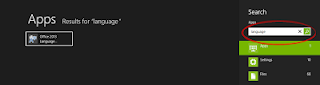
1. Go to the search box by pressing WIN + Q at the same time, then type in "Language" in the search box
http://.blogspot.com


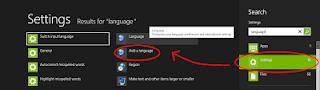
2. Then select the option "Settings" on the search results and select "Add Language"
http://.blogspot.com


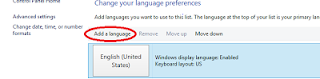
3.The new jendel it will appear as shown below, then click "Add Language"


http://.blogspot.com


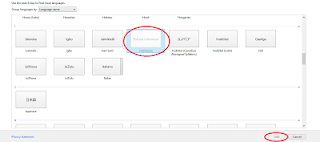
4. Next will come a list of the worlds languages, in this case we select "Indonesian" Then click "Add"

http://.blogspot.com
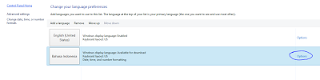
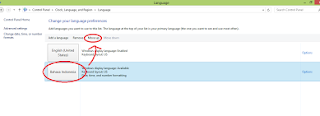
5. Then click on "Options" 

http://.blogspot.com


 6. Then click "Download and Install Language Pack"

http://.blogspot.com

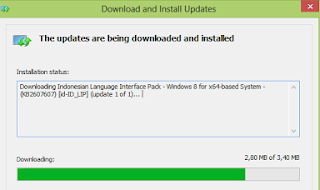
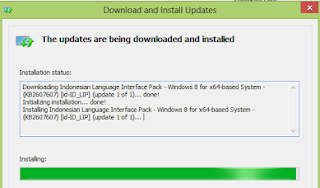
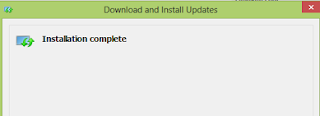
  7. Furthermore, the download window and install the update and wait for it to finish 

http://.blogspot.com


http://.blogspot.com


  8. After the installation process is finished the next will appear as below, then click the "Close"

http://.blogspot.com


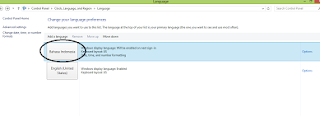
 9. Furthermore Indonesian positioned above by clicking "Move Up"


http://.blogspot.com
 10. Ensure Indonesian lies above

http://.blogspot.com
11. Then restart your computer / laptop

12. Good luck
Read more »

Thursday, March 6, 2014

Tricks For Windows 8


Using Windows 8 is rather Difficult...
Try these.. Some of the primary techniques which could be helpful...!!!

Windows 8 is finally here, and if youre used to past editions of Windows then youre going to notice that quite a bit has changed. In fact, Windows has seen the biggest changes since the leap from Windows 3.1 to Windows 95.

Some Windows 8 tricks


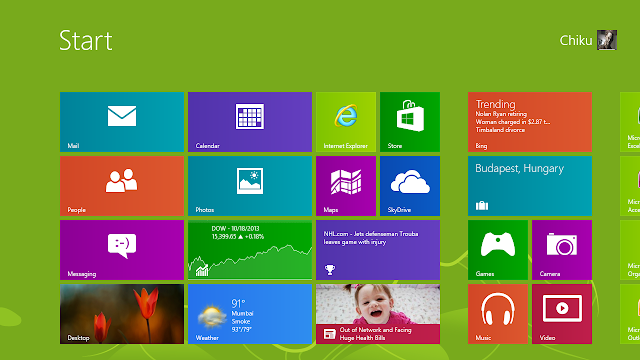
Out goes the Begin selection, in comes the new touch-oriented Begin display, new programs, new customer interface conferences - even experienced PC users may be remaining feeling a little lost.
Dont hopelessness, though, help is at part with the following Windows 8 guide. Weve been analyzing every aspect of Windows 8, discovering many of its most important tips and techniques, so read our guide and youll soon be equipped to get the most out of Windows latest release.

1. Lock screen
Windows 8 reveals on its lock display, which looks pretty but unfortunately shows no signs about what to do next.Its all very uncomplicated, though. Just tap the space bar, rotate the rabbit rim or run up-wards on a touchscreen display screen technology to expose a frequent sign in display with the customer name you created during installation. Get into your password to begin.

2. Basic navigation
Windows 8 releases with its new customer interface, all vibrant flooring and touch-friendly programs. And if youre using a tablet then itll all be very straightforward: just run remaining or right to look for the display, and tap any floor of interest.
On a frequent pc, though, you might on the other hand rotate the rabbit rim to look for forward and backward.
And you can also use the laptop key pad. Media the Home or End important factors to leap from one end of your Begin display to the other, for example, then use the suggestion important factors to decide on a particular floor, hitting Get into to select it. Media the Windows key to come back to the Begin screen; right-click (or run down on) programs you dont need and select Unpin to remove them; and move and fall the other flooring around to arrange them as you like.

3. App groups
The Begin display programs are initially shown in a fairly unique order, but if youd prefer a more organized life then its simple to sort them into custom categories.
You might move Individuals, Mail, Messaging and Calendar over to the left-hand part, for example, to form a separate People team. Simply select the minus symbol in the end right area of the display to zoom capability out and youll now discover you can move and fall the new team (or any of the others) around as a prevent.
Right-click within the prevent (while still zoomed out) and youll also be able to give the team a name, which - if you go on to add another 20 or 30 programs to your Begin display - will make it much more readily found the tools you need.

4. Immediate accessibility menu
Right-click in the end remaining area (or keep down the Windows key and press X) for a text-based selection that provides comfortable accessibility lots of useful applets and features: Device Administrator, Management Board, Traveler, the Search discussion and more.

5. Find your applications
The Win+X selection is useful, but no alternative for the old Begin selection as it doesnt provide accessibility your programs. To discover this, keep down the Windows key and press Q or either right-click an vacant aspect of the Begin display or run your handy up from the end of the display and select All Apps to expose a scrolling record of all your installed programs. Browse the various flooring to discover what you need and select the relevant app to release it.

6. Easy access
If theres an program you use all the time then you dont have to accessibility it via the look for program. Pin it to the Begin display and itll be available at a click.
Start by writing aspect of the name of your program. To accessibility Management Board, for example, type Control. Right-click the Control Panel floor on the Apps Search display, and then click Pin to Start. If youre using a touchscreen display screen, press and keep the symbol, then film down and select Pin to Start.
Now press the Windows key, look for to the right and youll see the Management Board floor at the far end. Drag and fall this over to the remaining somewhere if youd like it more readily available, then select the floor to open the pc along with the Management Board window, and press the Windows key to come back you to the Begin display when youre done.

Apps close


7. Closing down
To closed Windows 8 down, just move the rabbit suggestion to the end right area of the display, select the Configurations symbol - or just keep down the Windows key and press I - and youll see a energy key. Simply click this and select Shut Down or Restart.
Some of the techniques available in past editions of Windows still apply. Media Ctrl+Alt+Del, for example, select the energy key in the end right-hand area and youll be presented with the same Shut Down and Restart choices.
And if youre on the pc, press Alt+F4 and youll be able to select Shut Down, Restart, Sign Out or Switch User choices.

8. App bar
Windows 8 programs aim to be simpler than old-style Windows applets, which means its farewell to choices, complex tool bars, and many customer interface requirements. There will usually be a few choices available on the App bar, though, so if youre uncertain what to do then either right-click an vacant aspect of the display, press Windows+Z or film your handy up from the end of the display to take a closer look.

9. Whats running?
If you release a Windows 8 app, play with it for a while, then press the Windows key youll change back to the Begin display. Your app will remaining operating, but as theres no taskbar then you might be wondering how youd ever discover that out.
You could just press Alt+Tab, which shows you whats operating just as it always has.
Holding down the Windows key and pushing Tab shows a lite on the left-hand part of the display with your operating programs. (To see this with the rabbit, move your suggestion to the top remaining area of the display, wait until the thumbnail of one app appears, then move down.)
And of course you can always press Ctrl+Shift+Esc to see all your operating programs in the Process Administrator, if you dont mind (or actually need) the extra technical detail.

10. Closing an app
Windows 8 programs dont have near control buttons, but this isnt the issue you might think. Apps are revoked when you change to something else so theyre only a very minimal strain on your program, and if you need the resources then theyll instantly be closed down. (Their perspective will be saved, of course, so on relaunching theyll carry on where you remaining off.)
If you want to shut down an app anyway, though, move the rabbit suggestion up to the top of the display. When it turns from the frequent rabbit suggestion to the symbol of a part, keep down the remaining rabbit and move it down the display. Your app should reduce to a thumbnail which you can move off the display to shut it.
If thats too much hassle, then simply pushing Alt+F4 still works.
And when all else is not able then press Ctrl+Shift+Esc to release Process Administrator, right-click something in the Apps record and select End Process. Be careful, though, near something you shouldnt and its simple to crash or freeze your PC.
Read more »

Sunday, March 2, 2014

Can Blackberry Defeat Windows phone 8


                                   RIM’s CEO Thorsten Heins believes that Blackberry 10 has “a clear shot at being the number three platform on the market.”  He also said, “We’re not just another open platform on the market, we are BlackBerry.” This means ,according to him,Blackberry can easily defeat WP 8.  Unfortunately Blackberry 10 devices probably won’t be released until early 2013 which is well after we will see Windows Phone 8 on the market.

                  Furthermore, there hasn’t been a whole lot of consistent buzz building up behind Blackberry 10. There was the new beta 3 reveal a couple weeks ago, but it has not been keeping itself in the tech news very well. Windows Phone 8 on the other hand has been having some big reveals of new devices, and Microsoft is still keeping us on the edge of our seats to see if they’ll surprise us with new features within the operating system like they surprised us with their Surface tablet reveal earlier this year.

If Blackberry wants to get to number 3 in the smartphone wars, they probably need a strong ecosystem that connects to all of the other electronic peripherals in our lives. Apple has a hugely successful ecosystem driven by iTunes and their iOS appstore that makes keeping all of your devices tied to that ecosystem very compelling. Android’s ecosystem is backed by the hugely successful Google search engine and all of the great online services that Google brings to the table. Microsoft’s ecosystem is backed by their hugely successful Windows operating system, Office productivity suite, and Xbox 360. What exactly does Blackberry tie into that’s so compelling? Perhaps the old Blackberry Enterprise servers? Most of the advantages of those have been made obsolete by all of the Exchange ActiveSync compatible servers and services out there these days.That Blackberry Hub which unites emails, messaging, and social networking notifications seems nice.
                    Does Blackberry really have enough surprises in its sleeve to surpass Windows Phone next year?
Read more »

Windows 8 Features a Relatively Unknown


http://.blogspot.com

The steps are as follows:

1. Hidden Quick Access Menu

Windows 8 Quick access menu contains a hidden access from multiple application systems that are useful such as:
  • Programs and Features
  • Mobility Center
  • Power Options
  • Event Viewer
  • System
  • Device Manager
  • Disk Management
  • Computer Management
  • Command Prompt
  • Command Prompt (Admin)
  • And several other applications

http://.blogspot.com


2 . Running 2 Applications Coexistence

Windows 8 provides a feature where we can run two applications simultaneously by dividing the computer screen into 2 . Even on windows 8.1 , we can run 3 or 4 applications simultaneously , depending on the size of the screen .

http://.blogspot.com


3 . Password From Picture

Windows 8 provides various types of logging systems , namely Microsoft account password / local , picture password and PIN .

4 . Auto - Save Screenshots

In Windows 8, there is a feature in which we will more easily take a picture of a computer screen or better known as the screenshots . Only by pressing Win + PrtSc then the image will be automatically saved in the image folder ( by default in C : Users herbanu Pictures screenshots )

5 . Creating Application Groups in the Start Screen

When you first open the Start screen , you will notice that some of your apps are in the " group " itself . You can create your own by simply dragging an application icon to an empty space on the Start screen to create your own group . If you want the name of the group , for example , Applications , " Work " " Games " , etc. , you can do so by clicking on the small button in the lower right corner of the screen and right click on the group .

http://.blogspot.com


6 . Close Easy Application

By the look of the Metro , many functions in the computer has changed from the previous function . And I m sure many who do not know how to close or shut down the application on windows 8 . Since the close button on windows 8 no application or eliminated . However , it turns out there is a way to close apps in Windows 8 with great ease . In Windows 8 , there are new features that is to get out of an application no longer have to click on a cross / close at the top right corner of the screen . Stay drag and throw it into the bottom of the screen . Or it could be by directing the cursor to the corner and slide the cursor up or down until the display appears a lot of applications that are running , then right-click on the application that we want to close and click close

7. Synchronize User Accounts

Windows 8 supports user mode Account as on previous versions of Windows. However, the operating system can also create a new user account type that tersingkronisasi with the users Windows ID in question.

Through this account, you can access data from SkyDrive, Xbox, Hotmail / outlook and other services that other cloud-based Microsoft.

This new type of user account can also equalize your Windows settings in several different koemputer that can help when using multiple computers.

To access this feature run settings, select "Change PC Settings" and open "Sync your settings"


8. Windows Defender

Windows Defender Application revived in Windows 8, Microsoft Security Essentials replaces.
http://.blogspot.com


9. Turning Off Your Computer Fast

By pressing the key combination [Alt] and [F4] together, there will be a shutdown window appears.
http://.blogspot.com


10. Screen Practical

In Windows 7 snipping tool for application reveals images (screenshots), this tool is still there in Windows 8. However, there are different ways and more practical. You simply press the key combination [Windows] and [Printscreen] on the keyboard and the image will be saved in PNG format.
http://.blogspot.com

11. Good Luck
Read more »

Friday, February 28, 2014

How To Upgrade From Windows 8 To Windows 8 1

Windows 8.1 Has New Exciting Features.
If You Have Windows 8 OS Installed, Its Quite Simple To Upgrade To Windows 8.1

Follow This Steps :

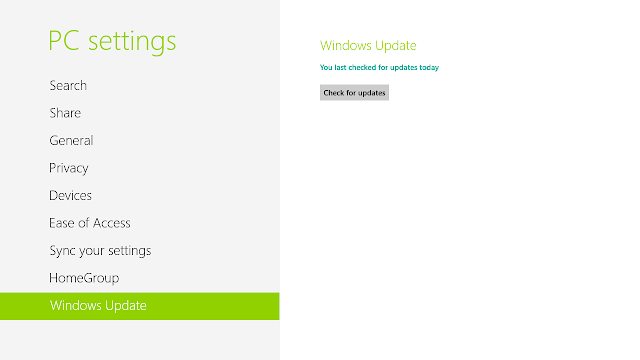
1) Go To Windows Update Center And Check For Updates.


Windows 8.1 Update


2) Download And Install All The Updates Shown In Important As Well As Optional Tab.

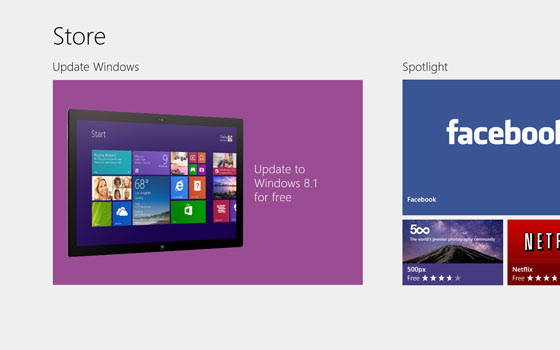
3) Now Open Store. Store Is In Start Menu.


Windows 8.1 Update


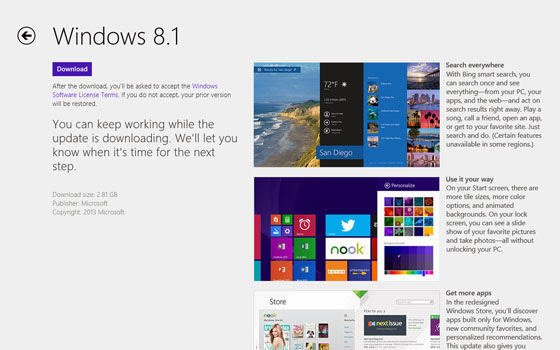
4) In Store Find "Update To Windows 8.1 For Free" Click On That Option.


Windows 8.1 Update


5) Click On Download.


Windows 8.1 Update


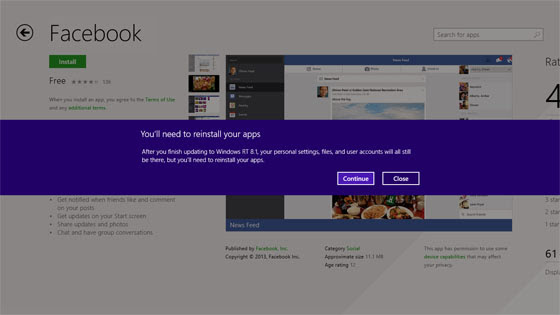
6) Click On Continue If It Prompts For App Re-Installation.


Windows 8.1 Update


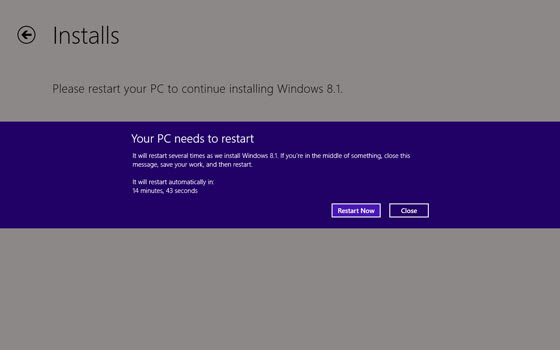
7) After This It Will Prompt For Restart. Click On Restart.


Windows 8.1 Update


8) Done !!!!


Windows 8.1 Update


Read more »