Showing posts with label restore. Show all posts
Showing posts with label restore. Show all posts
Monday, March 17, 2014
How to restore the forgotten password on Windows 8

The steps are as follows:
- Put Windows 8 Installation DVD into the last DVDRoom Boot
- Click the Repair
- On the Menu Choose an Option click Troubleshoot
- Click Advanced Options
- Select the Command Prompt
- Know first drive used windows, by default it will use drive c: but here I demonstrated when Windows is installed on drive D:
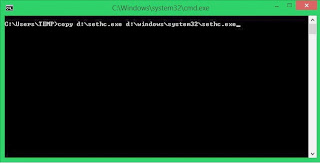
- Type the following command
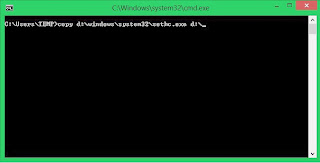
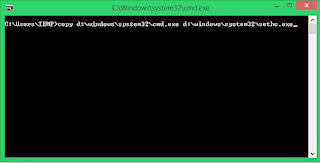
8.When finished we click Restart
9. After restarting it will reappear Login Form .. We Press the Shift key five (5) times at the keyboard until the Command Prompt again
10. Type the command like this USERNAME PASSWORD Net User (username should be the same as the username that we want to use, and for the password it will be the username new password). For more details please see the picture below.
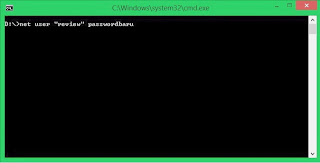
11. Please restart and enter the password that we created earlier

Wednesday, February 26, 2014
How To Restore Your iPhone To Factory Data Reset Without Using iTunes On Computer
iPhone is the best mobile available in the market as it fulfill the needs of all people. But some time it happens that your iPhone is not working properly due to various reasons such as you might have installed to many applications or there are many unused processes running in background. Or you just want to use you phone as it is new one or there might be some other reason like you are selling it to some other person.
In these cases the best option is to do a factory data reset which will erase all settings and data including your contacts and messages on your mobile and make it as new one like you have just unboxed it.
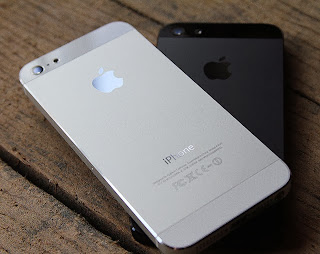
Note: Please make sure you have backup of all the information in your mobile on either on your computer or on icloud servers.
Just follow these steps to restore your iPhone to factory settings
Step 1: Tap on Settings
Step 2: Select General
Step 3: Scroll down to bottom and tap Reset
Step 4: Now click on Erase All content And Settings
Step 5: After that click on Erase iPhone
And after some further processes your iPhone will be restored to factory settings
OR View This Video
For any Suggestions or Queries comment below or contact us.
In these cases the best option is to do a factory data reset which will erase all settings and data including your contacts and messages on your mobile and make it as new one like you have just unboxed it.
Note: Please make sure you have backup of all the information in your mobile on either on your computer or on icloud servers.
Just follow these steps to restore your iPhone to factory settings
Step 1: Tap on Settings
Step 2: Select General
Step 3: Scroll down to bottom and tap Reset
Step 4: Now click on Erase All content And Settings
Step 5: After that click on Erase iPhone
And after some further processes your iPhone will be restored to factory settings
OR View This Video
For any Suggestions or Queries comment below or contact us.
Sunday, January 12, 2014
How to Backup Restore your Blogger Template
Most of blogger need to change in blogger template but it is very important to know that how to backup/restore your template first before editing template because if you changes in coding and something wrong with your edits then you can immediately restore your old code. Blogger provides you easily to backup and restore your template. We provide you how to Backup and restore your template in this tutorial.
How to Backup your Blogger Template
1. Go to your Blogger dashboard and click on Template.
2. Click on the Back/Restore Button.
3. Now click on Download Full Template as show in below figure.
4. Now choose where you want to save your template file on your computer and save it.

Now we provide you how to restore your template if you have face any problems in editing of your blogger template.
How to Restore Your Blogger Template
1. Go to your Blogger dashboard and click on Template.
2. Click on the Back/Restore Button.
3. Click on Browse button and find your template xml file on your computer.
4. Click on the Upload button as show in figure.

It’s very simple to backup and restore your blogger template to avoid problems when you editing your template.
Demo: How to Backup/Restore your Blogger Template
Subscribe to:
Posts (Atom)