Saturday, March 22, 2014
The Computer Restart Cause of a Sudden
why the computer restart is given below :
1.Internet temperature is one of the main reasons for this.
2.Ram got reason the computer restart.
3. Bad sectors as well as read data from the hard drive and restart the computer hangs when trying to be.
4. USB device connected to the computer when the computer is restarted.
5. Due to the variety of operating systems, operating system crash can not be turned on and start a new try. The operating system is a complex problem, but it can be restarted.
If the hardware is not connected properly, or if you have problems or if you reboot the computer can be connected loss.
6. The virus can also reboot the computer. It is important to use a good antivir.
Its a computer expert to go with your computer.

Friday, March 21, 2014
Update My Computer
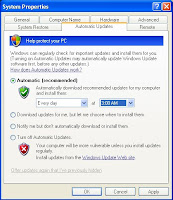
How to Updating your computer?
What are updates?
Microsoft offers important updates, which include security and other critical updates, to help protect your computer against new viruses and other security threats that can spread over the Internet or a network. Other updates contain enhancements, such as upgrades and tools that can help your computer run more smoothly.
Update your Computer Follow This Steps:
1. Click Start, and then click Control Panel.
2. Depending on which Control Panel view you use, Classic or Category, do one of the following:
Click System, and then click the Automatic Updates tab.
Click Automatic (recommended) Option and select the day and time you want Windows to install updates. (Your Select Time Every Day 3:00 AM. Your Computer Update Every Day 3:00 AM)
Click Apply -> OK.
Thursday, March 20, 2014
Computer Diagnostics How to Fix a Slow Computer
Why is my computer running slow?
The modern consumer PC is a complicated beast. Unlike a relatively simple machine such as a lawnmower or a stereo, computers have numerous points of failure that can inhibit or completely restrict proper functioning. Occasionally, a piece of hardware like a failing hard drive or faulty RAM modules are the reason your computer isnt humming along like it used to when brand new. However, its far more often a software issue related to your operating system thats slowing down the machine. Whether you run Windows, Mac OS X or Linux, a little software optimization and house cleaning goes a long way in prolonging the life of any PC.
Due to the mind-boggling complexity of todays computers, good Computer Diagnostics tools are essential for the safe operation and long-lasting life of any machine. For instance, the Windows operating system has a few quirks that, if left unattended, can lead to a slowdown in performance over time. Dead-end shortcuts and links pile up over time, using up valuable disk space, leading to disk fragmentation and overall hurting responsiveness and usability. In addition, errors within the Windows Registry as well incorrectly deleted programs can lead to other important programs crashing. Without a Diagnostics Tool to tell you exactly whats going on, you have no real idea whats wrong with your PC when speed and performance issues occur.
As such, comprehensive Computer Diagnostics software is of paramount importance when it comes to getting the most out of your PC. Most technically savvy users possess the ability to manually tweak settings, schedule maintenance tasks, change startup programs, and troubleshoot issues that may crop up. Unfortunately, that ability to diagnose computer performance issues on the fly can take years of experience and learning, and we dont all have the time to become certified repair specialists. Specially designed Computer Diagnosis software gives ordinary users the ability to speed up their PCs by repairing malfunctioning programs, getting rid of unnecessary files automatically & choosing which programs should run on start up.
A dependable Computer Diagnosis software suite can do most of the heavy lifting for us normal, everyday users who dont possess a Computer Science degree or the gift of feeling out bugs in our operating systems. When choosing a Computer Diagnosis tool, reputation and track record are of the utmost importance. Youre placing the health and longevity of your valuable computer in the hands of a third-party program, so you want to be sure that you opt for a Diagnostics and Analysis application thats time-tested and reliable. Dont just spring for the first free-ware service you find online. Thoroughly research the available options when buying a PC optimization software, and your computer will thank you in the long run.
Computer Diagnostics Software is the simplest way of finding & fixing issues that are causing poor PC performance, whether your computer is slow running, booting slow or taking forever to shutdown, by changing startup programs, fixing registry errors & optimizing the systems settings you can recover that original performance
Sunday, March 16, 2014
How To Make Your Computer Faster Increase Virtual RAM
Just follow below simple steps
1) Right Click on My Computer and Select Properties .
2) Now Click on the Advanced Tab.
3) Now Under Performance Tab click on Settings .
4) Click on Advanced Tab on the Button that Pops up .
5) Now Under Virtual Memory Click on Change >- Custom Size.
6) For the initial size (depending on your Hard Disk space) type in anywhere from 1000-1500 ,and for the Maximum size type in anywhere from 2000-2500.
7) Now Click on Set and then exit out of all the windows.
8) Restart your Computer and now you have faster computer and 1-2 GB Virtual RAM .
Feel free to comment. Enjoy!!
Saturday, March 15, 2014
How to Know When You Need Computer Repairs For Viruses
Many people relate computer malfunction to the presence of a virus but one should not be too quick to deduce that. Although viruses have become the biggest menaces of computers, you should remember that the computer is a very complicated machine and any of its components could be the one causing the problem. Do not always assume that when your computer is suddenly not turning on, that it is has been infected with a virus; it could easily be because of a problem in the motherboard, power supply, hard drive and you might need to contact a computer repairÊservice to address this situation.
Not all your computer problems will be caused by a virus; so to effectively address the problem you should first be sure of what you are dealing with. Here are some guidelines that you can follow, to immediately identify the existence of a virus:
Is your computer running slow right now? Do you find yourself waiting too long for a certain page to load or is your computer taking ages to open a folder? If any of these are familiar with you, it would be safe to assume that you are dealing with a virus. However, you can also be dealing with a defective hard drive or RAM. You can check for this easily by hitting Ctrl-Alt-Delete and seeing the performance tab (are they at 100%).
After which, you can check the process tab and see if the CPU is going through large cycles. If yes, then you could very well be dealing with a virus.
Are some of the elements in your operating system missing; like your task bar perhaps? Or are there components in your computer that you cannot control? Is there something that seems to be preventing you to enjoy the normal function of your computer? Some viruses attack your system this way. They tell the operating system to behave this way; and if this happens to your system, a good computer repair service can remedy the situation.
c. Are you often inundated by a barrage of pop-up advertisements while using the computer? If you are having problems with this, you are most likely dealing with a virus and you should contact a repair service. You could simply be loading something and all the pop-ups will begin to appear uncontrollably. Quickly address the situation by finding out if you are truly dealing with a virus and get rid of the problem before it even gets worst.
The truth is, a virus can attack your system in many different ways and you may not even know that you are already dealing with one. The best solution for you is to install an anti-virus software who will keep a guard of your system. When you notice something out of the ordinary, you are most likely dealing with a virus. Be wary of things such as these because they will be indicative of problems within your system. Be observant and do not be complacent; a computer that is healthy is not supposed to give you problems so when your system starts to give you a headache, contact a specialist.
Thursday, March 13, 2014
5 Steps How to Overcome Computer Virus

1. Sign in to safe mode by pressing F8 several times until the screen appears black and white. Select the safe mode option and then press enter
2. After successfully booting the computer, clean and optimize the browser installed on your computer. Highly recommended to clear all browser are you using when browsing or downloading files or programs from the internet. Remove all download history and browsing history, including the active log, cache and cookies.
3. Close all open windows, and find my computer icon on the desktop. Right click and select properties, then recover or select the System Restore tab in the System Protection option on the left and select System restore and select or tick the checkbox "Turn off System Restore". Aims to stop the virus re-install when you restart the computer, because many viruses are copying files to the System Restore folder.
4. Close all open windows and then click "Start" and then type WinMSD (Win + R). Select the software environment and select "Startup Programs". Perform scanning or delete any unknown programs manually (found in the search engines lists of existing malware), virus program name usually starts with "HKLM ".
5. Or you can use your own powerful anti-virus
Tuesday, March 11, 2014
Performance Increase Through My Computer
2: Click on the "Advanced" tab
3: See the "Perfomance" section? Click "Settings"
4: Disable all or some of the following:
Fade or slide menus into view
Fade or slide ToolTips into view
Fade out menu items after clicking
Show Shadows under menus
Slide open combo boxes
Slide taskbar buttons
Use a background image for each folder type
Use common tasks in folders
There, now Windows will still look nice and perform faster!!!!!!!
Monday, March 10, 2014
How To Prevent Copy or Cut File From Computer to Flashdisk

- Sign in to Regedit (Press Windows key + R and type regedit)
- Sign in to HKEY_LOCALMACHINE SYSTEM CurrentControlSet Control
- Right-click on the Control folder select New-> Key
- Name the new folder with "StorageDevicePolicies"
- Then right click on the folder with the name "StorageDevicePolicies", and select New-> DWORD
- Give the name "WriteProtect"
- Double click DWORD with the name "WriteProtect", and then change the Value Data to 1
- Restart your computer
- Note: If that takes data from the user computer will display the message *. User to restore it just change the Value Data from key "WriteProtect" to 0
Saturday, March 8, 2014
Computer Laptop Sleeves Protect And Show How Unique You Are
Every person that uses a laptop understand how essential is it to keep it protected and the best way to achieve that is with computer laptop sleeves. What most people are unaware of is that your laptop sleeve offers protection, but is can also show your own unique personality.
There are so many different options for sleeves these days that finding one that fits who you are is not going to be a problem for anyone. Most people spruce up their laptops to fit their style, so why not do the same with your laptop sleeve.
You will find sleeves that are different designs, colors or there are some that are clear. The clean sleeve is very popular with many people because it lets your laptop show through.
This way you dont have to spend time searching for the correct sleeve that fits your personality. Since you laptop has already been transformed into your own style and design, why not let it show through?
Since the clear sleeve can be zipped up, it offers good protection for your computer. Plus, if you find the right one, you can get one that has air cushion technology. This is very effective for protecting your laptop.
Many of the sleeves give you different choices for providing protection for your computer, so this is definitely something that is smart to check into. Everyone knows that protection is the number one function of the sleeve, but that doesnt mean it cant reflect you also.
Now, the first thing you have to do is to decide if you want to get a sleeve that has a design, a specific color, a clear one to let your laptop show off your personality, or if you prefer a custom sleeve.
Once you make your choice, the next step is to start looking at all of your options. Be sure to take time to check out more than one. This way you will know what your choices are, which will make it much easier for you to locate the best one for you.
Just take your time and dont rush your decision because you have to be smart and find the one that gives your laptop the vital protection needed, while at the same time making a statement about you.
Computer laptop sleeves dont have to be boring, while offering protection for your computer. You can choose one that is as unique as you are, with all of the choices these days, so when people notice it, they will know immediately who the laptop and sleeve belong to. Start looking today to locate your perfect sleeve because you will be surprised at the number of choices available.
Monday, March 3, 2014
Searching For Computer Repairs Derby There Are a Range of Options
There will always be a number of people who are going online and searching with the terms, computer repairs Derby, due to the sheer number of people who have this particular piece of technology in their homes. There is little doubt that they are amazing things to own however when they go wrong you suddenly realise how much you rely on them.
What then happens when they break down is we look at trying to find someone who can indeed fix it, and do so as quickly as possible. Due to their being so many potential options to pick from out there it is certainly best if you can spend some time looking into them before you select the one you trust enough to fix your machine.
It does help you out with the fact that they tend to have their own website as this is where you can learn all about the various services that they do actually provide. It will also let you see if they have various certificates in place, which shows they are trained by Microsoft as an example, which is going to help boost your faith in their ability to fix whatever is wrong.
This is going to be one thing where getting some help from others with regards to feedback is going to be entirely possible. This is due to how many people own these machines so consider asking a number of people if they have had problems with their computers and then who they took them to in order to have them repaired.
As you find out what they thought about the company they used then you are going to want to ask about the entire service and never just settle on how much they charged. Whilst saving money is always attractive you need to balance it out by hiring someone who you can trust and who ultimately offers you fantastic service as without these saving money is not as important.
Once you believe you have identified the company you would like to use it is always advisable to get a price from them for the work that has to be done and in actual fact try to get several to then compare. They will be given to you in writing and if you are unsure about what you are paying for ask for a breakdown of the costs as a good company will have no problem in explaining it all to you before you give them the go ahead.
So when you do that initial search with the terms, computer repairs Derby, then you are instantly opening yourself up to finding a long list of names of people who can fix whatever is wrong with your machine. Take your time checking out the services they provide and the kind of reputation they have in and around the area before getting a number of quotes from various companies and selecting the one that does indeed stand out from the rest as being the best one to use.
Should I Replace Or Upgrade My Personal Computer
 If your PC is getting a bit long in the tooth, the temptation to replace it with a newer model is always there. The very latest in top-spec laptops, Notebooks, PCs and computers are constantly advertised and the pressure to buy the latest model is intense. The price of new technology is far lower proportionally than when computers first became a common household addition, but do you actually need to replace your entire system or can you save yourself time and money by upgrading what you already have?
The question you have to ask yourself is: does my current computer do everything I want it to do? If the answer to that is yes, then your current system will probably be sufficient for some time to come. But if you are determined to upgrade, then you dont have to replace the entire system to enhance its capabilities - you can upgrade areas of your existing hardware for a fraction of the cost.
The monitor
Old computer monitors are cumbersome, energy-greedy and have a limited lifespan. The easiest way to upgrade your set-up is to start with the monitor. Flat screens take up far less desk space, are higher resolution (meaning far better picture quality) and modern LED screens are also much more energy efficient. The old monitor can be consigned to the recycling centre and a sleeker, more efficient flat screen is the quickest way to upgrade your set-up for a fraction of the cost of a new computer system.
RAM memory
The more RAM you have, the faster your PC will run. Applications use the RAM memory to run and the operating system uses it to ensure that applications work correctly. RAM is an add-on that is simple to install and relatively cheap. However, different machines take different types of RAM so contact a manufacturer and they will be able to tell you which RAM you need simply from the make and model number of your PC.
Storage
Hard disks have a finite amount of storage space available, so updating your storage system can free up your computers hard drive. A remote hard drive is also an excellent way of keeping all your data and information safe, enabling you to restore your computer to full working capacity in the event of a catastrophic hard drive failure such as a virus attack or mother-board problem. Files such as films, music and other downloads take up a great deal of storage space so downloading these onto a remote hard drive is a great way of freeing up your computers disk space and helping it to run more quickly.
Graphics
Graphics cards are easily replaced. These plug-ins power the display and the faster and more capable your graphics card, the sharper and clearer your images will be. This is particularly useful if you are into computer games, as the graphics in modern games are exceptionally sophisticated and require high-resolution graphics.
Processing power
Your processor is the heart of the computer. This determines the speed that your computer operates at and replacing it can be a complex task, so only attempt it if you are absolutely sure you know what you are doing. You may also need some specialist equipment and to be sure that the processor you wish to insert is compatible with your system so if you do decide to upgrade your processing power, it is best to talk to an IT expert first.
You can also upgrade your current PC by adding USB ports, network cards or modems is all relatively easy to do by simply opening the casing of the unit and inserting the cards into the PCI slots. Upgrading your computer is one of the simplest and cheapest ways of increasing the speed and capability of your computer without having to throw the entire system away and buy a new one.
There is also the problem that your new computer may have trouble recognising all of your old data from your previous machine, making data transference difficult and frustrating. So is it better to stick with the devil you know? Modern computers are adaptable and easily upgraded. Whilst you dont always need to be at the cutting edge of technology, its wise to consider at least one upgrade in every computers life. If youve reached the limits of your current computers capacity, then perhaps that is the time to think about finally replacing it for a newer model.
IT247.com has one of the UKs largest catalogues of IT, consumer electronics and related accessories, at highly competitive prices and best availability. Buy New Desktop Computers online at http://www.it247.com
Saturday, March 1, 2014
Want To Know The Types Of Computer Memory
There are many types of computer memory. If you want to upgrade your computer memory, you have to know the different types of memory. Computer memory is an internal storage area that stores data permanently or temporarily. It also affects the speed by which the computer processes the data. Today’s computer has a combination of memory, and not just one type.
Computer memory has four basic types. These are Cache, RAM, Virtual and Hard Drive.
The Hard Drive memory is where you permanently store your data. It contains program files, permanent files, Internet files and files that are saved by the user. The capacity of the Hard Drive memory is measured by gigabytes. The Hard Drive memory capacity of old computers or laptops starts from 20 gigabytes. Today, most computers come with 360 gigabytes or higher.
The Virtual memory plays its role when running applications that are too large to handle by Random Access Memory or RAM. To temporarily store data, the computer’s Operating System uses the Hard Drive and gives it back when needed. Virtual memory’s usage of Hard Drive slows down the performance of the computer.
Cache memory stores the most frequently used processes of the computer. It has 3 grades to indicate its level. Level 1 and 2 are the most common Cache used in most computers and laptop. Level 3 Cache indicates advanced level of systems.
Level 1 Cache memory is used for most frequently used information and processes. It is the primary memory used by the processor. L2 is next in line. It is more commonly used on the motherboard. Depending on the motherboard used in the computer, the L2 can be upgraded or not. L3 is the most advanced Cache memory as it can speed up the memory.
The RAM or Random Access Memory is the most commonly used memory as every file or application that is processed in your memory needs it. Each time a data or application is requested on your computer, the processor sends the request to your RAM, which then processes and writes it back to RAM. But the data that come and go in RAM are temporarily stored. As soon as the application or program is closed, the files are deleted from RAM.
RAM has many types. These are the SDRAM, DDR, SIMM, DIMM, SODIMM, and DRAM.
The SDRAM or Synchronous DRAM retains memory and synchronizes with the timing of the computer. It does not need to refresh. It is faster and more expensive than DRAM. SDRAM’s speeds are 66, 100, 133 and 266 MHZ.
DRAM or Dynamic Random Access Memory holds information for a short time and needs to be refreshed every now and then. It is measured by access time and storage capability.
SIMM is Single In-line Memory modules used to store one row of EDO or BEDO or DRAM chips. SODIMM is Small Outline Dual In-line memory module found in notebooks. It is smaller than standard DIMMs. DIMM or Dual In-line memory module contains 2 rows of DRAM, EDO or BEDO chips. DDR or Double Data Rate doubles the speed rate of data transfer.
Before you purchase the computer memory, you have to know the types of computer memory fit for your computer. Memory used in laptops and notebooks are different from memory used in desktop computer.
Wednesday, February 26, 2014
How To Restore Your iPhone To Factory Data Reset Without Using iTunes On Computer
In these cases the best option is to do a factory data reset which will erase all settings and data including your contacts and messages on your mobile and make it as new one like you have just unboxed it.

Note: Please make sure you have backup of all the information in your mobile on either on your computer or on icloud servers.
Just follow these steps to restore your iPhone to factory settings
Step 1: Tap on Settings
Step 2: Select General
Step 3: Scroll down to bottom and tap Reset
Step 4: Now click on Erase All content And Settings
Step 5: After that click on Erase iPhone
And after some further processes your iPhone will be restored to factory settings
OR View This Video
For any Suggestions or Queries comment below or contact us.
Tuesday, February 18, 2014
Control Your Computer From Your Mobile
With the help of your phone you can control which song to listen while lying on your bed. All your phone need is Bluetooth or InfraRed or Wi-Fi.
To do so first of all install anyremote. You can also use ganyremote or kanyremote which are graphical frontend for GTK and KDE respectively.
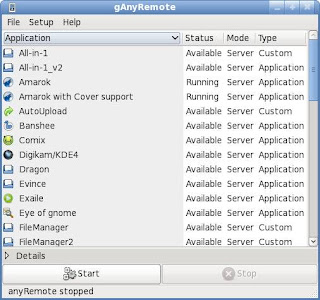
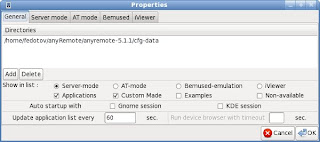
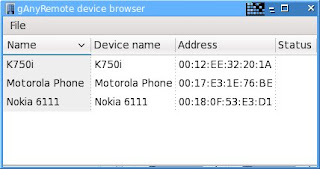
In your Ubuntu Software Center search for anyremote and install it.
Well configure anyremote in server mode, if your phone supports AT mode you may want to try that as well. If you are confused on which mode to choose click here.
Well use Bluetooth for connection.
Make sure that your phone and computer is paired. If you dont know how to, here is a short instruction.
- In Bluetooth setting make your phone visible.
- In your computer right click the bluetooth icon (in panel) and click new device
- Follow the on screen easy instruction.
sudo hciconfig hci0 piscanInstall anyremote software on your phone. You can download it from web http://anyremote.sourceforge.net/dload.html or use anyremote frontend to upload it on your phone.
Now run
anyremote -f /usr/share/anyremote/cfg-data/Server-mode/all-in-one.cfg -s bluetooth:19
- Go to Menu and Click Search.
- It will find your computer and select connect from menu again.
- Depending on your configuration file you can choose action to perform remotely.