Showing posts with label buttons. Show all posts
Showing posts with label buttons. Show all posts
Thursday, March 13, 2014
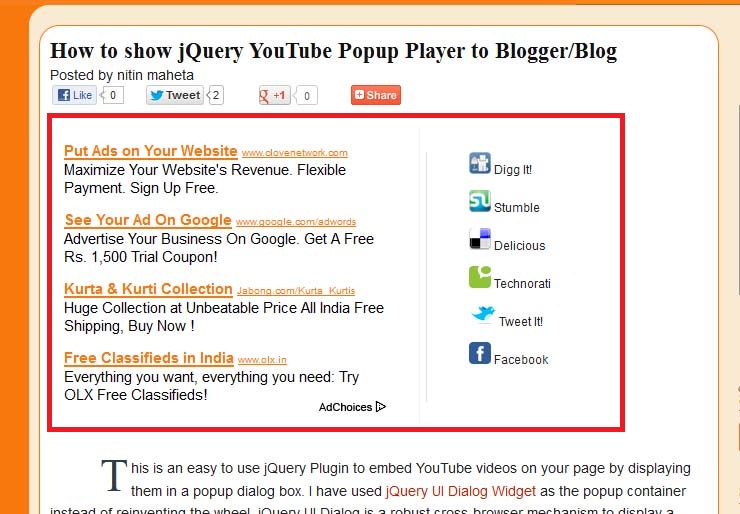
Social Bookmarking Buttons Beside Adsense Ad Unit In Blogger

The main advantages of this widget is that you can increase your Adsense impressions along with CTR – and of course, fill up the empty space besides Adsense units, making your blog look more beautiful and professional.
Preview:-
How to add this widget to blogger?
- First make your self a new Adsense ad unit with dimensions (300×250)
- Copy and paste adsense code in below Generator
- Click on Generate button to get CSS and HTML code
- Now go to blogger–>Template—>Edit HTML
- Tick the Expand Widget Template check box
- CTR+F to find ]]></b:skin> in your blogs HTML
- Copy & paste above CSS code just before ]]></b:skin>
- Next Search for <div class=’post-header-line-1′/>
- Copy & Paste Above HTML code just After <div class=’post-header-line-1′/>


Saturday, March 8, 2014
How to Stop Grouping of Taskbar Buttons in Windows 8
Reminding of old days, in Windows XP we had the expanded taskbar icons for currently running programs. Since Windows 7, these taskbar buttons are grouped by default to the program icon in order to increase free space on taskbar. But, some of users may find it uninteresting and they may like to restore the ungrouped program buttons.
Let’s see the differences between past and present conditions:

From the above image, I guess you’ve figured out what I’m trying to do. The reason behind broking the combination and split them to separate tab is to enhance the efficiency. In the past condition, you can read what’s going on the tab since it is mentioned there but in the present scenario, you have to move the cursor to get the same thing.
Now, in this article, we’ll provide you with three ways to configure these settings and increase the productivity of your Windows 8.
Method 1: Manually Using Taskbar Properties
1. Right click on taskbar and select Properties.

2. In the Taskbar Properties window, for the Taskbar buttons section, click the drop down menu and select Never combine.

Click Apply then OK. Reboot the machine to get results. So this was the basic way, now lets see some advance ways:
Method 2: Using Registry Editor
1. Press Windows Key + R and put regedit in Run dialog box, click OK to open Registry Editor.

2. Navigate here:
HKEY_CURRENT_USERSoftwareMicrosoftWindowsCurrentVersionExplorerAdvanced

3. In the right pane of this location, create a new DWORD using Right click -> New -> DWORD Value. Name it as TaskbarGlomLevel. Double click to modify it:

4. Put the Value data to 1 to have not combined tabs until taskbar is full, otherwise put 2 to have no grouping at all. Click OK. Restart the computer to see effects. If you want to group tabs again in the future, simply put 0 as Value data or delete the DWORD created in step 3.
Method 3: Using Command Prompt / Batch File
To simply the work, you can use the following .bat (command processing) file. Extract the RAR file and simply right click on the file after download and select Run as administrator:
Download: Batch File to Disable Grouping Taskbar on Windows 8
Hope you find the tip useful!
Saturday, January 11, 2014
Addthis Social Bookmarking Sites Buttons Widget for Blogger
Addthis Social Bookmarking Sites Buttons for Blogger to get more traffic from bookmarking websites to your blog instantly and you will also get more back links from bookmarking sites for each post. Social Bookmarking buttons used to share your post to bookmarking sites like Reddit, Facebook, Twitter, Delicious, Stumble Upon, Technorati etc. You can add all buttons on blogger or you can choose from many available social bookmarking sites buttons. This buttons add at the end of every post to share your post on all social bookmarking sites instantly when click on buttons.

Social Bookmarking Sites Buttons for Blogger
So let’s get started to add addthis social bookmarking sites buttons widget to your blog. Please follow below steps to add this widget to below every post.
Step 1
Go to Addthis and click on "Get This". Now register your account on addthis. If you dont want to register than leave it, that’s not necessary. Choose your right button and services that you want to use in share for your blog. When you chose your button please copy code.

Step 2
Now Login into Blogger Dashboard and go to Design then Edit HTML as shown in below picture.

Step 3
Now search below code with the help of CTRL+F
<div class=post-footer-line post-footer-line-1/>
Step 4
Now Copy and paste below code and paste below above code:
<b:if cond=data:blog.pageType == "item"> Paste Your Addthis code here </b:if>Tips: Paste your Addthis code in place of Paste Your Addthis code here.
Step 5
Now click on Save Template Button.
Subscribe to:
Posts (Atom)