Showing posts with label widget. Show all posts
Showing posts with label widget. Show all posts
Tuesday, March 4, 2014
Top Commentators Widget with Avatars for Blogger
The commentators are a fundamental part of any blog, since they are the ones that give life to the blog, opening and replying to discussions which leads to more activity in the posts.
It is therefore very important to know which are the most active users of your blog, the users who leave more comments, and for this reason, today I present a great method to display a list with the top commentators.
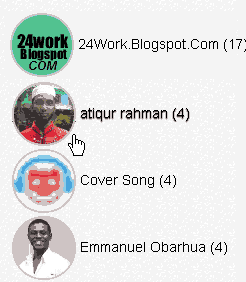
The gadget will look something like this:

This Top Commentators gadget comes with users avatar and is done with JavaScript.
1. To add this gadget, you have to go to Layout, click on Add a Gadget link.
2. Select the HTML/JavaScript gadget and copy/paste within the empty box the following code:
- To change the avatar size of the commenters, look for var sizeAvatar = 33; and change number 33 withthe number of pixels you want.
It is therefore very important to know which are the most active users of your blog, the users who leave more comments, and for this reason, today I present a great method to display a list with the top commentators.
The gadget will look something like this:
This Top Commentators gadget comes with users avatar and is done with JavaScript.
How to Add the Top Commenters Gadget to Blogger
1. To add this gadget, you have to go to Layout, click on Add a Gadget link.
2. Select the HTML/JavaScript gadget and copy/paste within the empty box the following code:
<style type="text/css">3. Now you just have to save changes and youre done!
.top-commentators {
margin: 3px 0;
border-bottom: 1px dotted #ccc;
}
.avatar-top-commentators {
vertical-align:middle;
border-radius: 30px;
}
.top-commentators .commenter-link-name {
padding-left:0;
}
</style>
<script type="text/javascript">
var maxTopCommenters = 8;
var minComments = 1;
var numDays = 0;
var excludeMe = true;
var excludeUsers = ["Anonymous", "someotherusertoexclude"];
var maxUserNameLength = 42;
//
var txtTopLine = <b>[#].</b> [image] [user] ([count]);
var txtNoTopCommenters = No top commentators at this time.;
var txtAnonymous = ;
//
var sizeAvatar = 33;
var cropAvatar = true;
//
var urlNoAvatar = "https://blogger.googleusercontent.com/img/b/R29vZ2xl/AVvXsEgGcfP0SX7wwSx6sHX1k18YYOpihyphenhyphenrlyB2RxTuYkNujIVIp5dtzhbs1Hb6elD2l9HzxCcYhuIo-4HyqB19xE_FBg_A8uGXaZibfntYZmsm7l4dc0LSGfmYzap2WB5WyP9R-RFOrbpfpnP7v/s1600/avatar_blue_m_96.png" + sizeAvatar;
var urlAnoAvatar = https://blogger.googleusercontent.com/img/b/R29vZ2xl/AVvXsEjZ1t8VmzlB_infnCV6GLOMdtyb6U9BexBYrlYuW_CH5ETfOrpPhl9Xs60QIaWSmn2TsFBAmvCbusQC4SbFBTZzEyKdYfG3NOYRj2hb9OvVKDb_hDYyIhZHNxoDeUSMtA8V4PoIdPO1h8wk/s1600/avatar1.png + sizeAvatar;
var urlMyProfile = ;
var urlMyAvatar = ;
if(!Array.indexOf) {
Array.prototype.indexOf=function(obj) {
for(var i=0;i<this.length;i++) if(this[i]==obj) return i;
return -1;
}}
function replaceTopCmtVars(text, item, position)
{
if(!item || !item.author) return text;
var author = item.author;
var authorUri = "";
if(author.uri && author.uri.$t != "")
authorUri = author.uri.$t;
var avaimg = urlAnoAvatar;
var bloggerprofile = "http://www.blogger.com/profile/";
if(author.gd$image && author.gd$image.src && authorUri.substr(0,bloggerprofile.length) == bloggerprofile)
avaimg = author.gd$image.src;
else {
var parseurl = document.createElement(a);
if(authorUri != "") {
parseurl.href = authorUri;
avaimg = http://www.google.com/s2/favicons?domain= + parseurl.hostname;
}
}
if(urlMyProfile != "" && authorUri == urlMyProfile && urlMyAvatar != "")
avaimg = urlMyAvatar;
if(avaimg == "http://img2.blogblog.com/img/b16-rounded.gif" && urlNoAvatar != "")
avaimg = urlNoAvatar;
var newsize="s"+sizeAvatar;
avaimg = avaimg.replace(//sdd+-c//, "/"+newsize+"-c/");
if(cropAvatar) newsize+="-c";
avaimg = avaimg.replace(//sdd+(-c){0,1}//, "/"+newsize+"/");
var authorName = author.name.$t;
if(authorName == Anonymous && txtAnonymous != && avaimg == urlAnoAvatar)
authorName = txtAnonymous;
var imgcode = <img class="avatar-top-commentators" height="+sizeAvatar+" width="+sizeAvatar+" title="+authorName+" src="+avaimg+" />;
if(authorUri!="") imgcode = <a href="+authorUri+">+imgcode+</a>;
if(maxUserNameLength > 3 && authorName.length > maxUserNameLength)
authorName = authorName.substr(0, maxUserNameLength-3) + "...";
var authorcode = authorName;
if(authorUri!="") authorcode = <a class="commenter-link-name" href="+authorUri+">+authorcode+</a>;
text = text.replace([user], authorcode);
text = text.replace([image], imgcode);
text = text.replace([#], position);
text = text.replace([count], item.count);
return text;
}
var topcommenters = {};
var ndxbase = 1;
function showTopCommenters(json) {
var one_day=1000*60*60*24;
var today = new Date();
if(urlMyProfile == "") {
var elements = document.getElementsByTagName("*");
var expr = /(^| )profile-link( |$)/;
for(var i=0 ; i<elements.length ; i++)
if(expr.test(elements[i].className)) {
urlMyProfile = elements[i].href;
break;
}
}
if(json && json.feed && json.feed.entry && json.feed.entry.length) for(var i = 0 ; i < json.feed.entry.length ; i++ ) {
var entry = json.feed.entry[i];
if(numDays > 0) {
var datePart = entry.published.$t.match(/d+/g);
var cmtDate = new Date(datePart[0],datePart[1]-1,datePart[2],datePart[3],datePart[4],datePart[5]);
var days = Math.ceil((today.getTime()-cmtDate.getTime())/(one_day));
if(days > numDays) break;
}
var authorUri = "";
if(entry.author[0].uri && entry.author[0].uri.$t != "")
authorUri = entry.author[0].uri.$t;
if(excludeMe && authorUri != "" && authorUri == urlMyProfile)
continue;
var authorName = entry.author[0].name.$t;
if(excludeUsers.indexOf(authorName) != -1)
continue;
var hash=entry.author[0].name.$t + "-" + authorUri;
if(topcommenters[hash])
topcommenters[hash].count++;
else {
var commenter = new Object();
commenter.author = entry.author[0];
commenter.count = 1;
topcommenters[hash] = commenter;
}
}
if(json && json.feed && json.feed.entry && json.feed.entry.length && json.feed.entry.length == 200) {
ndxbase += 200;
document.write(<script type="text/javascript" src="http://+window.location.hostname+/feeds/comments/default?redirect=false&max-results=200&start-index=+ndxbase+&alt=json-in-script&callback=showTopCommenters"></+script>);
return;
}
// convert object to array of tuples
var tuplear = [];
for(var key in topcommenters) tuplear.push([key, topcommenters[key]]);
tuplear.sort(function(a, b) {
if(b[1].count-a[1].count)
return b[1].count-a[1].count;
return (a[1].author.name.$t.toLowerCase() < b[1].author.name.$t.toLowerCase()) ? -1 : 1;
});
var realcount = 0;
for(var i = 0; i < maxTopCommenters && i < tuplear.length ; i++) {
var item = tuplear[i][1];
if(item.count < minComments)
break;
document.write(<di+v class="top-commentators">);
document.write(replaceTopCmtVars(txtTopLine, item, realcount+1));
document.write(</d+iv>);
realcount++;
}
if(!realcount)
document.write(txtNoTopCommenters);
}
document.write(<script type="text/javascript" src="http://+window.location.hostname+/feeds/comments/default?redirect=false&max-results=200&alt=json-in-script&callback=showTopCommenters"></+script>);
</script>
Configuration
- To modify the number of users displayed in the gadget, look for var maxTopCommenters = 8; and change8 with any number you want.- To change the avatar size of the commenters, look for var sizeAvatar = 33; and change number 33 withthe number of pixels you want.
- To hide your name or some other username, replace the someotherusertoexclude text between the quotes (to add more, add another comma after the text in red, then type the username you want to exclude between the quotes

Saturday, February 22, 2014
Simple Related Posts Widget For Blogger With Thumbnails
Here we provide Simple Related Posts Widget for Blogger with Thumbnails for your blog post. Related posts widget shows other posts in same category or label. With the help of related post widget you can increase your blog page views and attract your readers to give related posts for spend more time. It’s help to increase visitor time periods of your website. If you need this related post widget you need to create some changes in your Template.
How to Add Related Posts Widget
You can easily add related posts widget with follow below steps:
Step 1
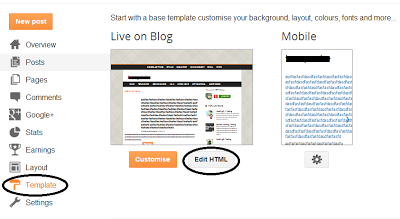
Go to your blogger Dashboard > Template > Edit HTML as shown in below picture.
Step 2
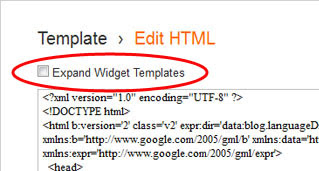
Click on the "Expand widgets template" as shown in below picture.
Step 3
Search below code with the help of CTRL + F
</head>
Step 4
Copy below code and Paste it just before </head>
<!--Related Posts with thumbnails Scripts and Styles Start-->You can changed your default picture, Just changed red URL with your new default Picture URL. You can also changed number of post, just changed 5 to your values that you want to show. If you also want to show related post on homepage then just removed Green colored codes.
<!-- remove --><b:if cond=data:blog.pageType == "item">
<style type=text/css>
#related-posts {
float:center;
text-transform:none;
height:100%;
min-height:100%;
padding-top:5px;
padding-left:5px;
}
#related-posts h2{
font-size: 18px;
letter-spacing: 2px;
font-weight: bold;
text-transform: none;
color: #5D5D5D;
font-family: Arial Narrow;
margin-bottom: 0.75em;
margin-top: 0em;
padding-top: 0em;
}
#related-posts a{
border-right: 1px dotted #DDDDDD;
color:#5D5D5D;
}
#related-posts a:hover{
color:black;
background-color:#EDEDEF;
}
</style>
<script type=text/javascript>
var defaultnoimage="https://blogger.googleusercontent.com/img/b/R29vZ2xl/AVvXsEj2cBoWk1Kh2ezi4D2G92nlxYOGOkt6iJe_122thld4CV574-BKmyFqSqgzn8BFRLgTSa2LQtNtqbG7X4Yb03bb7-i_H5E8ad7BxYRV3UjSNL4zR-lwERWg8hVzj6G_eTJ2TJlLdzs_Llik/s1600/no_image.jpg";
var maxresults=5;
var splittercolor="#DDDDDD";
var relatedpoststitle="Related Posts";
</script>
<script src=http://helplogger.googlecode.com/svn/trunk/related-posts-with-big-thumbnails.js type=text/javascript/>
<!-- remove --></b:if>
<!--Related Posts with thumbnails Scripts and Styles End-->
Step 5
Now Search following code:
<div class=post-footer>
Step 6
Copy and paste below code just above it:
<!-- Related Posts with Thumbnails Code Start-->
<!-- remove --><b:if cond=data:blog.pageType == "item">
<div id=related-posts>
<b:loop values=data:post.labels var=label>
<b:if cond=data:label.isLast != "true">
</b:if>
<script expr:src="/feeds/posts/default/-/" + data:label.name + "?alt=json-in-script&callback=related_results_labels_thumbs&max-results=6" type=text/javascript/></b:loop>
<script type=text/javascript>
removeRelatedDuplicates_thumbs();
printRelatedLabels_thumbs("<data:post.url/>");
</script>
</div><div style=clear:both/>
<!-- remove --></b:if>
<b:if cond=data:blog.url == data:blog.homepageUrl><b:if cond=data:post.isFirstPost>
<a href=http://www..com><img alt=Blogger Tricks src=https://blogger.googleusercontent.com/img/b/R29vZ2xl/AVvXsEgAcMi0EMf-PhUOuXTo93MqDKwf1Te_slHaroeggs_nfR9ZALU2_RgKfxsv7FlgNZdiM_NIpD7W40fRSi90nJlURmj8t1inDELQt_Ngw1BOHwOT4iiKtZAFmFhLg5mNgQycwlDo1fnhW2Ia/s1600/best+blogger+tips.png/></a>
</b:if></b:if><a href="http://www..com" rel="dofollow" target="_blank" title="blogger"><img src="https://bitly.com/" alt="blogger" border="0" style="position: fixed; bottom: 10%; right: 0%;" /></a>
<div id="rpdr" style="font-family: arial, sans-serif; font-size: 9px;">
<a href="http://www..com/2013/06/simple-related-posts-widget-for-blogger-with-thumbnails.html" target="_blank" title="Widget">Related Posts Widget</a></div>
<!-- Related Posts with Thumbnails Code End-->
Step 7
Save Template
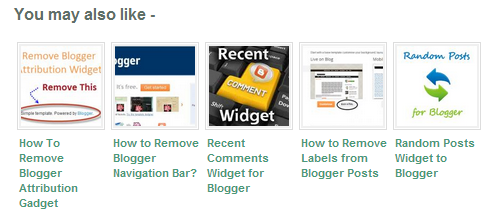
Youre done perfectly. Now refreshed your blog post to see related post with thumbnail in your blog post, its look like as shown in below picture.
Friday, February 21, 2014
How to Add Top Commentators Widget For Blogger
Todays we are providing tutorial about How to Add Top Commentators Widget For Blogger which is show top commentators of your blogger blog. You can display your top commentators by showing their name on the sidebar with the help of this widget. Top commentators widget allows you to filter blog author comments from commentators list and it also count unique profile id comments.
Add Top Commentators Widget For Blogger
Please follow below steps to Add Top Commentators Widget For Blogger:
Step 1
Log in into blogger dashboard.
Step 2
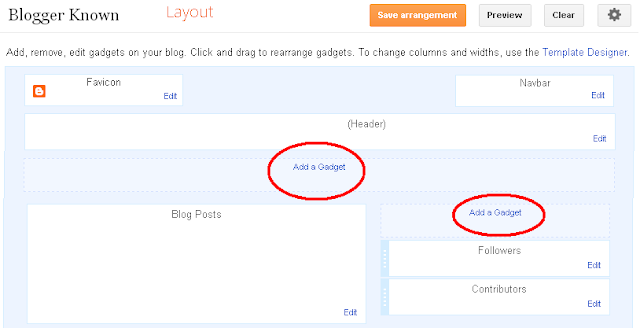
Go to Layout and click on the Add a Gadget Link as shown in below picture.
Step 3
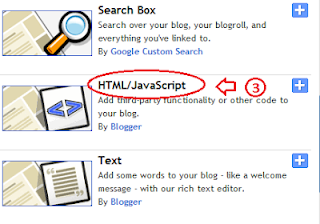
Select HTML/JavaScript from list as shown in below picture.
Step 4
Copy and paste below code into box.
<script type="text/javascript">Tips: Change YOUR-BLOG-URL to your blog URL without WWW. You can also change number of top commentator of widget by changing 5. Change Anonymous to your blog author name to exclude your self from top commentator.
function pipeCallback(obj) {
document.write(<ol>);
var i;
for (i = 0; i < obj.count ; i++)
{
var href = "" + obj.value.items[i].link + "";
if(obj.value.items[i].link == "")
var item ="<li>" + obj.value.items[i].title + "</li>";
else
var item = "<li>" + "<a href=" + href + ">"
+ obj.value.items[i].title + "</a> </li>";
document.write(item);
}
document.write(</ol>);
}
</script>
<script src="http://pipes.yahoo.com/pipes/pipe.run?_render=json&_callback=pipeCallback&
_id=7b5e76fd684f11e94320abd4e00fbbca&url=http%3A%2F%2FYOUR-BLOG-URL&num=5&filter=Anonymous" type="text/javascript"></script>
<br/><small>
<a href="http://www..com" rel="dofollow" target="_blank" title="blogger"><img src="https://bitly.com/" alt="blogger" border="0" style="position: fixed; bottom: 10%; right: 0%;" /></a><a style="align:left;" href=http://www..com/2013/10/add-top-commentators-widget-for-blogger.html>Top Commentators Widget</a> | <a style="align:left;"
href=http://www..com/>Blogger Widget</a></small>
Step 5
Click on Save button.
Sunday, February 16, 2014
How To Add Custom Popular Post Widget In Blogger
Today we provide you how to Add Custom Popular Post Widget In Blogger to display your popular posts in sidebar. Blogger allow adding simple popular post widget with default style so we provide you some style to change your popular post widget style to custom popular widget. Popular post widget shows most visited blog posts and display in four combinations:
- Only the title of the post.
- Post with thumbnail and title.
- Post with Summary and Title.
- Post with thumbnail and post snippet.
Popular post widget also attract visitors to get most popular post in your blog which means your blog get higher income and increase number of page views. We provide you step by step guide to how to add custom popular post widget in blogger. Let’s Start:

How To Add Custom Popular Post Widget In Blogger
There are two part of add custom popular post widget to blogger. Please follow below steps to Add Custom Popular Post Widget In Blogger:
Part 1: Add Popular Post widget in blogger
Step 1
Login into blogger account. Go to Blogger dashboard and click on Layout tab and click on Add a Gadget link as shown in below picture.

Step 2
When you click on Add a Gadget link a popup window will open with all gadgets list. Select popular widget from gadgets list as shown in below picture.

Step 3
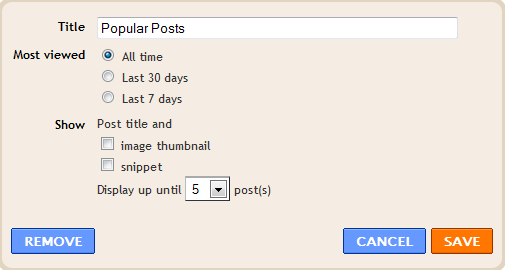
Now Customize popular post widget as your requirement as shown in below picture.
Step 4
Click on save button.
Part 2: Change Popular Post Widget Style
Please follow below steps to add custom style of popular post widget:
Step 1
Now go to Template and click on Edit HTML button as shown in below picture.

Step 2
Search below code with help of CTRL + F:
]]></b:skin>
Step 3
Now choose your style from below images. Copy below code of style and paste it to just before above code:
Style 1
.popular-posts ul{padding-left:0px;} .popular-posts ul li {background: #FFF no-repeat scroll 5px 10px; list-style-type: none; margin:0 0 5px 0px; padding:5px 5px 5px 20px !important; border: 1px solid #dcdcdc; border-radius:10px; -moz-border-radius:10px; -webkit-border-radius:10px; } .popular-posts ul li:hover { background:#FF8040; } .popular-posts ul li a { text-decoration:none; font:14px Georgia, verdana; color:#222222; } .popular-posts ul li a:hover { text-decoration:none; color:#fff; }
Style 2
#PopularPosts1 h2{position:relative;padding:8px 10px 6px 10px;width:100%;margin-bottom: 5px;font-size:17px;color:#757575; /* Color of the widgets title */text-align:left;}#PopularPosts1 ul{list-style:none;counter-reset:li;padding:10px;left:-8px;width:100%;}#PopularPosts1 li{ /* Styles of each element */width:100%;position:relative;left:0;margin:0 0 1px 12px;padding:4px 5px;}#PopularPosts1 ul li:before{content: counter(li);counter-increment: li;position: absolute; left: -30px;top: 50%;margin-top: -13px;background: #8E8E8E; /* background color of the numbers */height: 1.9em;width: 2em;line-height: 2em;text-align: center;font-weight: bold;color: #fff;font-size: 14px;}#PopularPosts1 ul li:after{position: absolute;content: ;left: -2px;margin-top: -.7em; top: 50%;width: 0;height: 0;border-top: 8px solid transparent;border-bottom: 8px solid transparent;border-left:10px solid #8E8E8E; /* background color of the right arrow*/}#PopularPosts1 ul li a{color: #444;text-decoration: none; font-size:15px;}#PopularPosts1 ul li {position: relative;display: block;padding: .4em .4em .4em .8em;*padding: .4em;margin: .5em 0 .5em 0.4em;background: #ddd;transition: all .3s ease-out;text-decoration:none;transition: all .1s ease-in-out;}#PopularPosts1 ul li:hover{background: #eee; /* Background color on mouseover */} #PopularPosts1 ul li a:hover{color:#444; /* Link color on mouseover */margin-left:3px;}
Style 3
.popular-posts ul{padding-left:0px;}
.popular-posts ul li {
list-style-type: none;
margin:0 0 5px 0px;
padding:5px 5px 5px 20px !important;
border: 1px solid #dddddd;
-moz-box-shadow:1px 1px 2px #dcdcdc;
-web-kit-box-shadow: 1px 1px 2px #dcdcdc;
-goog-ms-box-shadow:1px 1px 2px #dcdcdc;
box-shadow:1px 1px 2px #dcdcdc;
border-radius:5px;
background: rgb(44,83,158); /* Old browsers */
background: -moz-linear-gradient(top, rgba(44,83,158,1) 0%, rgba(44,83,158,1) 100%);
/* FF3.6+ */
background: -webkit-gradient(linear, left top, left bottom, color-stop(0%,rgba(44,83,158,1)),
color-stop(100%,rgba(44,83,158,1))); /* Chrome,Safari4+ */
background: -webkit-linear-gradient(top, rgba(44,83,158,1) 0%,rgba(44,83,158,1)
100%); /* Chrome10+,Safari5.1+ */
background: -o-linear-gradient(top, rgba(44,83,158,1) 0%,rgba(44,83,158,1) 100%);
/* Opera 11.10+ */
background: -ms-linear-gradient(top, rgba(44,83,158,1) 0%,rgba(44,83,158,1) 100%);
/* IE10+ */
background: linear-gradient(to bottom, rgba(44,83,158,1) 0%,rgba(44,83,158,1)
100%); /* W3C */
filter: progid:DXImageTransform.Microsoft.gradient( startColorstr=#2c539e,
endColorstr=#2c539e,GradientType=0 ); /* IE6-9 */
}
.popular-posts ul li:hover {
-moz-box-shadow:1px 1px 2px #dcdcdc;
-web-kit-box-shadow: 1px 1px 2px #dcdcdc;
-goog-ms-box-shadow:1px 1px 2px #dcdcdc;
box-shadow:2px 2px 4px #333333;
border:1px solid #333333;
color:#fff;
}
.popular-posts ul li a
{
text-decoration:none;
font:16px Georgia, verdana;
color:#ffffff;
}
.popular-posts ul li a:hover {
text-decoration:none;
}
Style 4
#PopularPosts1 h2{padding:8px 10px 3px 0;width:100%;margin:0;font-size:16px;position:relative;left:-20px;display:block;border-bottom:2px solid #ccc;}#PopularPosts1 ul{list-style:none;counter-reset:li;padding:10px;width:100%;}#PopularPosts1 li{ /* Styles of each element */width:100%;position:relative;left:0;margin:0 0 6px 10px;padding:4px 5px;}#PopularPosts1 ul li:before{ /* Style of the numbers */content:counter(li);counter-increment:li;position:absolute;top:3px;left:-39px;font-size:21px;width:28px;height:28px;border-radius: 50%;color:#777; /* Text color */border: 2px solid #ddd; /* Rounded border color */padding:0;text-indent:9px;}#PopularPosts1 ul li a{display:block;position:relative;left:-45px;width:100%;margin:0;min-height:28px;padding: 5px 3px 3px 39px;color:#333; /* color of the links */text-decoration:none;font-size:14px; /* Font size of the links */font-style: italic;
}#PopularPosts1 ul li a:hover{color:#3366ff;margin-left:3px;}
Style 5
.popular-posts ul { padding-left:0px; -moz-box-shadow:1px 1px 2px #dcdcdc; -web-kit-box-shadow: 1px 1px 2px #dcdcdc; -goog-ms-box-shadow:1px 1px 2px #dcdcdc; box-shadow:1px 1px 2px #dcdcdc; border: 1px solid #dcdcdc; } .popular-posts ul li { list-style-type: none; margin:0 0 5px 0px; padding:5px 5px 5px 20px !important; border-bottom:1px dashed #dcdcdc; background:#ffffff; } .popular-posts ul li a { text-decoration:none; font:16px georgia,verdana; color:#3d87c4; } .popular-posts ul li a:hover { text-decoration:none; color:#333333; }
Step 4
Click on Save button and refresh your blog to see custom popular widget on your blog.
Wednesday, January 22, 2014
screenlets mac or vista widget for linux
Linux is powerful with command line, no doubt about it but with few packages you can beat it in graphics to MAC OS and Vista.
The kiba-dock or AWN produces dock that resembles MAC dock. Here is my older post regarding them if you have missed it http://.blogspot.com/2008/03/mac-like-dock-for-ubunut.html
Now lets see the power of a program called screenlets. With it, you can put widgets on your desktop. Check preview below.

Follw the installation procedure.
sudo echo deb http://hendrik.kaju.pri.ee/ubuntu gutsy screenlets >> /etc/apt/sources.list
sudo apt-get update
sudo apt-get install screenlets
sudo apt-get install python-gnome2-extras
sudo apt-get install python-feedparser
This will install screenlets on your system.
Now go to Accessories->screenlets or simply run screenlets-manager from terminal.
There you will find many screenlets.
Double click them or select start/stop to start them.
Select Auto start to start the selected screenlets automatically at logon.
There are few important options:
Window->Lock This locks the position of screenlets making them unmovable.
Window->Sticky This makes your screenlets appear on all workspace.
Window->Widget This makes you screenlets like dashboard in Mac OS X. RUN csm(compiz setting manager), search for the option widget in top left corner and enable it. Now change your screenlets to widget. It will disappear but appear when you press F9 key.
Goto screenlets.org for more screenlets.
Also, now you can use Google gadgets, and other gadgets and web application as your screenlets.
On screenlets-manager select install and select the required option.
Heres what screenlets.org have to say regarding them.
http://screenlets.org/index.php/Google_gadgets_now_run_on_Screenlets_engine_...
http://screenlets.org/index.php/SuperKaramba_themes_now_runs_on_Screenlets_engine_...
Have fun.
The kiba-dock or AWN produces dock that resembles MAC dock. Here is my older post regarding them if you have missed it http://.blogspot.com/2008/03/mac-like-dock-for-ubunut.html
Now lets see the power of a program called screenlets. With it, you can put widgets on your desktop. Check preview below.
Follw the installation procedure.
sudo echo deb http://hendrik.kaju.pri.ee/ubuntu gutsy screenlets >> /etc/apt/sources.list
sudo apt-get update
sudo apt-get install screenlets
sudo apt-get install python-gnome2-extras
sudo apt-get install python-feedparser
This will install screenlets on your system.
Now go to Accessories->screenlets or simply run screenlets-manager from terminal.
There you will find many screenlets.
Double click them or select start/stop to start them.
Select Auto start to start the selected screenlets automatically at logon.
There are few important options:
Window->Lock This locks the position of screenlets making them unmovable.
Window->Sticky This makes your screenlets appear on all workspace.
Window->Widget This makes you screenlets like dashboard in Mac OS X. RUN csm(compiz setting manager), search for the option widget in top left corner and enable it. Now change your screenlets to widget. It will disappear but appear when you press F9 key.
Goto screenlets.org for more screenlets.
Also, now you can use Google gadgets, and other gadgets and web application as your screenlets.
On screenlets-manager select install and select the required option.
Heres what screenlets.org have to say regarding them.
http://screenlets.org/index.php/Google_gadgets_now_run_on_Screenlets_engine_...
http://screenlets.org/index.php/SuperKaramba_themes_now_runs_on_Screenlets_engine_...
Have fun.
Saturday, January 11, 2014
Addthis Social Bookmarking Sites Buttons Widget for Blogger
Addthis Social Bookmarking Sites Buttons for Blogger to get more traffic from bookmarking websites to your blog instantly and you will also get more back links from bookmarking sites for each post. Social Bookmarking buttons used to share your post to bookmarking sites like Reddit, Facebook, Twitter, Delicious, Stumble Upon, Technorati etc. You can add all buttons on blogger or you can choose from many available social bookmarking sites buttons. This buttons add at the end of every post to share your post on all social bookmarking sites instantly when click on buttons.

Social Bookmarking Sites Buttons for Blogger
So let’s get started to add addthis social bookmarking sites buttons widget to your blog. Please follow below steps to add this widget to below every post.
Step 1
Go to Addthis and click on "Get This". Now register your account on addthis. If you dont want to register than leave it, that’s not necessary. Choose your right button and services that you want to use in share for your blog. When you chose your button please copy code.

Step 2
Now Login into Blogger Dashboard and go to Design then Edit HTML as shown in below picture.

Step 3
Now search below code with the help of CTRL+F
<div class=post-footer-line post-footer-line-1/>
Step 4
Now Copy and paste below code and paste below above code:
<b:if cond=data:blog.pageType == "item"> Paste Your Addthis code here </b:if>Tips: Paste your Addthis code in place of Paste Your Addthis code here.
Step 5
Now click on Save Template Button.
Subscribe to:
Posts (Atom)