Showing posts with label bookmarking. Show all posts
Showing posts with label bookmarking. Show all posts
Thursday, March 13, 2014
Social Bookmarking Buttons Beside Adsense Ad Unit In Blogger

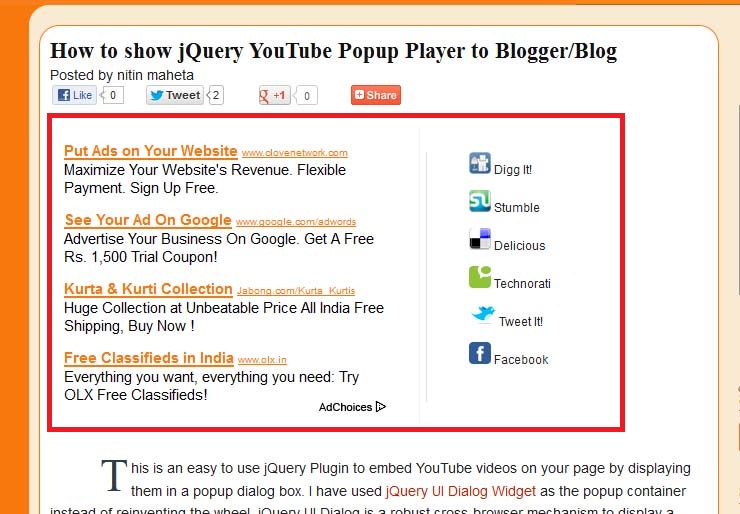
The main advantages of this widget is that you can increase your Adsense impressions along with CTR – and of course, fill up the empty space besides Adsense units, making your blog look more beautiful and professional.
Preview:-
How to add this widget to blogger?
- First make your self a new Adsense ad unit with dimensions (300×250)
- Copy and paste adsense code in below Generator
- Click on Generate button to get CSS and HTML code
- Now go to blogger–>Template—>Edit HTML
- Tick the Expand Widget Template check box
- CTR+F to find ]]></b:skin> in your blogs HTML
- Copy & paste above CSS code just before ]]></b:skin>
- Next Search for <div class=’post-header-line-1′/>
- Copy & Paste Above HTML code just After <div class=’post-header-line-1′/>


Sunday, February 16, 2014
Add Social Bookmarking Icons Below Blogger Posts

Social bookmarks improve traffic to our blog, it is necessary that you make it more attractive and big.Follow these simple steps to display beautiful social bookmarking sites below every blogger posts.
* login to your dashboard
* Navigate to "Layout>>Edit HTML" from your dashboard
* expand your template, that is, make sure that you have a tick mark in that "Expand Widget Template"
* search using "CTRL+F" for the following line:

* After locating above lines, Copy the code given below, and paste it after above lines (found in your template)
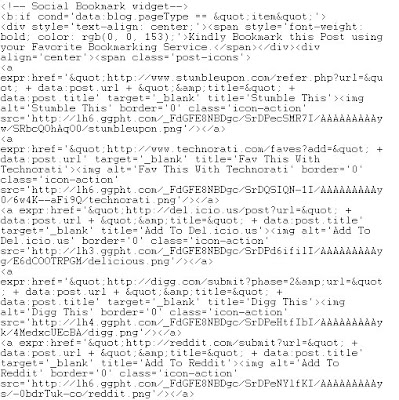
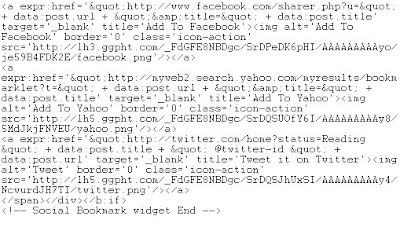
* Now save your template and checkout!
Note :
1. Find twitter-id in the code and replace with your twitter user name.
Tags:-Add Social Bookmarking Icons Below Blogger Posts,social,bookmarking,Social Bookmarking,Icons,Add Social Bookmarking Icons,How to Add Social Bookmarking Icons,How to Add Social Bookmarking Icons belw every post,Social Bookmarking Icons Below Blogger Posts, blogger,blog,inrease blog traffic, increase google page rank, increase alexa rank, increse traffic.
Saturday, January 11, 2014
Addthis Social Bookmarking Sites Buttons Widget for Blogger
Addthis Social Bookmarking Sites Buttons for Blogger to get more traffic from bookmarking websites to your blog instantly and you will also get more back links from bookmarking sites for each post. Social Bookmarking buttons used to share your post to bookmarking sites like Reddit, Facebook, Twitter, Delicious, Stumble Upon, Technorati etc. You can add all buttons on blogger or you can choose from many available social bookmarking sites buttons. This buttons add at the end of every post to share your post on all social bookmarking sites instantly when click on buttons.

Social Bookmarking Sites Buttons for Blogger
So let’s get started to add addthis social bookmarking sites buttons widget to your blog. Please follow below steps to add this widget to below every post.
Step 1
Go to Addthis and click on "Get This". Now register your account on addthis. If you dont want to register than leave it, that’s not necessary. Choose your right button and services that you want to use in share for your blog. When you chose your button please copy code.

Step 2
Now Login into Blogger Dashboard and go to Design then Edit HTML as shown in below picture.

Step 3
Now search below code with the help of CTRL+F
<div class=post-footer-line post-footer-line-1/>
Step 4
Now Copy and paste below code and paste below above code:
<b:if cond=data:blog.pageType == "item"> Paste Your Addthis code here </b:if>Tips: Paste your Addthis code in place of Paste Your Addthis code here.
Step 5
Now click on Save Template Button.
Subscribe to:
Posts (Atom)