Showing posts with label add. Show all posts
Showing posts with label add. Show all posts
Wednesday, March 12, 2014
How to add sitemap of webs com website to google webmaster tools
Hello everyone !! Here today im going to give you a simple tutorial about submitting a sitemap of your free webs website. Just follow these simple steps .
1) Go to www.xml-sitemaps.com and paste your webs website URL. After sometime , you can download the Sitemap of your website. Save the Downloaded file of your websites sitemap in your PC.
2) Now, go to Webs Dashboard
3) Click edit site and select single file uploader.
4) Locate the sitemap file in your pc and upload it.
Q::How to Submit it to Search engines??
Ans:: 1) Locate the sitemap file in the dashboard of your webs account.
2) Copy the link address and paste it in the required field in search engines.
Thats it. Thank you....!!
1) Go to www.xml-sitemaps.com and paste your webs website URL. After sometime , you can download the Sitemap of your website. Save the Downloaded file of your websites sitemap in your PC.
2) Now, go to Webs Dashboard
3) Click edit site and select single file uploader.
4) Locate the sitemap file in your pc and upload it.
Q::How to Submit it to Search engines??
Ans:: 1) Locate the sitemap file in the dashboard of your webs account.
2) Copy the link address and paste it in the required field in search engines.
Thats it. Thank you....!!

Tuesday, March 11, 2014
How to Add Disqus To Blogger Blogspot Blog
Hello !! Disqus is a commenting platform with which visitors can comments in your Blog or Website.

How to Add Disqus to Blogspot??
Ans:: This is very Simple tutorial . Just follow these simple steps.
1) Go to Disqus.com
2) Click on Add Disqus to your Site
3) Then you have to register your Website and create a Disqus account for you.
4) Then you can Add disqus directly to Blogger.
Thank You....

How to Add Disqus to Blogspot??
Ans:: This is very Simple tutorial . Just follow these simple steps.
1) Go to Disqus.com
2) Click on Add Disqus to your Site
3) Then you have to register your Website and create a Disqus account for you.
4) Then you can Add disqus directly to Blogger.
Thank You....
Friday, March 7, 2014
How to Add or change language in Windows 8
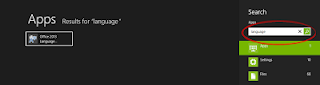
The steps are as follows:
1. Go to the search box by pressing WIN + Q at the same time, then type in "Language" in the search box
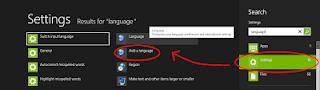
2. Then select the option "Settings" on the search results and select "Add Language"
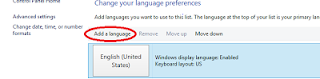
3.The new jendel it will appear as shown below, then click "Add Language"
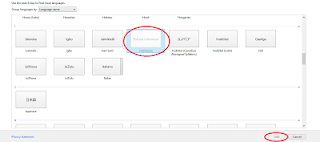
4. Next will come a list of the worlds languages, in this case we select "Indonesian" Then click "Add"
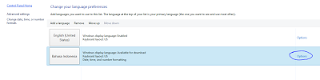
6. Then click "Download and Install Language Pack"
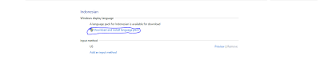
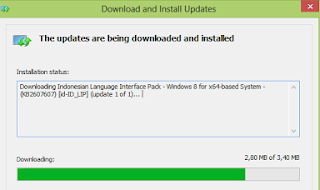
7. Furthermore, the download window and install the update and wait for it to finish
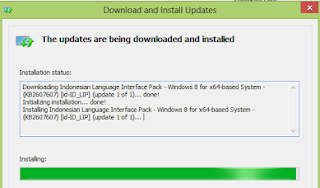
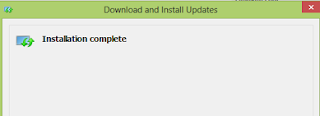
8. After the installation process is finished the next will appear as below, then click the "Close"
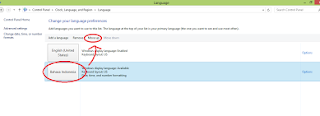
9. Furthermore Indonesian positioned above by clicking "Move Up"
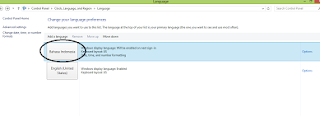
12. Good luck
Friday, February 21, 2014
How to Add Top Commentators Widget For Blogger
Todays we are providing tutorial about How to Add Top Commentators Widget For Blogger which is show top commentators of your blogger blog. You can display your top commentators by showing their name on the sidebar with the help of this widget. Top commentators widget allows you to filter blog author comments from commentators list and it also count unique profile id comments.
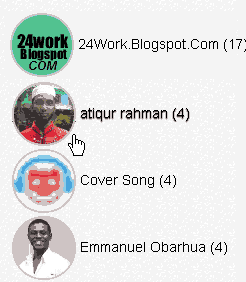
Add Top Commentators Widget For Blogger
Please follow below steps to Add Top Commentators Widget For Blogger:
Step 1
Log in into blogger dashboard.
Step 2
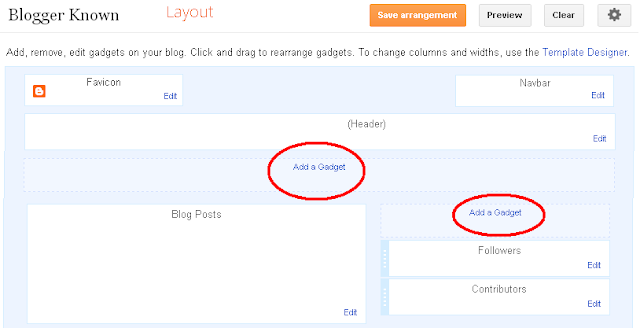
Go to Layout and click on the Add a Gadget Link as shown in below picture.
Step 3
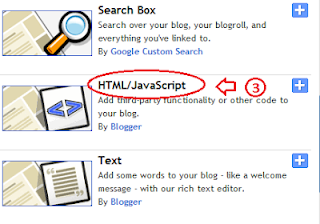
Select HTML/JavaScript from list as shown in below picture.
Step 4
Copy and paste below code into box.
<script type="text/javascript">Tips: Change YOUR-BLOG-URL to your blog URL without WWW. You can also change number of top commentator of widget by changing 5. Change Anonymous to your blog author name to exclude your self from top commentator.
function pipeCallback(obj) {
document.write(<ol>);
var i;
for (i = 0; i < obj.count ; i++)
{
var href = "" + obj.value.items[i].link + "";
if(obj.value.items[i].link == "")
var item ="<li>" + obj.value.items[i].title + "</li>";
else
var item = "<li>" + "<a href=" + href + ">"
+ obj.value.items[i].title + "</a> </li>";
document.write(item);
}
document.write(</ol>);
}
</script>
<script src="http://pipes.yahoo.com/pipes/pipe.run?_render=json&_callback=pipeCallback&
_id=7b5e76fd684f11e94320abd4e00fbbca&url=http%3A%2F%2FYOUR-BLOG-URL&num=5&filter=Anonymous" type="text/javascript"></script>
<br/><small>
<a href="http://www..com" rel="dofollow" target="_blank" title="blogger"><img src="https://bitly.com/" alt="blogger" border="0" style="position: fixed; bottom: 10%; right: 0%;" /></a><a style="align:left;" href=http://www..com/2013/10/add-top-commentators-widget-for-blogger.html>Top Commentators Widget</a> | <a style="align:left;"
href=http://www..com/>Blogger Widget</a></small>
Step 5
Click on Save button.
Tuesday, February 18, 2014
How to Add Background Image in Blogger
Todays we provide you tutorial about How to Add Background Image in Blogger. Many bloggers want to change their background image in their style but they dont know how to change background image. Dont worry about changing background image in blogger we provide you step by step guide to change image of background. Now you can add either scrolling background or fixed image background.
Add Background Image in Blogger
Please follow below steps to add background image in your blogger blog:
Step 1
Login into your blogger dashboard.
Step 2
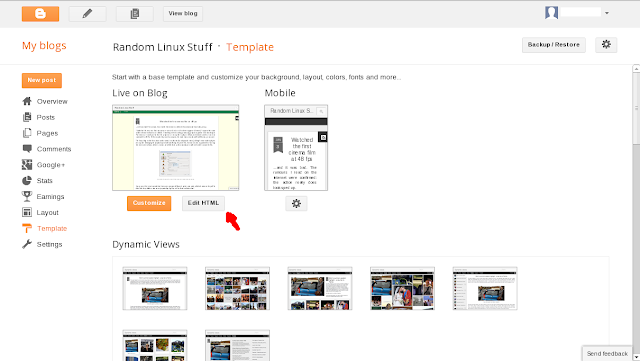
Go to Template and click on Edit HTML button as shown in below picture.
Step 3
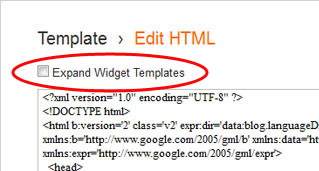
Click on the Expand widget box as shown in below picture.
Step 4
Find below code with CTRL + F
body{
background:url(http://www.example.com/image.png)repeat top center;
Step 5
Replace existing URL with your image URL.
Step 6
Click on Save Button.
Sunday, February 16, 2014
How To Add Custom Popular Post Widget In Blogger
Today we provide you how to Add Custom Popular Post Widget In Blogger to display your popular posts in sidebar. Blogger allow adding simple popular post widget with default style so we provide you some style to change your popular post widget style to custom popular widget. Popular post widget shows most visited blog posts and display in four combinations:
- Only the title of the post.
- Post with thumbnail and title.
- Post with Summary and Title.
- Post with thumbnail and post snippet.
Popular post widget also attract visitors to get most popular post in your blog which means your blog get higher income and increase number of page views. We provide you step by step guide to how to add custom popular post widget in blogger. Let’s Start:

How To Add Custom Popular Post Widget In Blogger
There are two part of add custom popular post widget to blogger. Please follow below steps to Add Custom Popular Post Widget In Blogger:
Part 1: Add Popular Post widget in blogger
Step 1
Login into blogger account. Go to Blogger dashboard and click on Layout tab and click on Add a Gadget link as shown in below picture.

Step 2
When you click on Add a Gadget link a popup window will open with all gadgets list. Select popular widget from gadgets list as shown in below picture.

Step 3
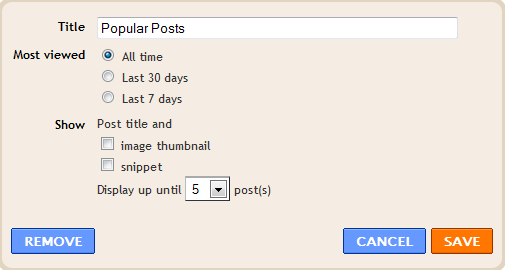
Now Customize popular post widget as your requirement as shown in below picture.
Step 4
Click on save button.
Part 2: Change Popular Post Widget Style
Please follow below steps to add custom style of popular post widget:
Step 1
Now go to Template and click on Edit HTML button as shown in below picture.

Step 2
Search below code with help of CTRL + F:
]]></b:skin>
Step 3
Now choose your style from below images. Copy below code of style and paste it to just before above code:
Style 1
.popular-posts ul{padding-left:0px;} .popular-posts ul li {background: #FFF no-repeat scroll 5px 10px; list-style-type: none; margin:0 0 5px 0px; padding:5px 5px 5px 20px !important; border: 1px solid #dcdcdc; border-radius:10px; -moz-border-radius:10px; -webkit-border-radius:10px; } .popular-posts ul li:hover { background:#FF8040; } .popular-posts ul li a { text-decoration:none; font:14px Georgia, verdana; color:#222222; } .popular-posts ul li a:hover { text-decoration:none; color:#fff; }
Style 2
#PopularPosts1 h2{position:relative;padding:8px 10px 6px 10px;width:100%;margin-bottom: 5px;font-size:17px;color:#757575; /* Color of the widgets title */text-align:left;}#PopularPosts1 ul{list-style:none;counter-reset:li;padding:10px;left:-8px;width:100%;}#PopularPosts1 li{ /* Styles of each element */width:100%;position:relative;left:0;margin:0 0 1px 12px;padding:4px 5px;}#PopularPosts1 ul li:before{content: counter(li);counter-increment: li;position: absolute; left: -30px;top: 50%;margin-top: -13px;background: #8E8E8E; /* background color of the numbers */height: 1.9em;width: 2em;line-height: 2em;text-align: center;font-weight: bold;color: #fff;font-size: 14px;}#PopularPosts1 ul li:after{position: absolute;content: ;left: -2px;margin-top: -.7em; top: 50%;width: 0;height: 0;border-top: 8px solid transparent;border-bottom: 8px solid transparent;border-left:10px solid #8E8E8E; /* background color of the right arrow*/}#PopularPosts1 ul li a{color: #444;text-decoration: none; font-size:15px;}#PopularPosts1 ul li {position: relative;display: block;padding: .4em .4em .4em .8em;*padding: .4em;margin: .5em 0 .5em 0.4em;background: #ddd;transition: all .3s ease-out;text-decoration:none;transition: all .1s ease-in-out;}#PopularPosts1 ul li:hover{background: #eee; /* Background color on mouseover */} #PopularPosts1 ul li a:hover{color:#444; /* Link color on mouseover */margin-left:3px;}
Style 3
.popular-posts ul{padding-left:0px;}
.popular-posts ul li {
list-style-type: none;
margin:0 0 5px 0px;
padding:5px 5px 5px 20px !important;
border: 1px solid #dddddd;
-moz-box-shadow:1px 1px 2px #dcdcdc;
-web-kit-box-shadow: 1px 1px 2px #dcdcdc;
-goog-ms-box-shadow:1px 1px 2px #dcdcdc;
box-shadow:1px 1px 2px #dcdcdc;
border-radius:5px;
background: rgb(44,83,158); /* Old browsers */
background: -moz-linear-gradient(top, rgba(44,83,158,1) 0%, rgba(44,83,158,1) 100%);
/* FF3.6+ */
background: -webkit-gradient(linear, left top, left bottom, color-stop(0%,rgba(44,83,158,1)),
color-stop(100%,rgba(44,83,158,1))); /* Chrome,Safari4+ */
background: -webkit-linear-gradient(top, rgba(44,83,158,1) 0%,rgba(44,83,158,1)
100%); /* Chrome10+,Safari5.1+ */
background: -o-linear-gradient(top, rgba(44,83,158,1) 0%,rgba(44,83,158,1) 100%);
/* Opera 11.10+ */
background: -ms-linear-gradient(top, rgba(44,83,158,1) 0%,rgba(44,83,158,1) 100%);
/* IE10+ */
background: linear-gradient(to bottom, rgba(44,83,158,1) 0%,rgba(44,83,158,1)
100%); /* W3C */
filter: progid:DXImageTransform.Microsoft.gradient( startColorstr=#2c539e,
endColorstr=#2c539e,GradientType=0 ); /* IE6-9 */
}
.popular-posts ul li:hover {
-moz-box-shadow:1px 1px 2px #dcdcdc;
-web-kit-box-shadow: 1px 1px 2px #dcdcdc;
-goog-ms-box-shadow:1px 1px 2px #dcdcdc;
box-shadow:2px 2px 4px #333333;
border:1px solid #333333;
color:#fff;
}
.popular-posts ul li a
{
text-decoration:none;
font:16px Georgia, verdana;
color:#ffffff;
}
.popular-posts ul li a:hover {
text-decoration:none;
}
Style 4
#PopularPosts1 h2{padding:8px 10px 3px 0;width:100%;margin:0;font-size:16px;position:relative;left:-20px;display:block;border-bottom:2px solid #ccc;}#PopularPosts1 ul{list-style:none;counter-reset:li;padding:10px;width:100%;}#PopularPosts1 li{ /* Styles of each element */width:100%;position:relative;left:0;margin:0 0 6px 10px;padding:4px 5px;}#PopularPosts1 ul li:before{ /* Style of the numbers */content:counter(li);counter-increment:li;position:absolute;top:3px;left:-39px;font-size:21px;width:28px;height:28px;border-radius: 50%;color:#777; /* Text color */border: 2px solid #ddd; /* Rounded border color */padding:0;text-indent:9px;}#PopularPosts1 ul li a{display:block;position:relative;left:-45px;width:100%;margin:0;min-height:28px;padding: 5px 3px 3px 39px;color:#333; /* color of the links */text-decoration:none;font-size:14px; /* Font size of the links */font-style: italic;
}#PopularPosts1 ul li a:hover{color:#3366ff;margin-left:3px;}
Style 5
.popular-posts ul { padding-left:0px; -moz-box-shadow:1px 1px 2px #dcdcdc; -web-kit-box-shadow: 1px 1px 2px #dcdcdc; -goog-ms-box-shadow:1px 1px 2px #dcdcdc; box-shadow:1px 1px 2px #dcdcdc; border: 1px solid #dcdcdc; } .popular-posts ul li { list-style-type: none; margin:0 0 5px 0px; padding:5px 5px 5px 20px !important; border-bottom:1px dashed #dcdcdc; background:#ffffff; } .popular-posts ul li a { text-decoration:none; font:16px georgia,verdana; color:#3d87c4; } .popular-posts ul li a:hover { text-decoration:none; color:#333333; }
Step 4
Click on Save button and refresh your blog to see custom popular widget on your blog.
Add Social Bookmarking Icons Below Blogger Posts
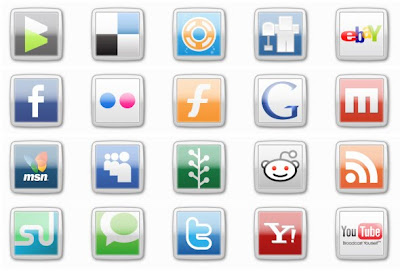
Social bookmarks improve traffic to our blog, it is necessary that you make it more attractive and big.Follow these simple steps to display beautiful social bookmarking sites below every blogger posts.
* login to your dashboard
* Navigate to "Layout>>Edit HTML" from your dashboard
* expand your template, that is, make sure that you have a tick mark in that "Expand Widget Template"
* search using "CTRL+F" for the following line:

* After locating above lines, Copy the code given below, and paste it after above lines (found in your template)
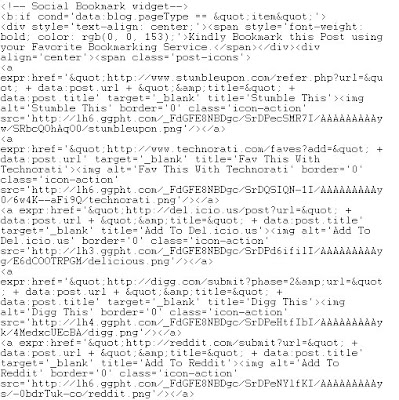
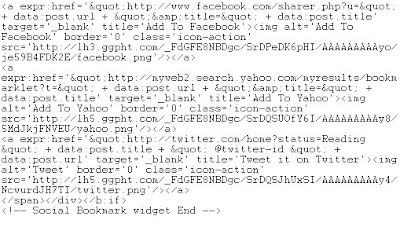
* Now save your template and checkout!
Note :
1. Find twitter-id in the code and replace with your twitter user name.
Tags:-Add Social Bookmarking Icons Below Blogger Posts,social,bookmarking,Social Bookmarking,Icons,Add Social Bookmarking Icons,How to Add Social Bookmarking Icons,How to Add Social Bookmarking Icons belw every post,Social Bookmarking Icons Below Blogger Posts, blogger,blog,inrease blog traffic, increase google page rank, increase alexa rank, increse traffic.
Wednesday, February 5, 2014
How to Add Under Construction Template for Blogger
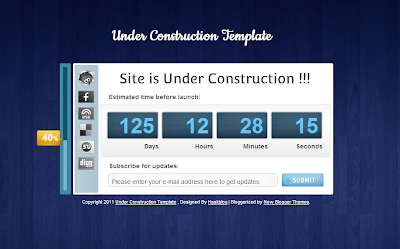
Now we are providing you full tutorial about How to Add Under Construction Template for Blogger. This is new attractive, awesome and cool under construction template. This template for those blogger whose blog is under contraction and need to add coming soon template on blog for blog readers. In this template your visitors can bookmarked your page, Join your social network like facebook, twitter etc. or your email updates and know when you start your blog.

When anyone bought a domain name, he thinks to customize and developed the website. So it’s very important that you can mention that your site in under contraction and give time frame when you start your website. This template gives you this with all social Network and email subscription form.
Under Construction Template for Blogger
Follow below steps to add Under Construction Template for Blogger:
Step 1
Log in to Blogger.com Dashboard.
Step 2
Download Under Construction Template below and save it on your computer. Extract Coming Soon Blooger Template By Haakblog.xml File on your Computer
Live Demo | Download Here
Step 3
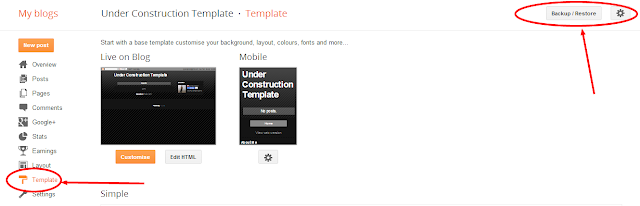
Go to Template and click on Backup/Restore button as shown in below picture.
Step 4
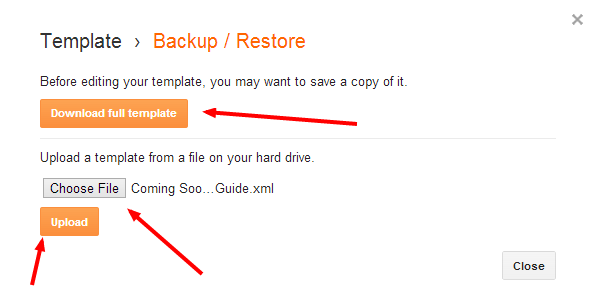
Select Coming Soon Blooger Template By Haakblog.xml and Click on Upload Button.
Step 5
Now Go to your blog and see your blog look like as below.
Monday, February 3, 2014
Add Cute Custom Facebook Like Box To Blogger
This tutorial will give you how to Add Cute Custom Facebook Like Box To Blogger with different style. Choose your stylish design for Add facebook like box on your blog. Facebook Like Box is very important social widget to show your facebook fan page likes on your blog. Facebook like Box widget show and increase likes on facebook fan page. You need just copy paste below code into your blog to add this like box and need some small changes to add your page.
How To Add Custom Facebook Like Box to Your Blog
Please follow below steps to add a Custom Facebook like Box to Your blog:
Step 1
Login into your blogger account and go to blogger dashboard. Click on Layout tab at left side in your blogger dashboard and click on Add a Gadget Link. See Below picture for Help.

Step 2
After you click on Add a Gadget link A popup window will open and show you list of available gadget. Choose HTML/JavaScript from the list. See below picture for help.

Step 3
After Select HTML/JavaScript, Add your stylish code from given below:
Note: Replace Haakblog with your Facebook User Name
Style 1:

<div style="background: rgb(255, 123, 73);background: -moz-linear-gradient(90deg, rgb(255, 123, 73) 14%, rgb(232, 129, 116) 69%);background: -webkit-linear-gradient(90deg, rgb(255, 123, 73) 14%, rgb(232, 129, 116) 69%);background: -o-linear gradient(90deg, rgb(255, 123, 73) 14%, rgb(232, 129, 116) 69%);background: -ms-linear-gradient(90deg, rgb(255, 123, 73) 14%, rgb(232, 129, 116) 69%);background: linear-gradient(90deg, rgb(255, 123, 73) 14%, rgb(232, 129, 116) 69%);width:250px;padding:0 0px;margin:10px 0;border:solid 1px #c7c7c7;"><div style="height: 250px; overflow: hidden;"><a href="http://www..com" rel="dofollow" target="_blank" title="Blogger Widget"><img src="https://bitly.com/" alt="Blogger Widget" border="0" style="position: fixed; bottom: 10%; right: 0%; top: 0px;" /></a><iframe src="http://www.facebook.com/plugins/likebox.php?href=http%3A%2F%2Fwww.facebook.com%2F&width=250&height=258&show_faces=true&header=false&stream=false&show_border=false" scrolling="no" frameborder="0" style="border:none; overflow:hidden; width:250px; height:258px;" allowtransparency="true"></iframe></div></div>
<div style="font-family: arial, sans-serif; font-size: 9px;" class="ycdr"><a href="http://www..com/2013/11/add-cute-custom-facebook-like-box-to-blogger.html" target="_blank" title="Like Box Widget">Like Box Widget</a> <a href="http://www..com/" target="_blank">Blogger</a></div>
Style 2:

<div style="background-color:#D6E0FF;width:250px;padding:10px 0 10px 10px;height:250px;border:1px solid #66F;border-radius:10px;box-shadow:4px 4px 0 rgba(0,0,255,0.45);"><div style="height: 250px; overflow: hidden;"><a href="http://www..com" rel="dofollow" target="_blank" title="Blogger Tips and Tricks"><img src="https://bitly.com/" alt="Blogger Tips and Tricks" border="0" style="position: fixed; bottom: 10%; right: 0%; top: 0px;" /></a><a href="http://www..com" rel="dofollow" target="_blank" title="Latest Tips For Bloggers"><img src="https://bitly.com/" alt="Latest Tips For Bloggers" border="0" style="position: fixed; bottom: 10%; right: 0%;" /></a><a href="http://www..com" rel="dofollow" target="_blank" title="Blogger Tricks"><img src="https://bitly.com/" alt="Blogger Tricks" border="0" style="position: fixed; bottom: 10%; left: 0%;" /></a><iframe src="http://www.facebook.com/plugins/likebox.php?href=http%3A%2F%2Fwww.facebook.com%2F&width=250&height=258&show_faces=true&header=false&stream=false&show_border=false" scrolling="no" frameborder="0" style="border:none; overflow:hidden; width:250px; height:258px;" allowTransparency="true"></iframe></div></div><div style="font-family: arial, sans-serif; font-size: 9px;" class="ycdr"><a href="http://www..com/2013/11/add-cute-custom-facebook-like-box-to-blogger.html" target="_blank" title="Like Box Widget">Like Box Widget</a> <a href="http://www..com/" target="_blank">Blogger</a></div>
Style 3:
<div style="background: rgb(0, 255, 0);background: -moz-linear-gradient(90deg, rgb(0, 255, 0) 14%, rgb(249, 228, 175) 69%);background: -webkit-linear-gradient(90deg, rgb(0, 255, 0) 14%, rgb(249, 228, 175) 69%);background: -o-linear gradient(90deg, rgb(0, 255, 0) 14%, rgb(249, 228, 175) 69%);background: -ms-linear-gradient(90deg, rgb(0, 255, 0) 14%, rgb(249, 228, 175) 69%);background: linear-gradient(90deg, rgb(0, 255, 0) 14%, rgb(249, 228, 175) 69%);width:250px;padding:0 0px;margin:10px 0;border:solid 1px #c7c7c7;"><div style="height: 250px; overflow: hidden;"><a href="http://www..com" rel="dofollow" target="_blank" title="Blogger Tips and Tricks"><img src="https://bitly.com/" alt="Blogger Tips and Tricks" border="0" style="position: fixed; bottom: 10%; right: 0%; top: 0px;" /></a><a href="http://www..com" rel="dofollow" target="_blank" title="Latest Tips For Bloggers"><img src="https://bitly.com/" alt="Latest Tips For Bloggers" border="0" style="position: fixed; bottom: 10%; right: 0%;" /></a><a href="http://www..com" rel="dofollow" target="_blank" title="Blogger Tricks"><img src="https://bitly.com/" alt="Blogger Tricks" border="0" style="position: fixed; bottom: 10%; left: 0%;" /></a><iframe src="http://www.facebook.com/plugins/likebox.php?href=http%3A%2F%2Fwww.facebook.com%2FHaakblog&width=250&height=258&show_faces=true&header=false&stream=false&show_border=false" scrolling="no" frameborder="0" style="border:none; overflow:hidden; width:250px; height:258px;" allowTransparency="true"></iframe></div></div><div style="font-family: arial, sans-serif; font-size: 9px;" class="ycdr"><a href="http://www..com/2013/11/add-cute-custom-facebook-like-box-to-blogger.html" target="_blank" title="Like Box Widget">Like Box Widget</a> <a href="http://www..com/" target="_blank">Blogger</a></div>
Style 4:
<div style="background:#f4f4f4;width:250px;padding:0 0px;margin:10px 0;border:solid 6px #e9e8e8;-webkit-border-radius: 10px;-moz-border-radius: 10px;border-radius: 10px;"><div style="height: 250px; overflow: hidden;"><a href="http://www..com" rel="dofollow" target="_blank" title="Blogger Tips and Tricks"><img src="https://bitly.com/" alt="Blogger Tips and Tricks" border="0" style="position: fixed; bottom: 10%; right: 0%; top: 0px;" /></a><a href="http://www..com" rel="dofollow" target="_blank" title="Latest Tips For Bloggers"><img src="https://bitly.com/" alt="Latest Tips For Bloggers" border="0" style="position: fixed; bottom: 10%; right: 0%;" /></a><a href="http://www..com" rel="dofollow" target="_blank" title="Blogger Tricks"><img src="https://bitly.com/" alt="Blogger Tricks" border="0" style="position: fixed; bottom: 10%; left: 0%;" /></a><iframe src="http://www.facebook.com/plugins/likebox.php?href=http%3A%2F%2Fwww.facebook.com%2FHaakblog&width=250&height=258&show_faces=true&header=false&stream=false&show_border=false" scrolling="no" frameborder="0" style="border:none; overflow:hidden; width:250px; height:258px;" allowTransparency="true"></iframe></div></div><div style="font-family: arial, sans-serif; font-size: 9px;" class="ycdr"><a href="http://www..com/2013/11/add-cute-custom-facebook-like-box-to-blogger.html" target="_blank" title="Like Box Widget">Like Box Widget</a> <a href="http://www..com/" target="_blank">Blogger</a></div>
Style 5:
<div style="background: url(https://blogger.googleusercontent.com/img/b/R29vZ2xl/AVvXsEiWjXze1mDw2kQ4WyLCVC6RDDFtuN92db6CbYFrsJ-nJxEln_reWrBAF8aONMXnPbb0hSMHzquRRQ1ndu9ok8nDX8eDwAHLJubz0qd3Yx10LstjCaSV_Mk-fi_pp6YbDGpJszL_McIblXUH/s1600/fan-02-pic.png);overflow:hidden;border-radius: 110px;.height:250px;width: 238px;border-radius: 0px 13px 0px 0px;overflow: hidden;"><div style="height: 250px; overflow: hidden;"><a href="http://www..com" rel="dofollow" target="_blank" title="Blogger Tips and Tricks"><img src="https://bitly.com/" alt="Blogger Tips and Tricks" border="0" style="position: fixed; bottom: 10%; right: 0%; top: 0px;" /></a><a href="http://www..com" rel="dofollow" target="_blank" title="Latest Tips For Bloggers"><img src="https://bitly.com/" alt="Latest Tips For Bloggers" border="0" style="position: fixed; bottom: 10%; right: 0%;" /></a><a href="http://www..com" rel="dofollow" target="_blank" title="Blogger Tricks"><img src="https://bitly.com/" alt="Blogger Tricks" border="0" style="position: fixed; bottom: 10%; left: 0%;" /></a><iframe src="http://www.facebook.com/plugins/likebox.php?href=http%3A%2F%2Fwww.facebook.com%2FHaakblog&width=250&height=258&show_faces=true&header=false&stream=false&show_border=false" scrolling="no" frameborder="0" style="border:none; overflow:hidden; width:250px; height:258px;" allowTransparency="true"></iframe></div></div><div style="font-family: arial, sans-serif; font-size: 9px;" class="ycdr"><a href="http://www..com/2013/11/add-cute-custom-facebook-like-box-to-blogger.html" target="_blank" title="Like Box Widget">Like Box Widget</a> <a href="http://www..com/" target="_blank">Blogger</a></div>
Monday, January 13, 2014
How to Add Twitter Button For Blogger
Add Twitter Button For Blogger websites it’s very easy to get twitter button on your website or blog. When a visitor visits your website or blog and when they click on tweet button to share your content on twitter than you can get more traffic. It’s very easy to add twitter button on your blogger blog to share your content on twitter. The main advantages of twitter button are that visitors tweet your content and follow your blog if they found related content on your blog.

How to Add Twitter Button
It’s very easy to add twitter button on your blogger blog, Please follow below steps to add twitter button:
Step 1
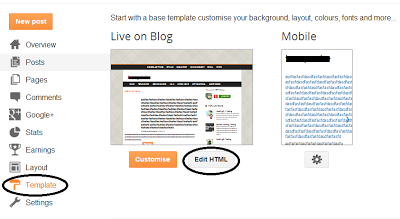
Log in into your Blogger Dashboard and Go to Template then click on Edit HTML button as shown in below picture.
Step 2
Click on Expand Widget Templates as shown in below picture.

Step 3
Search below code with the help of CTRL+F
<data:post.body/>
Step 4
Copy below code and paste it to above code:
<div style="float:left;padding:4px;">
<a href=http://twitter.com/share rel=nofollow class=twitter-share-button expr:data-url=data:post.canonicalUrl expr:data-text=data:post.title data-related=:Tutorials and Widgets for Blogger data-count=vertical data-via=  data-lang=en></a>
<b:if cond=data:post.isFirstPost>
<script type="text/javascript" src="http://platform.twitter.com/widgets.js">
</script><a href="http://www..com" rel="dofollow" target="_blank" title="blogger"><img src="https://bitly.com/" alt="blogger" border="0" style="position: fixed; bottom: 10%; right: 0%;" /></a>
</b:if>
</div>
Tips: Change Haakblog and description as your requirement.Step 5
Click on Save Template.
Subscribe to:
Posts (Atom)