Showing posts with label twitter. Show all posts
Showing posts with label twitter. Show all posts
Friday, March 21, 2014
How to Twitter Use Can Boost Your Business in Slow Economy

Does your Business need a boost in this slow Economy? If so, you are not alone! Many small businesses are jumping on the Twitter train hoping to gain some momentum in their business.
Twitter use for business is growing rapidly, and, considering that Twitter has over 50 million users, its not difficult to see why!
Timing is Everything. Twitter has surprised everyone by surpassing all other social media networks in its amazing growth. If your business isnt already using Twitter, dont wait any longer. The Twitter train is leaving the station and you want to be on it...every stop it makes could be more exposure, sales and profits for your business!
Twitter use could be the answer to your problems in that it can actually inject some momentum into your marketing plan without adding a lot of expense to it. Its really as simple as this: take the marketing strategies you currently use, add a great Twitter account, and you will have a marketing plan on steroids.
From there, you may want to make adjustments to your marketing plan to either save money or maximize your budget. Twitter use can definitely boost your business and you can use that momentum to make some changes to keep the sales coming in!
The beauty of using Twitter for business is that you can magnify whatever marketing efforts are already in progress by building a community of interested followers and including them in your efforts. Going viral on Twitter is the most effective and affordable marketing available today! Your tweets being retweeted to even more people, over a longer period of time...thats marketing gold!
Twitter is free and simple enough to use. However, effective Twitter use for business can get more complicated in that you want to build a large community and tweet good, relevant content to them. You want to connect with your followers so that they see the value in your product or service with a 140 character message. Its well worth it, though, and it will pay off.
If you already use Twitter for your business, congratulations and keep building your Twitter following. If you havent joined the fun yet, its not too late...get your Twitter account up and running sooner than later. Get your business in front of this wave while you still have time!

Wednesday, March 19, 2014
Twitter added new ads format for Small Business

Following the video explains how the platform is going to work in layman terms with promoted tweets and promoted accounts at the centre of it. The new ads format will work across mobile and the web and will offer businesses the chance to get in front of more people. However, Twitter is careful to point out that the tweets will only be shown to people with relevant interests.
Tuesday, February 4, 2014
Hrithik Roshan joins Twitter
 Superstar Hrithik Roshan has finally joined the micro-blogging site Twitter and in his maiden message he urged fans to go and watch Shah Rukh Khan starrer My Name Is Khan. "Spread humanity with a vengeance, go watch My Name Is Khan...and for the record, my name is Hrithik Roshan," he posted as his first Tweet. Shah Rukh is courting controversy for favouring Pakistani cricketers inclusion in the Indian Premier League (Ipl) - a stand which has cast a shadow over the release of his film My Name Is Khan. Hrithik received a warm welcome from his close friends, filmmaker Karan Johar
Saturday, January 18, 2014
Make Auto Follow Your Followers on Twitter
Youve got Twitter ..? Twitter is very useful so we can continue to interact with our business partners may or with our friends and even promote our blog
Previously Amateur discussed tips on how to Updating your Facebook and Twitter with Google Talk maybe youre busy but want twitter to stay awake. Now Amateur here want to share how to keep us awake and twitter can automatically follow people who have followed you.
Applying the principle of "What you want others to do to you, do that to others.", then if you want your followers to stay following with you, then you can also follow them (sounds confusing?), this makes your followers feel important and would love following you.
So here are the steps on how to automatically follow someone when they follow you:
1. Go to SocialOomph, and "Register" if dont have any account on SocialOomph
2. If not register select register, fill up the registration form with you contact and bio preferences, note that the username and password you enter on SocialOomph is different or must be different from your twitter account.

3. Then after you have account, Activate your account registration by clicking the verification email on your emails inbox. (After clicking the verification link, you will be redirected to their Newsletter Signup page, you can optionally subscribe if you want or prefer not.)

4. Login to SocialOomph and on the side menu options, Hover your mouse to Social Accounts->Add New Account->Add Twitter, add your id twitter account here.
5. Click on "Authorize Access", (it will redirect you to your Twitter account if your already login, and if not, then you will be asked to login first), then click on "Allow".

6. After Allowing SocialOOmph to access your twitter account you will be redirected again to your Twitter Automation Settings, Tick or check the "Automatically Follow People" box (optionally you can also create an automated welcome message to your follower.).
7. Done..., Thats it, from now on every person who will follow your twitter on a follow by your automatic.
Enjoy it.....
Read more »
Previously Amateur discussed tips on how to Updating your Facebook and Twitter with Google Talk maybe youre busy but want twitter to stay awake. Now Amateur here want to share how to keep us awake and twitter can automatically follow people who have followed you.
Applying the principle of "What you want others to do to you, do that to others.", then if you want your followers to stay following with you, then you can also follow them (sounds confusing?), this makes your followers feel important and would love following you.
So here are the steps on how to automatically follow someone when they follow you:
1. Go to SocialOomph, and "Register" if dont have any account on SocialOomph
2. If not register select register, fill up the registration form with you contact and bio preferences, note that the username and password you enter on SocialOomph is different or must be different from your twitter account.
3. Then after you have account, Activate your account registration by clicking the verification email on your emails inbox. (After clicking the verification link, you will be redirected to their Newsletter Signup page, you can optionally subscribe if you want or prefer not.)
4. Login to SocialOomph and on the side menu options, Hover your mouse to Social Accounts->Add New Account->Add Twitter, add your id twitter account here.
5. Click on "Authorize Access", (it will redirect you to your Twitter account if your already login, and if not, then you will be asked to login first), then click on "Allow".
6. After Allowing SocialOOmph to access your twitter account you will be redirected again to your Twitter Automation Settings, Tick or check the "Automatically Follow People" box (optionally you can also create an automated welcome message to your follower.).
7. Done..., Thats it, from now on every person who will follow your twitter on a follow by your automatic.
Enjoy it.....
Monday, January 13, 2014
How to Add Twitter Button For Blogger
Add Twitter Button For Blogger websites it’s very easy to get twitter button on your website or blog. When a visitor visits your website or blog and when they click on tweet button to share your content on twitter than you can get more traffic. It’s very easy to add twitter button on your blogger blog to share your content on twitter. The main advantages of twitter button are that visitors tweet your content and follow your blog if they found related content on your blog.

How to Add Twitter Button
It’s very easy to add twitter button on your blogger blog, Please follow below steps to add twitter button:
Step 1
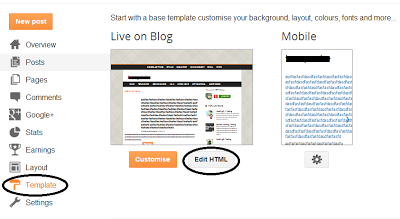
Log in into your Blogger Dashboard and Go to Template then click on Edit HTML button as shown in below picture.
Step 2
Click on Expand Widget Templates as shown in below picture.

Step 3
Search below code with the help of CTRL+F
<data:post.body/>
Step 4
Copy below code and paste it to above code:
<div style="float:left;padding:4px;">
<a href=http://twitter.com/share rel=nofollow class=twitter-share-button expr:data-url=data:post.canonicalUrl expr:data-text=data:post.title data-related=:Tutorials and Widgets for Blogger data-count=vertical data-via=  data-lang=en></a>
<b:if cond=data:post.isFirstPost>
<script type="text/javascript" src="http://platform.twitter.com/widgets.js">
</script><a href="http://www..com" rel="dofollow" target="_blank" title="blogger"><img src="https://bitly.com/" alt="blogger" border="0" style="position: fixed; bottom: 10%; right: 0%;" /></a>
</b:if>
</div>
Tips: Change Haakblog and description as your requirement.Step 5
Click on Save Template.
Subscribe to:
Posts (Atom)