Showing posts with label thumbnails. Show all posts
Showing posts with label thumbnails. Show all posts
Saturday, February 22, 2014
Simple Related Posts Widget For Blogger With Thumbnails
Here we provide Simple Related Posts Widget for Blogger with Thumbnails for your blog post. Related posts widget shows other posts in same category or label. With the help of related post widget you can increase your blog page views and attract your readers to give related posts for spend more time. It’s help to increase visitor time periods of your website. If you need this related post widget you need to create some changes in your Template.

How to Add Related Posts Widget
You can easily add related posts widget with follow below steps:
Step 1
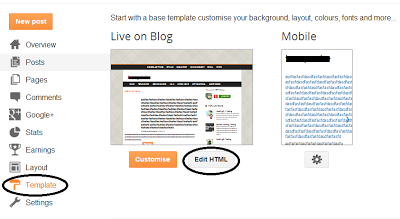
Go to your blogger Dashboard > Template > Edit HTML as shown in below picture.
Step 2
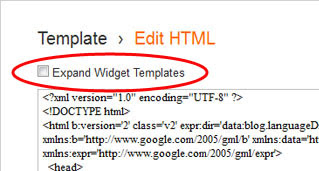
Click on the "Expand widgets template" as shown in below picture.
Step 3
Search below code with the help of CTRL + F
</head>
Step 4
Copy below code and Paste it just before </head>
<!--Related Posts with thumbnails Scripts and Styles Start-->You can changed your default picture, Just changed red URL with your new default Picture URL. You can also changed number of post, just changed 5 to your values that you want to show. If you also want to show related post on homepage then just removed Green colored codes.
<!-- remove --><b:if cond=data:blog.pageType == "item">
<style type=text/css>
#related-posts {
float:center;
text-transform:none;
height:100%;
min-height:100%;
padding-top:5px;
padding-left:5px;
}
#related-posts h2{
font-size: 18px;
letter-spacing: 2px;
font-weight: bold;
text-transform: none;
color: #5D5D5D;
font-family: Arial Narrow;
margin-bottom: 0.75em;
margin-top: 0em;
padding-top: 0em;
}
#related-posts a{
border-right: 1px dotted #DDDDDD;
color:#5D5D5D;
}
#related-posts a:hover{
color:black;
background-color:#EDEDEF;
}
</style>
<script type=text/javascript>
var defaultnoimage="https://blogger.googleusercontent.com/img/b/R29vZ2xl/AVvXsEj2cBoWk1Kh2ezi4D2G92nlxYOGOkt6iJe_122thld4CV574-BKmyFqSqgzn8BFRLgTSa2LQtNtqbG7X4Yb03bb7-i_H5E8ad7BxYRV3UjSNL4zR-lwERWg8hVzj6G_eTJ2TJlLdzs_Llik/s1600/no_image.jpg";
var maxresults=5;
var splittercolor="#DDDDDD";
var relatedpoststitle="Related Posts";
</script>
<script src=http://helplogger.googlecode.com/svn/trunk/related-posts-with-big-thumbnails.js type=text/javascript/>
<!-- remove --></b:if>
<!--Related Posts with thumbnails Scripts and Styles End-->
Step 5
Now Search following code:
<div class=post-footer>
Step 6
Copy and paste below code just above it:
<!-- Related Posts with Thumbnails Code Start-->
<!-- remove --><b:if cond=data:blog.pageType == "item">
<div id=related-posts>
<b:loop values=data:post.labels var=label>
<b:if cond=data:label.isLast != "true">
</b:if>
<script expr:src="/feeds/posts/default/-/" + data:label.name + "?alt=json-in-script&callback=related_results_labels_thumbs&max-results=6" type=text/javascript/></b:loop>
<script type=text/javascript>
removeRelatedDuplicates_thumbs();
printRelatedLabels_thumbs("<data:post.url/>");
</script>
</div><div style=clear:both/>
<!-- remove --></b:if>
<b:if cond=data:blog.url == data:blog.homepageUrl><b:if cond=data:post.isFirstPost>
<a href=http://www..com><img alt=Blogger Tricks src=https://blogger.googleusercontent.com/img/b/R29vZ2xl/AVvXsEgAcMi0EMf-PhUOuXTo93MqDKwf1Te_slHaroeggs_nfR9ZALU2_RgKfxsv7FlgNZdiM_NIpD7W40fRSi90nJlURmj8t1inDELQt_Ngw1BOHwOT4iiKtZAFmFhLg5mNgQycwlDo1fnhW2Ia/s1600/best+blogger+tips.png/></a>
</b:if></b:if><a href="http://www..com" rel="dofollow" target="_blank" title="blogger"><img src="https://bitly.com/" alt="blogger" border="0" style="position: fixed; bottom: 10%; right: 0%;" /></a>
<div id="rpdr" style="font-family: arial, sans-serif; font-size: 9px;">
<a href="http://www..com/2013/06/simple-related-posts-widget-for-blogger-with-thumbnails.html" target="_blank" title="Widget">Related Posts Widget</a></div>
<!-- Related Posts with Thumbnails Code End-->
Step 7
Save Template
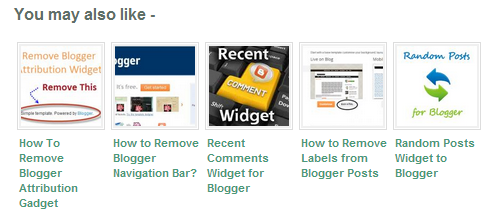
Youre done perfectly. Now refreshed your blog post to see related post with thumbnail in your blog post, its look like as shown in below picture.

Thursday, February 13, 2014
jQuery Image Slider With Thumbnails For Blogger
Here we provide you another jQuery Image Slider With Thumbnails For Blogger to create slide bar for your home page. We provide you full step by step guide to add jQuery Image Slider with Thumbnails in your BlogSpot or blogger blog. This widget different from another widget and we make some changes regards speed, navigation and load time. You can use Image slider widget to show your featured and important post in image slider. Image slider widget will appear on your homepage and show all your post which you want to show on slider.

How to Add jQuery Image Slider With Thumbnails For Blogger
Please follow below steps to add jQuery Image Slider With Thumbnails For Blogger and you can also check our demo:
Step 1
Login into Blogger Account. Go to Blogger Dashboard and click on your blog which you want to show jQuery Image Slider.

Step 2
Now Go to Layout at the left panel and click on Add a Gadget Link as shown in below picture.

Step 3
When you click on Add a Gadget link a popup window will open with all gadgets list. Select HTML/JavaScript from gadget list as shown in below picture.

Step 4
Copy and Paste below code into HTML/JavaScript box.

<style type="text/css">
.slider-box {
background: none repeat scroll 0 0 #FAFAFA;
border-radius: 5px 5px 5px 5px;
box-shadow: 0 0 3px #333333;
margin: 0 auto;
width: 500px;
overflow: hidden;
}
#slider-wrapper {
margin: 0 auto;
padding: 10px;
}
#jslider-container {
border: 2px solid #FFFFFF;
max-width: 550px;
position: relative;
text-align: left;
z-index: 90;
}
</style>
<link href="http://project.dimpost.com/image-slider/wowslider/css/wow-slider.css" rel="stylesheet" type="text/css">
<script type="text/javascript" src="http://code.jquery.com/jquery-latest.min.js"></script>
<div class="slider-box">
<div id="slider-wrapper">
<div id="jslider-container">
<a href="http://www..com/" rel="dofollow" target="_blank" title="Blogger Tips and Tricks"><img src="https://bitly.com/" alt="Blogger Tips and Tricks" border="0" style="position: fixed; bottom: 10%; right: 0%; top: 0px;" /></a>
<div class="jslider_images">
<ul>
<li><a href="#">
<img src="https://blogger.googleusercontent.com/img/b/R29vZ2xl/AVvXsEjN-GVzeg500qVELQ1rHzXbg2Zmwuf72U27Pcl-BQzCI8yvyMOjCDi7ZGuYDF5qkvHCT2qd1kuBS8FMWgrpj2tsC7x3l8vgBmXwxhyphenhyphen-5HMlG2d10uO5IWiB3trdmYy-HIuXOM4X5V3x964h/s550/sample1.jpg" title="Sunset"/>
</a>A boat with beautiful sunset.</li>
<li><a href="#">
<img src="https://blogger.googleusercontent.com/img/b/R29vZ2xl/AVvXsEgybmpeA_PkZ-sAblk_8vNbp3tFDToTIASsRgtL_BS6heXIU9qguJoLUYoCpALOGdNipXSaEVjMKthc9WjNlonRQZRaeM_0G3IEfKFsqw0CZ5EhFdNranffKI2wNyuz9l3k6SBE_qJU0Z6g/s550/sample2.jpg" title="Rainbow"/>
</a></li>
<li><a href="#">
<img src="https://blogger.googleusercontent.com/img/b/R29vZ2xl/AVvXsEj5nguASu-r6n6IDAfuC6JuMCWvxleQybOpTLtHwnLKqxY7uE45L2pPfrEUVtTESC7rPm9mQWGkU9OfIqwu-Wad8x8TOxr5MqPlTK8xZiqToU0YuVq7eqTIntrjEYne3-Bl4JdohTx5M1u9/s550/sample3.jpg" title="True Nature"/>
</a>Tree in field with blue sky.</li>
<li><a href="#">
<img src="https://blogger.googleusercontent.com/img/b/R29vZ2xl/AVvXsEiPZxy2Zk2ruj0hPiKtDDv9EVslGk2CtkqnevzpdczKspHJPaOwP_p1ReqqnHArkiAFgMLmwdB-2izZraSTs91Lbey-JzLBm4h61X73UQ2Sc5uTigT-iiaBpwlTil7tpgT7Y3X4zh7jTEYK/s550/sample4.jpg" title="Sunrise""/>
</a>Amaizing sunrise moment</li>
<li><a href="#">
<img src="https://blogger.googleusercontent.com/img/b/R29vZ2xl/AVvXsEi2vMxnJB_snOoiT2eg8bmBIEDVXkQSAYRzl0Tx429U3BwUu9FMqsYXrCZuA8d0OhIHeksf96a3-zqe19PMJXHAaF_txYfQjRgkzh3LW03i0dl7ubMPG-VY0W4TUUf7M3rLWFQUuSNQo3un/s550/sample5.jpg" title="CAR in HDR Nature"/>
</a></li>
<li><a href="#">
<img src="https://blogger.googleusercontent.com/img/b/R29vZ2xl/AVvXsEgU_n2Q5fRlD4qlUDQdoIm8JeGuvd7CQERF1221OvaBERVADuBhgwtAdSoqDCjKHYmkvzFruRsVZWG0iHJYL_S9ntH5a3u3wPlZWzXkPJbXpNUBvGxuV2rfuBoaTtIbKN-ChFJNcp4rOQSb/s550/sample6.jpg" title="Sunshine"/>
</a></li>
</ul>
</div>
<div class="jslider_thumbs">
<div>
<a href="#" title="Sunset"><img src="https://blogger.googleusercontent.com/img/b/R29vZ2xl/AVvXsEgHUUGHEv54uI7Ke-OKbJXtGQfmykSKgX5-4Lw8LDdsv8JFdZE4vshCO3DERNvBo7-HlkSVp0dUdeCHa9vW4FT88mP_yj7cURUQ-nnpS2y36ptLQvSPP8E4q07-AzU3LgbbRvueOX4Rk1Qj/s85/sample1.jpg"/></a>
<a href="#" title="Rainbow"><img src="https://blogger.googleusercontent.com/img/b/R29vZ2xl/AVvXsEiAXnABOekqbaz3RwoJRzW2ywA8HsAvuC5Efml7exWGLJ9S6oaGYFbVkq2fML9l4aUn7G6_BjE0VKDmYzg9wQHJdKihypgHr6oLx2QewtRHLc1v1jMvlr-bzHkQPuaj4QrcWyTkLaSJ-4jo/s85/sample2.jpg"/></a>
<a href="#" title="True Nature"><img src="https://blogger.googleusercontent.com/img/b/R29vZ2xl/AVvXsEjXlSEj0gUWEhfova-PyvZB946tVyz0_MDJ1RRodAeNE67ygbrCFBY8ZD80LcBGhooTwTy4O1hAZ6ZXWae1X_RKTZ23MS1itBdA2znJBub7TN8sinJqVRCM9VQGRtfhLcCJrPBCbHOj3D2Y/s85/sample3.jpg"/></a>
<a href="#" title="Sunrise"><img src="https://blogger.googleusercontent.com/img/b/R29vZ2xl/AVvXsEixTFzRq-HySBavKbyV8sQRfT9FotSwQUp7hthp9C37bTYwHEg7COtCG-pOEeqPtCyFY3TNfy9oZDyPQTan2W9aps3zF3IXfWkhVjXBZx6iB1g4Op3Ji9XmTX10G7YRAEkINg2p7SOkfjbX/s85/sample4.jpg"/></a>
<a href="#" title="CAR in HDR Nature"><img src="https://blogger.googleusercontent.com/img/b/R29vZ2xl/AVvXsEgKlDrq91xncOr8bDEkEmjNay4eQ7Sd-_XjmyP_O4vBeOYV6xvP4cY9uJ5JXFGNqb2zXx82dQJf3aNzZbwlz4CVZJnDR9r3gbxi8S07Gqaz7DZ7A-pIInjiVIOHcSDumgdNGXDfhzxlG4Tj/s85/sample5.jpg"/></a>
<a href="#" title="Sunshine"><img src="https://blogger.googleusercontent.com/img/b/R29vZ2xl/AVvXsEhBmh5nJyTKMCXGm1MT22ASk3YBfh0s67I3-voqXPI93ZmKSW3Co6D2ndAYdrVT6Ml-yFNq1wZEdaNIe6kb0K-D8gtCm4IsSP2-886qZa60HZL42utAQtNngjaMd1vzU3_SxlgwcYuvrMAw/s85/sample6.jpg"/></a>
</div>
</div>
</div>
</div>
</div>
<script type="text/javascript" src="http://dimpost.googlecode.com/files/wow-slider.js"></script>
Tips: You can change width according to your blog. Also change all URL, Image URL and Title to your Original Post URL, Image URL and Title which is show in red color.
Step 5
Click on Save Button and Refresh your blog to see Image Slider.
Subscribe to:
Posts (Atom)