Airtel, Vodafone India and Idea Cellular partnered to form an alliance to offer pan India 3G services, though none of them has pan India 3G spectrum. DoT tried to close this deal by the three telcos, but they didn’t follow the order rather questioned it.
Airtel had to move to Delhi High Court yesterday to get a stay order; the case hearing is on 18th. If Airtel can not get a relief order, it has to shut down 3G services in those 7 circles with immediate effect.
Similar orders are going to be landed on other partners of Airtel i.e. Vodafone India and Idea Cellular.
With the 3G roaming being cancelled, only operators providing high speed internet on pan India basis remain Reliance Communications (over CDMA EvDO) and Reliance Jio Infocomm (yet to launch 4G services).
Showing posts with label stop. Show all posts
Showing posts with label stop. Show all posts
Friday, March 21, 2014
Easy To Stop Hang With Your Program
How do work ?
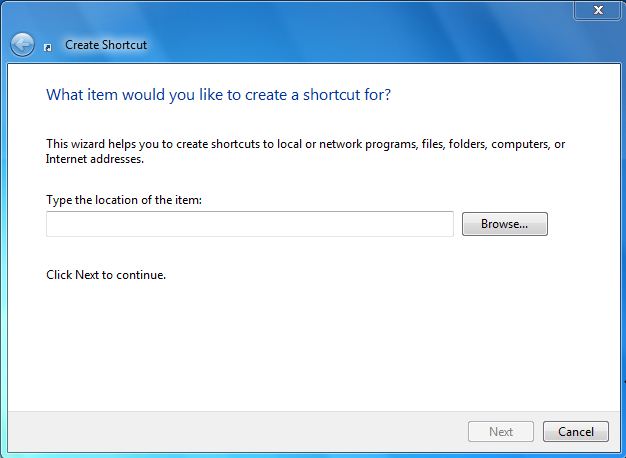
At first take my kind regards. Now i share the new post . some problems due to the post being late. Visit our blog to learn something new for a few days before Kidding, I really thought I was parei I would share it. We calai when the computer hangs when it was found that there was a program. The problem here is we want to help in the task manager. So today Ill share the tips with a capei which allows one to be able to hang out with your program.
Lets see it, then right click on the desktop and on the new shortcut, select the shortcuts location, you ask. Copy and paste the following and click Next.
taskkill.exe / f / fi "status eq not responding"

Saturday, March 8, 2014
How to Stop Grouping of Taskbar Buttons in Windows 8
Reminding of old days, in Windows XP we had the expanded taskbar icons for currently running programs. Since Windows 7, these taskbar buttons are grouped by default to the program icon in order to increase free space on taskbar. But, some of users may find it uninteresting and they may like to restore the ungrouped program buttons.
Let’s see the differences between past and present conditions:

From the above image, I guess you’ve figured out what I’m trying to do. The reason behind broking the combination and split them to separate tab is to enhance the efficiency. In the past condition, you can read what’s going on the tab since it is mentioned there but in the present scenario, you have to move the cursor to get the same thing.
Now, in this article, we’ll provide you with three ways to configure these settings and increase the productivity of your Windows 8.
Method 1: Manually Using Taskbar Properties
1. Right click on taskbar and select Properties.

2. In the Taskbar Properties window, for the Taskbar buttons section, click the drop down menu and select Never combine.

Click Apply then OK. Reboot the machine to get results. So this was the basic way, now lets see some advance ways:
Method 2: Using Registry Editor
1. Press Windows Key + R and put regedit in Run dialog box, click OK to open Registry Editor.

2. Navigate here:
HKEY_CURRENT_USERSoftwareMicrosoftWindowsCurrentVersionExplorerAdvanced

3. In the right pane of this location, create a new DWORD using Right click -> New -> DWORD Value. Name it as TaskbarGlomLevel. Double click to modify it:

4. Put the Value data to 1 to have not combined tabs until taskbar is full, otherwise put 2 to have no grouping at all. Click OK. Restart the computer to see effects. If you want to group tabs again in the future, simply put 0 as Value data or delete the DWORD created in step 3.
Method 3: Using Command Prompt / Batch File
To simply the work, you can use the following .bat (command processing) file. Extract the RAR file and simply right click on the file after download and select Run as administrator:
Download: Batch File to Disable Grouping Taskbar on Windows 8
Hope you find the tip useful!
Friday, March 7, 2014
Airtel is Asked to Stop 3G Roaming Services in 7 Circles DoT Fines Rs 350cr
 Government of India has ordered country’s largest cellular player Bharti Airtel to stop providing 3G services in Kolkata, Maharastra, Uttar Pradesh East, Kerala, Madhya Pradesh, Gujarat and Haryana and slapped with Rs 350 crore penalty.
Subscribe to:
Posts (Atom)