Showing posts with label computers. Show all posts
Showing posts with label computers. Show all posts
Sunday, March 16, 2014
How to Overcome NTLDR is Missing on Computers and Laptops

The Causes Missing NTLDR on computers and laptops:
1. Computer does not boot using the bootable disk.
When booting windows access device containing a bootable disk. such as the hard drive containing the Windows operating system, or removable disk bootable cd bootable. Because a bootable disk is not accessible, it could result windows can not boot characterized by messages like the above
2. Setting boot device in the BIOS / CMOS does not lead to hard drive.
Still dealing with the above numbers, resetting the BIOS boot settings / CMOS computer with firstboot setting device on the hard drive that contained the operating system windowsnya
3. There is a problem with the usb keyboard
4. IDE or SATA hard drive cable is not appropriate or loose.
Check the cable Sata or IDE, if it is loose remove and then reinstall the correct and proper, or replace the cord
Check the cable Sata or IDE, if it is loose remove and then reinstall the correct and proper, or replace the cord
5. NTLDR and NTDETECT.COM files or corrupt.
This is the most frequent cause of terjadi.Untuk restore ntldr file or ndetect.com corrupted or lost, can be done by using the recovery console. To get into the recovery console, do the following:
a) Set the BIOS / CMOS settings to boot using the CDROM
b) Insert the Windows XP CD into the CDROM.
c) When the command "press any key to boot from the CD", press any key on the keyboard (any key)
d) After the Windows XP setup menu press the "R" on the keyboard to choose to repair a Windows XP installation using Recovery Console.
This is the most frequent cause of terjadi.Untuk restore ntldr file or ndetect.com corrupted or lost, can be done by using the recovery console. To get into the recovery console, do the following:
a) Set the BIOS / CMOS settings to boot using the CDROM
b) Insert the Windows XP CD into the CDROM.
c) When the command "press any key to boot from the CD", press any key on the keyboard (any key)
d) After the Windows XP setup menu press the "R" on the keyboard to choose to repair a Windows XP installation using Recovery Console.
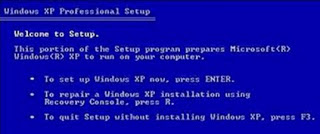
Choose windows that are installed by pressing the "1" (If the windows are installed only one) then press enter.
If prompted to enter your administrator password, enter the administrator password and press enter (If no password just press enter).
Copy ntldr and ntdetect.com files from the CD to your windows system by giving command like this:
COPY F: i386 NTLDR C:
COPY F: i386 NTDETECT.COM C:
note: F the sentence above is the name of the cdrom drive in the computer.
Each computer can vary. If you are dikomputer CDROM on drive D, then the writing becomes COPY D: i386 NTLDR C:
Meanwhile, C is the directory in which the windows operating system is installed.
To exit the recovery console window, type EXIT then press enter
After all files have been copied to the file system, grab your windows cd and restart the computer. (Set back so that windows boot from the hard disk)
Corrupt boot sector / master boot record
If the cause of the boot sector or master boot record, which can be done is to fix the boot sector or master boot record by giving orders FIXBOOT or FIXMBR in recovery console windows
If prompted to enter your administrator password, enter the administrator password and press enter (If no password just press enter).
Copy ntldr and ntdetect.com files from the CD to your windows system by giving command like this:
COPY F: i386 NTLDR C:
COPY F: i386 NTDETECT.COM C:
note: F the sentence above is the name of the cdrom drive in the computer.
Each computer can vary. If you are dikomputer CDROM on drive D, then the writing becomes COPY D: i386 NTLDR C:
Meanwhile, C is the directory in which the windows operating system is installed.
To exit the recovery console window, type EXIT then press enter
After all files have been copied to the file system, grab your windows cd and restart the computer. (Set back so that windows boot from the hard disk)
Corrupt boot sector / master boot record
If the cause of the boot sector or master boot record, which can be done is to fix the boot sector or master boot record by giving orders FIXBOOT or FIXMBR in recovery console windows

HANG MOST COMPUTERS WITHOUT ANY KNOWLEDGE OF CODING AND PROGRAMMING
HANG MOST COMPUTERS WITHOUT ANY KNOWLEDGE OF CODING AND PROGRAMMING
THIS IS A TRICK TO HANG MOST COMPUTERS WITHOUT ANY KNOWLEDGE OF CODING AND PROGRAMMING ( WORKS ONLY FOR PROCESSORS lower then i-7 )
open NOTEPAD and write %0|%0 and save it as
danietc.bat file and then RUN IT... :)
open NOTEPAD and write %0|%0 and save it as
danietc.bat file and then RUN IT... :)

Thursday, February 27, 2014
Share Audio Output Between Computers
Imagine this, I bought a new laptop after my old laptops hinge problem. Today the sound card of my new laptop died.
So today I decided to route the sound of my new laptop to my hinge broken laptop. With synergy Ive been sharing the keyboard and mouse. Now sound card will also be added.
This is how I transfer audio to different hardware.
On the server computer install PulseAudio Preferences. You can install it by clicking here . You can run it running the command paprefs .
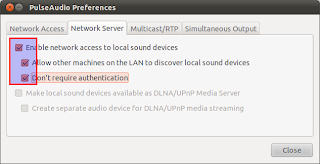
Go to Network Server tab and enable:
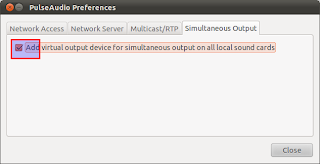
Now go to Simultaneous Output tab and enable:
Now go to client computer and install the same program and run it. This is a very simple but powerful program for PulseAudio hardware sharing.
Go to Network Access tab and enable:
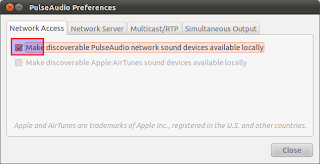
Now in the same client computer go to your Sound Preferences and go to output tab. There you will see a new output device as on the picture.
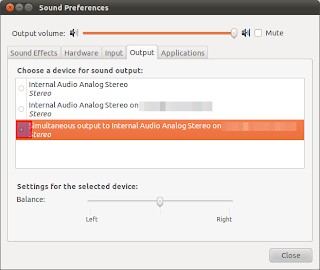 Select it and now all your sound will be routed to the other computers hardware.
So today I decided to route the sound of my new laptop to my hinge broken laptop. With synergy Ive been sharing the keyboard and mouse. Now sound card will also be added.
This is how I transfer audio to different hardware.
On the server computer install PulseAudio Preferences. You can install it by clicking here . You can run it running the command paprefs .
Go to Network Server tab and enable:
- Enable network access to local sound devices
- Allow other machines on the LAN to discover local sound devices
- Dont require authentication
Now go to Simultaneous Output tab and enable:
- Add virtual output device for simultaneous output on all local sound cards
Now go to client computer and install the same program and run it. This is a very simple but powerful program for PulseAudio hardware sharing.
Go to Network Access tab and enable:
- Make discoverable PulseAudio network sound devices available locally
Now in the same client computer go to your Sound Preferences and go to output tab. There you will see a new output device as on the picture.
Friday, February 21, 2014
Control Multiple Computers With One Keyboard And One Mouse
Synergy is the application that I use to share a single keyboard and Mouse between multiple computers. Its just like dual display setup, i.e. you move your mouse over to one edge of the screen and it goes to other computer. I have been using Synergy to share USB keyboad and USB mouse plugged into one laptop with other, both running Ubuntu. You can also share between different OS like Windows and Mac.
To share the keyboard and mouse between two Ubuntu laptops follow the steps below.
First decide which laptop will be the server and the host. The servers keyboard and mouse will be used to control both the servers and clients operation. After deciding go to the server compuetr and install synergy. You can click here to install Synergy in Ubuntu.
Create a file called .synergy.conf in your home folder with following text.
section: screens
HP:
Lenovo:
end
section: links
HP:
right = Lenovo
Lenovo:
left = HP
end
section: aliases
HP:
HP-540-laptop
Lenovo:
Lenovo-laptop
end
This file has three sections.
The last section is the aliases section. Here you can define aliases to the hostname or IP address of your computer so that you can address them easily in other sections. If you dont define them here, you have to use the hostname or IP address in other sections instead.
The first section is the screens, just list the aliases of computer here.
The second section is the important section. Here you have to define the physical location of the computers. Actually you define what edge will jump the mouse to other computer. So, here Ive first defined for HP. To the right of HP Ive Lenovo, i.e. when I move mouse over to right edge it will go to Lenovo. Similarly Ive defined settings for Lenovo saying to the left of Lenovo is HP. When I move mouse over the left edge of Lenovo, the mouse will move to HP.
Now I can run synergy server by running the command synergys from terminal. Run this command in the server, for me its HP.
Now time for the client setup.
Make the same file in same location in your client computer. Run the synergy client command synergyc <server_hostname>
from terminal. HP-540-laptop.local is my server, so Id run
synergyc HP-540.local
Synergy setup is complete. Now you should be able to control both the computer with single keyboard and mouse.
Subscribe to:
Posts (Atom)