Showing posts with label share. Show all posts
Showing posts with label share. Show all posts
Wednesday, March 12, 2014
BufferApp To Share Your Blog Posts on Google Plus Automatically !
amazing that without social media how can we connects to others and how can we share our stuff with the world? i think It would not have been possible without social media. no matter what type of business or company you are running, Social media is one of best place for marketing your stuff and keeping the people updated about you and your blog, websites or business. Since we used automatically share method for Facebook and twitter, but now it’s available for Google plus pages too by help of bufferApp. However, it isn’t support on Google plus profile, due to Google+ API doesn’t grant access to profiles, yet. so, now, if you want to share your blog posts on Google plus automatically then follow the simple steps below.
2. Adding Google+ page : Click on “Connect a page” under the Google Plus logo at last right side. then it will ask you your account details and some other information as well. just fill up and tell what it asks and you’re ready to go. it will also ask some permissions which you should simply accept in order to make job run fine.
It will ask you to select Google+ page of yours that you want to associate with BufferApp. You can also Associating multiple pages at a time.
That’s all, Now, you can schedule your google plus posts using buffer whenever you like. Do let us know by commenting bleow what you think about it.
How to Auto-Share To Google+ Pages?
1. Create a bufferApp account : First thing you need to do is, go to bufferapp.com and register for your free account. there you can also sign in directly from Facebook, Twitter or LinkedIn profiles.2. Adding Google+ page : Click on “Connect a page” under the Google Plus logo at last right side. then it will ask you your account details and some other information as well. just fill up and tell what it asks and you’re ready to go. it will also ask some permissions which you should simply accept in order to make job run fine.
It will ask you to select Google+ page of yours that you want to associate with BufferApp. You can also Associating multiple pages at a time.
That’s all, Now, you can schedule your google plus posts using buffer whenever you like. Do let us know by commenting bleow what you think about it.

Thursday, February 27, 2014
Share Audio Output Between Computers
Imagine this, I bought a new laptop after my old laptops hinge problem. Today the sound card of my new laptop died.
So today I decided to route the sound of my new laptop to my hinge broken laptop. With synergy Ive been sharing the keyboard and mouse. Now sound card will also be added.
This is how I transfer audio to different hardware.
On the server computer install PulseAudio Preferences. You can install it by clicking here . You can run it running the command paprefs .
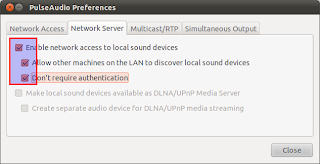
Go to Network Server tab and enable:
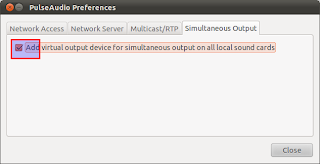
Now go to Simultaneous Output tab and enable:
Now go to client computer and install the same program and run it. This is a very simple but powerful program for PulseAudio hardware sharing.
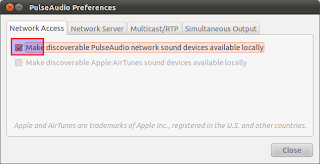
Go to Network Access tab and enable:
Now in the same client computer go to your Sound Preferences and go to output tab. There you will see a new output device as on the picture.
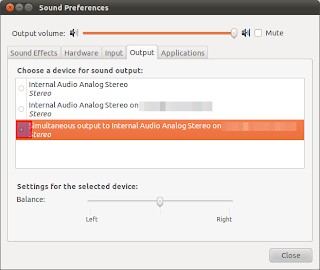 Select it and now all your sound will be routed to the other computers hardware.
So today I decided to route the sound of my new laptop to my hinge broken laptop. With synergy Ive been sharing the keyboard and mouse. Now sound card will also be added.
This is how I transfer audio to different hardware.
On the server computer install PulseAudio Preferences. You can install it by clicking here . You can run it running the command paprefs .
Go to Network Server tab and enable:
- Enable network access to local sound devices
- Allow other machines on the LAN to discover local sound devices
- Dont require authentication
Now go to Simultaneous Output tab and enable:
- Add virtual output device for simultaneous output on all local sound cards
Now go to client computer and install the same program and run it. This is a very simple but powerful program for PulseAudio hardware sharing.
Go to Network Access tab and enable:
- Make discoverable PulseAudio network sound devices available locally
Now in the same client computer go to your Sound Preferences and go to output tab. There you will see a new output device as on the picture.
Monday, January 27, 2014
Latest 100 working Trick to Share Your Pc Laptop Internet To Your Smartphone 2015
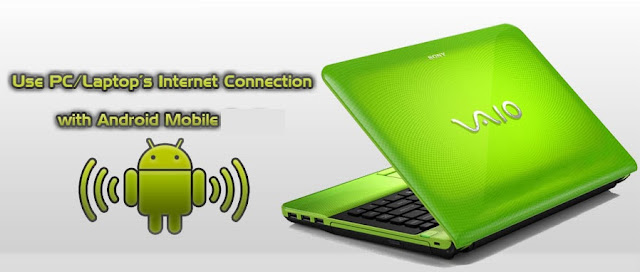
After a long time i got a solution for the sharing of internet in laptop to my smartphone.Sometimes the default hotspot connection cannot be used to access the internet from the PC.This trick is very helpful those do not have the internet modem and this trick is very helpful for those who access internet from a net setter in your laptop.All you need LAPTOP and a SMARTPHONE which enabled WiFi access.To share the internet you can follow the following steps.
- Step 1:Connect your LAPTOP with internet using Net setter or Cable connection as you like.
- Step 2:Install Virtual Router Software on LAPTOP
- Step 3:Then run the Virtual Router application
- Step 4:Give a Hotspot name for eg : .blogspot.in
- Step 5:Select a 8 character long password eg :
- Step 6:Select the connection of internet which you want to share.
- Step 7:Press Start Virtual Connection.
Tags:Free Internet,Share Your Internet,Tricks And Tips,Share Laptops Internet,Hotspot Creation,latest Internet Tricks,
Subscribe to:
Posts (Atom)