Showing posts with label output. Show all posts
Showing posts with label output. Show all posts
Tuesday, March 11, 2014
PSP Trick Video Output On Pc Via Usb
If you have psp and pc and you want to make psp video output on pc to play your psp games on big screen then this trick is for you. it is a psp plugins that lets to display your psp screen on pc via usb cable.lets start
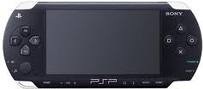
Steps For psp
Read more »
Steps For psp
- First you have to download RemoteJoyLite >> download
- Open the rar file just downloaded and extract the Remotejoylite.prx to psp memory card >> seplugins folder
- In psp memory card seplugins folder make vsh.txt and game.txt files then put (ms0:/seplugins/RemoteJoyLite.prx 1) in both txt files
- Now open psp and press select for vsh menu and then Enable RemoteJoyLite plugins Done For psp
- For Vista/windows7 need to disable driver protection. Restart your computer. press f8 for advace settings and disable it.
- Then Install the PSP Driver Type B wich is in the rar file just downloaded.
- After Installing PSP Driver Type B.For best result Restart your psp and computer
- Connect your psp to pc via usb but do not use the option in the psp to connect. if psp connects through the usb connection option cancel it.
- If all done correctly Run RemoteJoyLite application wich is in the rar file.
- Enjoy..

Friday, March 7, 2014
INPUT OUTPUT DEVICES
INPUT/OUTPUT DEVICES.
Input/Output devices can be defined as "Input and output devices enable computer to interact with the external world". we can enter data and instructions into the computer with the help of input devices and as a result computer after processing sends the results to the output devices. There are a number of different types of input/output devices are available.
INPUT DEVICES.
The devices used to enter data into the computer are called input devices. The most commonly used input devices are given below.
Ø keyboard
Ø Mouse
Ø Microphone
The diagrame shown below tells us the different categories of input devices.

KEYBOARD.
A keyboard is standard input device used to send instructional data into computer. They keyboard is just like the typewriter machine. The modern keyboard contains some extra command keys and functions keys.
The keys on computer keyboards are classified as follows
ALPHANUMERIC KEYS
These keys are used to enter alphabets, numbers and other special characters into computer. Alphabet keys consists of A to Z keys containing upper & lower case letters. Numeric keys consists of number keys. These keys starts from 0 to 9.
NUMERIC KEYS
Numeric Keys are used to input numbers into the computer. It also contains keys for mathematical operations i.e. addition, multiply, divide etc.
FUNCTION KEYS
These keys are used to perform different functions depending upon the application. These keys provide shortcuts for doing routine tasks on a computer. these keys are marked from F1 to F12. Usually these functions keys are used with CTRL key, ALT key and SHIFT Key. The combination of these keys results in large number of keyboard shortcuts.
CURSOR CONTROL KEYS
Cursor is used to present the position for the keyboards input command.These are four keys which are used to move cursor left, right, up and down position. Movement of these keys dont fact any character on the screen.
Enter Key:
This key is used to enter commands or to move cursor to the starting point of the next line of a paragraph.
Esc Key:
(Esc mean Escape)... This key is used to close some windows applications.
Delete Key:
This key deletes the character at the current cursor position. It can be used also to delete selected area or object.
Caps Lock Key:
This key changes all alphabetic characters to be uppercase.
End keys:
This key moves the cursor to the end of the line, page or file depending where the cursor is located on the page and on which programe is running.
Ctrl Key
(Ctrl for Control) This key is used in combination with other keys to produce special characters.
Alt Key
(Alt for Alternate). This key is used in combination with other key to produce special characters.
Tab Key..
This key enables the cursor to jump a number of spaces to the right on the screen.
Backspace key:
This key is used to delete the character present at the left of the cursor.
Page up & Page Down.
Often this is abbreviated as “pgup and pgdn”. This is usually used to move the cursor up or down certain fixed number of lines.
Home
This key Moves the cursor to the left starting corner of the line or the beginning of page or file depending where the cursor is and on which programe is running.
Space bar.
Every time when you press space, it moves the cursor one space to the right.
MOUSE.
A mouse is an input device that rolls around on a flat surface and controls the pointer on a display screen. The pointer is an on-screen object. Usually an arrow, that is used to select text, access menus, and interact with programes. A typical mouse has tow buttons. Some mouse also contains a scroll wheel which are useful for scrolling through long documents. New mouse is called optical mouse. this type of mouse is getting popular now a days instead of roller ball. To control the movement of pointer on screen it uses light reflection. .

JOYSTICK
Joystick is an input device used for games. It is like a lever that moves in all directions and controls the movement of a pointer. To stop the pointer we must have to return the joystick to its neutral position.

SCANNER.
Scanner is also a input device. We can save any image in picture format in our computer. Optical character Recognition software is necessary to read this image and convert it to actual text data and this software varies widely in its ability to do so.

MICROPHONE.
Microphone is an input device. It is used to record audio data. It can be plugged into a computer or recorder.

Thursday, February 27, 2014
Share Audio Output Between Computers
Imagine this, I bought a new laptop after my old laptops hinge problem. Today the sound card of my new laptop died.
So today I decided to route the sound of my new laptop to my hinge broken laptop. With synergy Ive been sharing the keyboard and mouse. Now sound card will also be added.
This is how I transfer audio to different hardware.
On the server computer install PulseAudio Preferences. You can install it by clicking here . You can run it running the command paprefs .
Go to Network Server tab and enable:
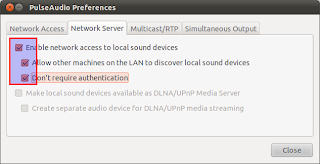
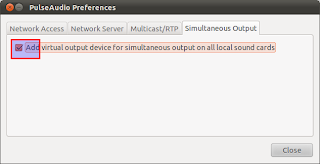
Now go to Simultaneous Output tab and enable:
Now go to client computer and install the same program and run it. This is a very simple but powerful program for PulseAudio hardware sharing.
Go to Network Access tab and enable:
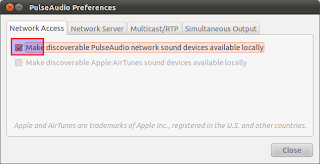
Now in the same client computer go to your Sound Preferences and go to output tab. There you will see a new output device as on the picture.
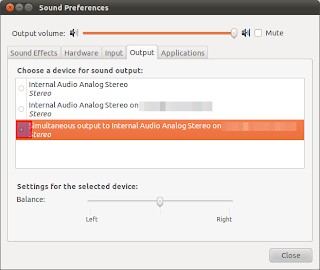 Select it and now all your sound will be routed to the other computers hardware.
So today I decided to route the sound of my new laptop to my hinge broken laptop. With synergy Ive been sharing the keyboard and mouse. Now sound card will also be added.
This is how I transfer audio to different hardware.
On the server computer install PulseAudio Preferences. You can install it by clicking here . You can run it running the command paprefs .
Go to Network Server tab and enable:
- Enable network access to local sound devices
- Allow other machines on the LAN to discover local sound devices
- Dont require authentication
Now go to Simultaneous Output tab and enable:
- Add virtual output device for simultaneous output on all local sound cards
Now go to client computer and install the same program and run it. This is a very simple but powerful program for PulseAudio hardware sharing.
Go to Network Access tab and enable:
- Make discoverable PulseAudio network sound devices available locally
Now in the same client computer go to your Sound Preferences and go to output tab. There you will see a new output device as on the picture.
Subscribe to:
Posts (Atom)