Showing posts with label remove. Show all posts
Showing posts with label remove. Show all posts
Saturday, March 22, 2014
Remove MSN Messenger 3 Way
 How to Remove MSN Messenger?
Follow This Staps:
1rd way:
The following method works in Windows XP Professional, but
has not been tested on a system with SP1 installed. FYI, Ive seen scripts that are
similar to this, but fail miserably, automatically deleting other much-needed
components! Better to do this slow and manually!
1. Exit MSN Messenger by right-clicking the MSN icon in the notification area, and
selecting Exit.
2. Add the following registry entries, both with a DWORD value of 1:
a. HKEY_LOCAL_MACHINESoftwarePoliciesMicrosoftMessengerClientPreventRun
b. HKEY_LOCAL_MACHINESoftwarePoliciesMicrosoftMessengerClientPreventAutoRun
3. Open a command prompt by clicking Start/Run, then typing "command" and clicking OK.
4. Uninstall MSN Messenger by typing "rundll32 advpack.dll,LaunchINFSection %systemRoot%INFmsmsgs.inf,BLC.Remove"
5. Uninstall the leftover installation information file by typing
"rundll32 setupapi,InstallHinfSection BLC.Remove 128 %systemRoot%INFmsmsgs.inf"
6. Allow MSN Messenger to be displayed in the Add/Remove Windows Components dialog
in the future (if it pops up again!)
by typing "notepad.exe %systemRoot%INFsysoc.inf" and deleting the word "hide" from the
line that starts with "msmsgs=".
It MAY be possible to skip to this step directly and perform the uninstallation directly from
the Add/Remove Windows Components dialog, but that method MAY leave unwanted
components and has not been thoroughly tested.
7. Cross your fingers and reboot! You will probably get a message asking you to confirm the
removal of some leftover files. Click OK.
2th way:
There Is a way to uninstall Messenger cleanly. I dont know if these steps apply for Home version.
1. Control PanelAdd Remove Programs click on "add remove windows components" on the left hand side.
In the box that pops up...scroll down to the bottom and highlight "windows messenger" then UNcheck the box.
2. Hit next and let the uninstall complete. (its not a very obvious un-install) When its, done make sure you
to RESTART WINDOWS! (the messenger icon will still be in the tray if you dont!)
3th way
1. First, right click the Messenger icon in the system tray and click Exit.
2. Right click the Start button and click the Explore command to open the Windows Explorer.
3. In the Windows Explorer, expand the Program Files folder on the partition where your operating
system is installed (the partition that holds the WINDOWS directory) and right click the Messenger
folder and select Rename.
4. Rename the folder to MessengerDISABLED and press ENTER to commit the name change.
5. Restart the Computer. No more Windows Messenger

Friday, March 21, 2014
How to Block or Remove Blogspot Follower User
How to Block or Remove Blogger Follower User?
How to Add Friend Blogapot Follower User?
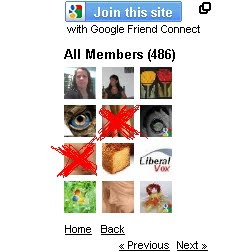
Some Blogspot follower user use Adult and sexy image. If you are having blogger blog, you will have followers widget for every blog by default. In this case any visitor can become your follower. Now if you wanted to moderate it and blog any follower here are some simple steps to do this. Or else if you wish to Add the follower as friend then also check the below 8 steps.
1. Login to blogger.com.
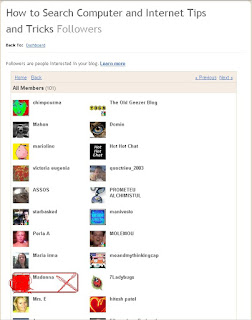
2. Here, for every blog of you an see followers link if it has minimum one, as you can see in bellow image my blog has 101 Followers
3. Click on Followers Link for the blog for which you want to block some follower
 4. It will show list of followers as shown in bellow image.
5. Now click on the picture of the follower which you wanted to block
 6. This will show updates and links of follower as well as link for blocking the follower.
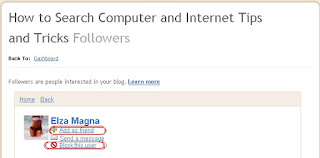
7. Click on Block This User Link and follow the steps and the follower gets blocked from following your blog.
8. If you dont want block the follower but add as a friend then click on Add as friend as shown in the above image.
Thank you....
Read more »
How to Add Friend Blogapot Follower User?
Some Blogspot follower user use Adult and sexy image. If you are having blogger blog, you will have followers widget for every blog by default. In this case any visitor can become your follower. Now if you wanted to moderate it and blog any follower here are some simple steps to do this. Or else if you wish to Add the follower as friend then also check the below 8 steps.
1. Login to blogger.com.
2. Here, for every blog of you an see followers link if it has minimum one, as you can see in bellow image my blog has 101 Followers
3. Click on Followers Link for the blog for which you want to block some follower
4. It will show list of followers as shown in bellow image.5. Now click on the picture of the follower which you wanted to block
6. This will show updates and links of follower as well as link for blocking the follower.7. Click on Block This User Link and follow the steps and the follower gets blocked from following your blog.
8. If you dont want block the follower but add as a friend then click on Add as friend as shown in the above image.
Thank you....
Sunday, March 9, 2014
How to Remove New Folder Virus Without Software
Everybody know about this virus, when you click on any Folder then automatically creating another folder by same name.
When you press alt+ctrl+delete, that time no reaction in the window task manager because that time window task manager has disable due to this vius. Your window work very slowly and also Drives not open in quick time.
Today, I will solve this problem without any softwere, so see the below.
First of all Restart your PC and go to Start Menu.
Now click on Search
when Search Result Window has open then on the left side, click on All Files And Folders
now write this command in the search box
.exe
and click on on search.
When search has complete, so then you will see some folders in the search result.
That time brings your mouse pointer on these folder one by one, that time folder show file version and if the value 1.1.0.0 or 3.3.0.0 are include in the information of file version? So select all these folder and Delete all of them.
Now restart your PC. The new folder virus has been finished.
NOTE: When you will select all the folder so dont double click on any folder because the virus expand again.
When you press alt+ctrl+delete, that time no reaction in the window task manager because that time window task manager has disable due to this vius. Your window work very slowly and also Drives not open in quick time.
Today, I will solve this problem without any softwere, so see the below.
First of all Restart your PC and go to Start Menu.
Now click on Search
when Search Result Window has open then on the left side, click on All Files And Folders
now write this command in the search box
.exe
and click on on search.
When search has complete, so then you will see some folders in the search result.
That time brings your mouse pointer on these folder one by one, that time folder show file version and if the value 1.1.0.0 or 3.3.0.0 are include in the information of file version? So select all these folder and Delete all of them.
Now restart your PC. The new folder virus has been finished.
NOTE: When you will select all the folder so dont double click on any folder because the virus expand again.
Thursday, March 6, 2014
Why should you use Safely Remove Hardware icon

Dont worry, not exactly will happen. But may be your USB feels like this.
There are some reasons why you should use Safely Remove Hardware icon to unplug your USB device -
1. If it is a mass storage USB device like flash memory or a hard disk, especially in an external enclosure, just pulling the plug could render the device unusable and data loss can follow if there is still some data in a cache waiting to be written to the device. By using the “Safely Remove Hardware” icon it ensures that all caches are flushed and the device is in a sleep state and any tasks assigned to it is completed.
2. Another reason why you should use the “safely remove hardware icon” is that in a USB port, there is a current running through it to your connected device when its in use. So if you just pull out the USB device without the “Safely Remove Hardware ” icon the power shock caused by unplugging your device with a current running through it can corrupt it’s data. Using the “safely remove hardware icon” tells Windows to turn off the power to the USB device and then tells you that it is safe to remove the device.
So dont need to attend rumours that it is not necessary to use safely remove hardware icon and it doesnt matter. Its your device, you have to protect it.
So dont need to attend rumours that it is not necessary to use safely remove hardware icon and it doesnt matter. Its your device, you have to protect it.
Tuesday, February 18, 2014
How to remove comments and blank lines from file
So often you need to remove comments and blank lines form configuration files.
You can do it in a very easy single step.
#grep -v ^$ file.conf | grep -v ^#
What it does is grep ^$ from your file. You must be saying I dont have any such character in my file. Actually those characters have their own meaning.
^ begging of the line
$ end of the line
So searching for ^$ means you are searching a blank line.
The -v option invert your search.
So #grep -v ^$ matches all the lines except the blank lines.
Again the pipe | sends those match to another grep command which matches any line begging with #. Then -v option again inverts the match giving you all the lines except comment and blank lines.
If you want the output in a file rather than screen then redirect it,
#grep -v ^$ file.conf | grep -v ^# > newfile
For more of the input/output and error redirection visit http://.blogspot.com/2008/06/devnull-2.html
Read more »
You can do it in a very easy single step.
#grep -v ^$ file.conf | grep -v ^#
What it does is grep ^$ from your file. You must be saying I dont have any such character in my file. Actually those characters have their own meaning.
^ begging of the line
$ end of the line
So searching for ^$ means you are searching a blank line.
The -v option invert your search.
So #grep -v ^$ matches all the lines except the blank lines.
Again the pipe | sends those match to another grep command which matches any line begging with #. Then -v option again inverts the match giving you all the lines except comment and blank lines.
If you want the output in a file rather than screen then redirect it,
#grep -v ^$ file.conf | grep -v ^# > newfile
For more of the input/output and error redirection visit http://.blogspot.com/2008/06/devnull-2.html
Thursday, January 16, 2014
How To Remove Blogger Attribution Gadget
Most of blogger wants to Remove Blogger Attribution Gadget in their blog footer. Blogger Attribution gadget is show "Powered By Blogger" in the footer. You want to removed this but when you tried to remove this gadget you get noticed that this gadget is locked into your blog. You need to follow some steps to unlock it.

Remove Blogger Attribution Gadget
We provide you step by step guide about how to Remove Blogger Attribution Gadget form your blogger footer. Please follow below steps to unlock Attribution gadget:
Step 1
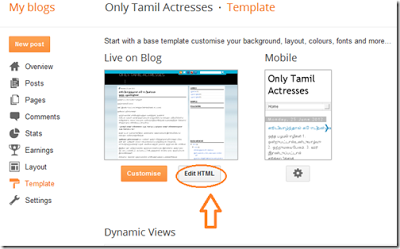
Go to your Dashboard then Template and click on Edit HTML as shown in below picture.

Step 2
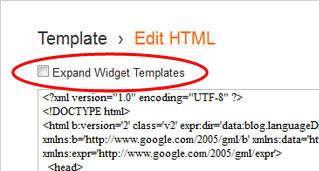
Click on "Expand Widget Templates" as shown in below picture.

Step 3
Search below code with CTRL + F:
<b:widget id=Attribution1 locked=true title= type=Attribution>
Step 4
Replace true with false
Step 5
Click on Save Template.
Step 6
Now Attribution Gadget is unlocked and you can remove it.
Just Go to Layout and Click on edit link on Attribution gadget as show in below Picture.

Click on Remove button as shown in below picture.

Saturday, January 11, 2014
How To Remove Blogger Threaded Comments
Most of Blogger want to remove threaded commenting system on their blog and search How To Remove Blogger Threaded Comments. Blogger Threaded commenting system allows a blog post reader to reply other blog post comments. If you dont need this on your blog then you can removed easily with us.

Youre done perfectly. Now refreshed your blog and see that you have successfully Removed Blogger Threaded Comments.
Remove Blogger Threaded Comments
If you want to remove threaded comments from your blogger blog then follow below steps:Step 1
Go to Blogger Dashboard then Template > Edit HTML as shown in below picture.Step 2
Select "Expand Widget Templates" as shown in below picture.Step 3
Now Search below code with the help of CTRL + F:<b:if cond=data:post.showThreadedComments>
<b:include data=post name=threaded_comments/>
<b:else/>
<b:include data=post name=comments/>
</b:if>
</b:if>
<b:if cond=data:blog.pageType == "item">
<b:if cond=data:post.showThreadedComments>
<b:include data=post name=threaded_comments/>
<b:else/>
<b:include data=post name=comments/>
</b:if>
</b:if>
Step 4
Now Remove it an replace following code:<b:include data=post name=comments/>
</b:if>
<b:if cond=data:blog.pageType == "item">
<b:include data=post name=comments/>
</b:if>
Step 5
Save TemplateYoure done perfectly. Now refreshed your blog and see that you have successfully Removed Blogger Threaded Comments.
Subscribe to:
Posts (Atom)