Showing posts with label startup. Show all posts
Showing posts with label startup. Show all posts
Monday, March 24, 2014
Identifying The Auto Startup Programs
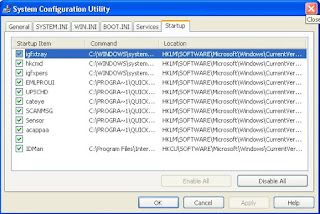
The first step in stopping the auto startup is identifying exactly what is starting up and what its purpose is. To do so, you will use a cool little program called the system configuration utility, which is built into Windows XP, and the Google search engine (www.google.com), which can look up what the entries are for. First, you will need to start up the system configuration utility and write down what programs are listed. To do so, follow these directions:
1. Start up the System Configuration Utility by clicking the Start Menu and selecting Run. Then key in msconfig and click OK.
2. Once the System Configuration Utility has loaded, click the Startup tab.
3. Now that the list of the active startup programs is visible, make a list of all of the items listed with the name as well as the file that is loaded, which is listed under the command column.
4. Once you have your list made, you can start researching which programs should be removed from the list and which programs should stay. Because almost every computer has different programs starting up after logon, I recommend that you browse the Web and look for a specific program and what will happen if it is removed from startup. One interesting site to visit is a database of common startup programs called Answers That Work. It is located at cant present you with recommendations for each of the programs listed. If you can not find one of your programs listed on that site, just do a quick search on Google and most likely you will find several Web sites telling you what that program does and what removing it will do.

Wednesday, March 12, 2014
How To Disable Startup programs In Windows 7
 Startup programs will automatically starts whenever you start up your PC. There are many unnecessary programs which takes so much memory and you rarely use that (slowdown your pc). By disabling startup programs unnecessary your PC performance will improve much better than before. For some example of startup programs like yahoo messenger, MSN messenger, Skye, utorrent, AOL messenger and other programs
If You Need To Disable Your Unnecessary Start Up Programs To
Speedup Your pc Follow This Easy Steps
- Click on start button of you pc
- Type msconfig in the search box "For xp user type msconfig on run"
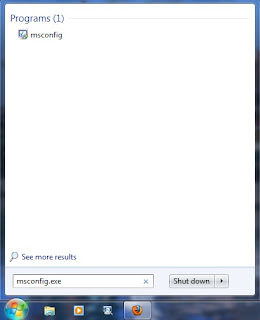
3. Click on msconfig then after opened system configuration dialog box go to startup tab
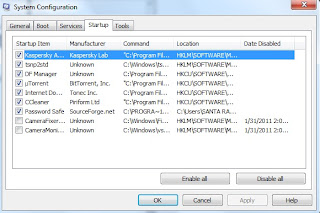
4. Unchecked unnecessary startup programs that you want to disable. If you found any program that
you are not sure then just leave it enabled for just safe.
5. Then click on apply and ok. After you disable your startup programs it wont run from you next
reboot.
Wednesday, February 19, 2014
Firefox Startup Slow In Ubuntu
Add-ons can slow down your browser. There are many add-ons available for Firefox making your whole browsing experience better and better but some of them can also make your browser crawl.
Today Mozilla has released the names of add-ons that makes your Firefox browser slow to start. You can find it here: https://addons.mozilla.org/en-US/firefox/performance/#addon-11
 If you dont use some particular add-ons just disable them. It will not eat your valuable resources then.
Today Mozilla has released the names of add-ons that makes your Firefox browser slow to start. You can find it here: https://addons.mozilla.org/en-US/firefox/performance/#addon-11
Thursday, February 6, 2014
Xchat Doesnt Minimize To Tray On Startup
One of the problem I faced after Karmic Koala was Xchat wont minimize to tray i.e the system tray icon wouldnt show, instead Xchat would close. The problem is same on Lucid Beta as well. I had post one solution minimize-xchat-to-tray-in-karmic . But this doesnt work if you have set Xchat on your startup list. Xchat sometimes minimizes to tray and some times not when it is set on startup program list. So I have come up with a solution as below.
In you home directory make a file .xchat_start with following content
Now go To Menu->Prererences->Startup Applications
Click Add
Add name Xchat and command /home/user_name/.xhcat there
Read more »
In you home directory make a file .xchat_start with following content
#!/bin/bashSet execute permission on this file by typing chmod +x .xchat_start in terminal
sleep 30; xchat
Now go To Menu->Prererences->Startup Applications
Click Add
Add name Xchat and command /home/user_name/.xhcat there
Subscribe to:
Posts (Atom)