Showing posts with label comment. Show all posts
Showing posts with label comment. Show all posts
Thursday, February 6, 2014
Fixing the unbroken Google Plus Comment System
If I were to do something about Google Plus Comment system Id do the following.
Before talking about doing something the factor that I find missing in the Google Plus sharing and comments system is integration. I share a video on Youtube, Youtube has its own share of comments and the share on Google Plus has its own.
Id replace the comment system from Youtube, Blogger and all other Google platforms with Google Plus. Whenever one shares a video or other items, the comments will also get included. So the video and comments will act as one entity rather than separate ones.

Like Disqus, Id add these tabs,
Before talking about doing something the factor that I find missing in the Google Plus sharing and comments system is integration. I share a video on Youtube, Youtube has its own share of comments and the share on Google Plus has its own.
Id replace the comment system from Youtube, Blogger and all other Google platforms with Google Plus. Whenever one shares a video or other items, the comments will also get included. So the video and comments will act as one entity rather than separate ones.
Like Disqus, Id add these tabs,
- Recent
- Best
- Worst
- Current Popular
- Your Share
- Your Circle
The first four are self explanatory. The fifth tab, "Your Share" will show only comments generated from my share. And the sixth tab, "Your circle" I think is the best one. This will show the comments from all my circles or the circle I choose. It would be nice to encounter a share and see if some of my friends has already seen it and start conversation from there.
Naturally the 500 comments limit has to be taken off for this and pagination should be added. The comment system should also have reply support.
This also implies to all the re-shares of post in Google Plus itself.

Wednesday, January 22, 2014
How to Change Blogger Post A Comment with Image
We will show you How to Change Blogger "Post A Comment" text to image in this tutorial. We provide you full step by step guide to replace Post A Comment with an image which is shown above comment box. Many blogger not want to show common word above comment box so here a tutorial about changing it’s to image. You can add your own image and we are also providing some images if you like any one of them then you can use on your blog.

Replace Post A Comment with Image
To replace "Post A Comment" text to an image in your blogger blog with follow below steps:
Step 1.
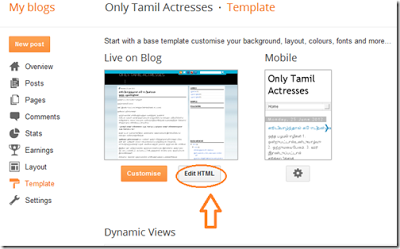
Login to Blogger Dashboard. Go to Template > Edit HTML as shown in below picture.
Step 2.
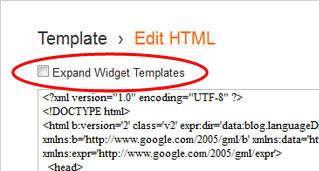
Click on "Expand Widget Templates" as shown in below picture.
Step 3.
Now search following code with the help of CTRL + F:
<a expr:href=data:post.addCommentUrl expr:onclick=data:post.addCommentOnclick>
<data:postCommentMsg/></a>
And also search below code
<h4 id=comment-post-message><data:postCommentMsg/></h4>
Step 4.
Replace <data:postCommentMsg/> to below image code

<img src="https://blogger.googleusercontent.com/img/b/R29vZ2xl/AVvXsEhoOtLIgvLE5SZJHtQNI2DXwt3Z2yqQ87QBudvqQRnZnGkaZqrEj7_SNC4Ka5Dwq1s82flmCMiOeXgn8CgljOaoozWtEfETvqVC3LsoRtBJk82dFRHbaEp63JwV9IUdWCMHau4w6ajSgpVx/h105/leave-a-comment-trans.gif" />

<img src="https://blogger.googleusercontent.com/img/b/R29vZ2xl/AVvXsEgMX7TUsM2asOq-fkJ2-ruxTfuVz1mINjyZ_xerdIMagmsr8DS9ZNvWKuP78WRk3k80cdRahzdtGllW3ibaZdP9_ROdfd0l_86YxQCutr2FMT-zwbpW8Ru7HCOzh2KwD7BlNxyGa9vbTJPS/s180/leave-comment.gif" />Or replace your own image with image source URL.
Step 5.
Save Template.
Now you have done perfectly. If you have any suggetion or updates about codes please give us your update at below form we will publish your updates as soon as possible.
Subscribe to:
Posts (Atom)