Showing posts with label remote. Show all posts
Showing posts with label remote. Show all posts
Friday, March 21, 2014
Disabling Remote Desktop connection
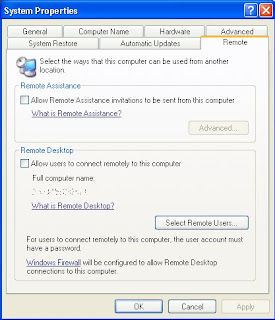
The Remote Desktop feature of Windows XP is a great way to be able to access your
computer when you are away from the office or home. However, if you have poor computer security, the Remote Desktop also is a great way for anyone to be able to access and control your whole computer. Remote Desktop is a very risky application to leave exposed to the world. Its security relies solely on your account password, which for most users is easy to guess.
If you do not use Remote Desktop, then it would be a good idea to disable the feature. Doing so is a snap. Just follow these steps to turn it off:
1. Right-click the My Computer icon on the desktop or in the Start Menu and select
Properties.
2. Click the Remote tab to expose the remote access settings.
3. Next, uncheck the box under Remote Assistance.
4. Uncheck the box under Remote Desktop as well.
5. Click OK to save your changes.
When Remote Desktop connections are disabled, you have one less thing to worry about namely, someone having the ability to break into your computer.

Saturday, March 1, 2014
Remote Unlock The Best Way to Unlock HTC Phones
By: Ryan Paulin
The best way to unlock HTC phones is through the remote unlocking process. This process does not only give you the option to do the unlocking yourself, it is also less costly than having to pay someone else to connect a data cable and use their software to unlock your phone. With the remote unlock process you would only need to have the specific unlocking code for your HTC phone, as well as the IMEI code. You would have to look for the IMEI code yourself and there are three ways to do this:
* Look into the back panel of your phone where the battery is located for a 15-digit code. Sometimes, there are letters before or after the digits that says IMEI.
* By typing *#06# on your phones dialer. Remember not to press the send or call button, just wait for a pop-up on your screen.
* Or go to the device information section of your phone. The IMEI number would normally be listed there as well.
Now that you got the IMEI code, it is time to look for the code that would unlock your HTC phone. There are numerous websites that could give you this information for varying amounts of service fees. Before purchasing the code from any of these websites, you must remember to check on the safety of your credit or debit card information to ensure that you do not fall victim to identity theft or fraud. Although most trustworthy websites offer safety and security for your payment information, you may need to read the user comments and check on reviews about the site just to be sure. Another factor that you must consider is the sites refund policy. If they do not allow a full refund should anything go wrong, chances are the site is a scam so you must steer clear of it.
Once you have found a trustworthy site, unlocking your HTC phone would then be easy. On one website, all it takes is three steps and you would be good to go:
* Select the model of your HTC phone from the dropdown. You would then be automatically moved to step 2, which would be
* To choose either the yes or no radio button on whether you know which network your phone is locked to. If you choose yes, a dropdown would automatically come up where you can choose your country, and then another dropdown for a list of service providers
* Once you have chosen the right options from the dropdown, step three would contain information on whether there is a code that you can purchase for unlocking. If there is, the price and delivery time would be indicated.
The usual delivery time can take from somewhere around three up to ten minutes, sometimes longer than that. Another indication of the trustworthiness of the site is if the delivery time is also indicated on the same page as the price even before you make the purchase. The site must also have a full-time customer support that would be able to answer your queries either through chat or a toll-free number for a call center.
Read more »
The best way to unlock HTC phones is through the remote unlocking process. This process does not only give you the option to do the unlocking yourself, it is also less costly than having to pay someone else to connect a data cable and use their software to unlock your phone. With the remote unlock process you would only need to have the specific unlocking code for your HTC phone, as well as the IMEI code. You would have to look for the IMEI code yourself and there are three ways to do this:
* Look into the back panel of your phone where the battery is located for a 15-digit code. Sometimes, there are letters before or after the digits that says IMEI.
* By typing *#06# on your phones dialer. Remember not to press the send or call button, just wait for a pop-up on your screen.
* Or go to the device information section of your phone. The IMEI number would normally be listed there as well.
Now that you got the IMEI code, it is time to look for the code that would unlock your HTC phone. There are numerous websites that could give you this information for varying amounts of service fees. Before purchasing the code from any of these websites, you must remember to check on the safety of your credit or debit card information to ensure that you do not fall victim to identity theft or fraud. Although most trustworthy websites offer safety and security for your payment information, you may need to read the user comments and check on reviews about the site just to be sure. Another factor that you must consider is the sites refund policy. If they do not allow a full refund should anything go wrong, chances are the site is a scam so you must steer clear of it.
Once you have found a trustworthy site, unlocking your HTC phone would then be easy. On one website, all it takes is three steps and you would be good to go:
* Select the model of your HTC phone from the dropdown. You would then be automatically moved to step 2, which would be
* To choose either the yes or no radio button on whether you know which network your phone is locked to. If you choose yes, a dropdown would automatically come up where you can choose your country, and then another dropdown for a list of service providers
* Once you have chosen the right options from the dropdown, step three would contain information on whether there is a code that you can purchase for unlocking. If there is, the price and delivery time would be indicated.
The usual delivery time can take from somewhere around three up to ten minutes, sometimes longer than that. Another indication of the trustworthiness of the site is if the delivery time is also indicated on the same page as the price even before you make the purchase. The site must also have a full-time customer support that would be able to answer your queries either through chat or a toll-free number for a call center.
Saturday, February 8, 2014
The VooMote One Turn your iPhone into a universal remote control
The equipment for the iPhone are diverse and very creative, Unique speakers for iPhone or The iPhone SLR Mount as example. The manufacturers based in Germany called Zero1.tv add equipment to the iPhone, which was named The VooMote One that can turn your iPhone into a multi function controller. Not only could make an iPhone as a remote TV, applications can also arrange other electronic devices.
The VooMote One but can work in almost all models of television, he also can run on a DVD player and stereo so users need not move to exert control on those goods. Just by touching a finger to the buttons on the phone, users can run a full control.
 Reported by dailymail, The VooMote One works with the help of wireless technology and capturing more than 30,000 cord infra red and hundreds of electronic devices. If total, it is compatible with 574 TV brands, 995 brand Top Box / DVR, 151 brand and CD audio.
Another convenience that can be obtained by users Zero1.tv is that he has the features of Control Room which allows users to categorize the tools that he wanted to control based on location, for example living room or kitchen. Then with the One Touch, the user can store frequently used commands and set a number of command with just a click away.
Adding an add-on in your iPhone device will not interfere with the function of smartphones like the camera, the on / off or incoming calls. Unfortunately, the devices can also work on the iPod touch (2G-4G) is only available in America for U.S. $ 99
Read more »
The VooMote One but can work in almost all models of television, he also can run on a DVD player and stereo so users need not move to exert control on those goods. Just by touching a finger to the buttons on the phone, users can run a full control.
Reported by dailymail, The VooMote One works with the help of wireless technology and capturing more than 30,000 cord infra red and hundreds of electronic devices. If total, it is compatible with 574 TV brands, 995 brand Top Box / DVR, 151 brand and CD audio. Another convenience that can be obtained by users Zero1.tv is that he has the features of Control Room which allows users to categorize the tools that he wanted to control based on location, for example living room or kitchen. Then with the One Touch, the user can store frequently used commands and set a number of command with just a click away.
Adding an add-on in your iPhone device will not interfere with the function of smartphones like the camera, the on / off or incoming calls. Unfortunately, the devices can also work on the iPod touch (2G-4G) is only available in America for U.S. $ 99
Subscribe to:
Posts (Atom)