Showing posts with label connection. Show all posts
Showing posts with label connection. Show all posts
Saturday, March 22, 2014
Using WPA for a more secure wireless connection

Wi-Fi Protected Access, or WPA, is a new, improved security standard for wireless connections. WPA has addressed the weaknesses of WEP; it was developed to create a viable alternative to WEP that is more secure than that standard. The fundamentals are the same between the standards, but WPA has improved some of the various mechanisms that plagued WEP. For example, encryption keys are now dynamic and change often automatically. Additionally, the complexity of the encryption key has also been increased to help fight off users who try to derive a key from data that they capture. One of the largest improvements in WPA is the addition of authentication to the wireless connection. Now, users have to have the right encryption settings, as well as a valid username and password, to gain access to the network.
This new standard is just starting to gain momentum. Microsoft has released a special patch for Windows XP that adds this new standard to Windows. However, installing the patch will not allow you to use this new standard. Just as with WEP, WPA is programmed into the firmware of the hardware components. In order to use WPA, you must have hardware that specifically supports it. Currently, only a few companies offer base stations and wireless adapters that support this new method of security. However, that will change in time.
The next time you are considering purchasing a wireless base station and adapter, do some research and pick one that supports WPA to ensure that your wireless communications will not be decrypted and your privacy is secure.

Friday, March 21, 2014
Disabling Remote Desktop connection
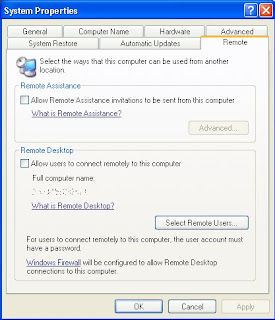
The Remote Desktop feature of Windows XP is a great way to be able to access your
computer when you are away from the office or home. However, if you have poor computer security, the Remote Desktop also is a great way for anyone to be able to access and control your whole computer. Remote Desktop is a very risky application to leave exposed to the world. Its security relies solely on your account password, which for most users is easy to guess.
If you do not use Remote Desktop, then it would be a good idea to disable the feature. Doing so is a snap. Just follow these steps to turn it off:
1. Right-click the My Computer icon on the desktop or in the Start Menu and select
Properties.
2. Click the Remote tab to expose the remote access settings.
3. Next, uncheck the box under Remote Assistance.
4. Uncheck the box under Remote Desktop as well.
5. Click OK to save your changes.
When Remote Desktop connections are disabled, you have one less thing to worry about namely, someone having the ability to break into your computer.
Subscribe to:
Posts (Atom)