Monday, March 24, 2014
Identifying The Auto Startup Programs
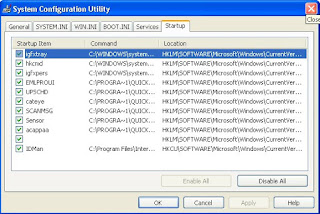
The first step in stopping the auto startup is identifying exactly what is starting up and what its purpose is. To do so, you will use a cool little program called the system configuration utility, which is built into Windows XP, and the Google search engine (www.google.com), which can look up what the entries are for. First, you will need to start up the system configuration utility and write down what programs are listed. To do so, follow these directions:
1. Start up the System Configuration Utility by clicking the Start Menu and selecting Run. Then key in msconfig and click OK.
2. Once the System Configuration Utility has loaded, click the Startup tab.
3. Now that the list of the active startup programs is visible, make a list of all of the items listed with the name as well as the file that is loaded, which is listed under the command column.
4. Once you have your list made, you can start researching which programs should be removed from the list and which programs should stay. Because almost every computer has different programs starting up after logon, I recommend that you browse the Web and look for a specific program and what will happen if it is removed from startup. One interesting site to visit is a database of common startup programs called Answers That Work. It is located at cant present you with recommendations for each of the programs listed. If you can not find one of your programs listed on that site, just do a quick search on Google and most likely you will find several Web sites telling you what that program does and what removing it will do.

Saturday, March 22, 2014
HIDE FULL DRIVE PARTITION
Hide full drive partition.
It is often seen that many people want to secure their data from other users or their friends. For this purpose they use different methods to hide their data but all these tricks are not reliable. BUT now I am telling you a secure method to hide full drive. You can put all your data in a drive and after applying this trick you will be able to hide full drive. To learn this trick, follow these steps.
- First of all logged into administrative account.
- Click on start, open run and type “CMD” and press enter.
- Type “diskpart” and press enter.
- After few seconds diskpart utility will appear.
- Now type “list volume” to show list of volume and press enter.
- Select the Drive or volume that you want to hide. If you have four drives C,D,E,F, and you want to hid “D” drive, then type “select volume 1” and press enter.
- Now in the next step type "remove letter D" to hide this drive.
- Close CMD and open My computer to check…drive D is not there…
- Now if you want to show the hidden drive then in step 7 type “assign drive d” and check “My computer”. Drive is back now.
- Excellent trick, try it now.
 | |
| image (hide system drive) |
Installing Printers and Printer Drivers
(The drivers for the printer were already copied to a folder on the Hard Drive of the PC.)
- Hook up the printer to the computer.
- When the add printer wizard comes up, let it go through the screens until it gets to a dialog asking where to look for the drivers. Check to browse on the Hard Drive and navigate to the folder where the drivers were copied.
- Go through the next screens.
- If the printer drivers installed successfully, there will be a balloon window saying so.
- It should also prompt you to print a test page.
- Print the test page, and then you know that youre good to go.
Read more »
- Hook up the printer to the computer.
- When the add printer wizard comes up, let it go through the screens until it gets to a dialog asking where to look for the drivers. Check to browse on the Hard Drive and navigate to the folder where the drivers were copied.
- Go through the next screens.
- If the printer drivers installed successfully, there will be a balloon window saying so.
- It should also prompt you to print a test page.
- Print the test page, and then you know that youre good to go.
About Me Contact Me Kalpesh Sorthiya
.
.

Hi..im Kalpesh Sorthiya from surat, india. i love Computer, Meditation and other Secret Knowledge. im Computeri Eng. Computer and Internet 5 years Experience and i Write Tipsgo.com to Help other People Computer Repair, Internet, Marketing, online Money and other Secret tips and tricks Share with People.
Add Me
Twitter
Facebook
Google+
MySpace
YouTube
Contact Me ...
kalpesh.sorthiya@gmail.com
.
.
Read more »
.
Hi..im Kalpesh Sorthiya from surat, india. i love Computer, Meditation and other Secret Knowledge. im Computeri Eng. Computer and Internet 5 years Experience and i Write Tipsgo.com to Help other People Computer Repair, Internet, Marketing, online Money and other Secret tips and tricks Share with People.
Add Me
Google+
MySpace
YouTube
Contact Me ...
kalpesh.sorthiya@gmail.com
.
.
Nero 6 3
Nero Edition 6.3
1A23-0009-5030-2246-6907-8435
You can download Nero version 6.3 from OldVersion.coms Nero Page
(Dont register the software if you use this serial number.)
Read more »
1A23-0009-5030-2246-6907-8435
You can download Nero version 6.3 from OldVersion.coms Nero Page
(Dont register the software if you use this serial number.)
Subscribe to:
Posts (Atom)