Breaking The XP Password
n case of user password boot the pc in safemode by pressing the F8 key and then selecting the Safe Mode option. You can now logon as an administrator and XP wont prompt for the password. Incase of an administrator account try rebooting the pc in DOS. access C:Windowssystem32configsam . Rename SAM as SAM.mj
Now XP wont ask for password next time You Login. Also
Go to the cmd prompt .
Type net user *.
It will list all the users.
Again type net user "administrator" or the name of the administrator "name" *.
e.g.: net user aaaaaa *(where aaaaaa is the name).
It will ask for the password.
Type the password and there you are done.
Logging In As Administrator:
Hold the Ctrl-Alt key and press Del twice. This will bring up the normal login and you can log on as Administrator.
To unhide the Administrator account so it does show up:
Start Regedit
Go to HKEY_LOCAL_MACHINE SOFTWARE Microsoft Windows NT CurrentVersion Winlogon SpecialAccounts UserList
Unhide the Administrator key by giving it a value of 1
Showing posts with label xp. Show all posts
Showing posts with label xp. Show all posts
Tuesday, March 18, 2014
Sunday, March 16, 2014
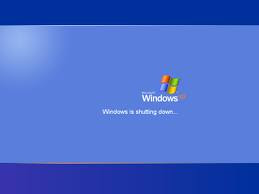
Speed Up the Windows XP Shutdown Time
Go to Start then select Run
Type Regedit and click ok
Find HKEY_CURRENT_USERControl PanelDesktop
Select WaitToKillAppTimeout
Right click and select Modify
Change the value to 1000
Click OK
Now select HungAppTimeout
Right click and select Modify
Change the value to 1000
Click OK
Now find HKEY_USERS.DEFAULTControl PanelDesktop
Select WaitToKillAppTimeout
Right click and select Modify
Change the value to 1000
Click OK
Now find HKEY_LOCAL_MACHINESystemCurrentControlSetControl
Select WaitToKillServiceTimeout
Right click and select Modify
Change the value to 1000
Click OK

Thursday, March 6, 2014
INSTALLATION WIN XP SOFTWARES
Windows XP installation. (Complete guidance for installation)
In this page we will teach you the process of windows xp installation and different software. Most popular name Microsoft has designed this operating system. windows xp has all types of features associated with composing, designing, internet, games etc.
Now we will start the method to install xp.
In a fresh pc, we turned on the pc and press delete key or F2 for entering bois. here we will select the booting path. we select Cd rom as first boot device and then save setting and restart the pc. After restarting the pc system will boot from Xp disk which we have entered in Cd rom drive. you will see a massage "Press any key to boot from cd". Here we press any key. Setup starts automatically. After loading some necessary system files a screen message appears.
We will press the enter key
Next screen appears and we see a agreement page. Here we must have to agree with the policies of Microsoft. For this this purpose we will press F8 key. .
In next step we create partition of Hard drive. In fresh PC system will show "Partitioned space" We create partition by pressing C key and enter value in MB. For example if you have 80gb hard drive and you want to divide it in 4 parts then you will enter 20000 at first. then 20000 3 times after pressing C key.
After creating Partition you will select C partition for XP installation. .
Next we will format the partition. setup will show you the four lines for formatting. the hard drive.
Format drive on NTFS system (quickly)
Format drive on NTFS system
Format drive on Fat 32 system (quickly)
Format drive on Fat 32 system
we will select NTFS to format the disk. we highlight the line and press enter. Pressing F setup will formats the C Drive and copies windows file into the hard drive. after completion of copying files, system reboots.
Now again message will appear "press any key to boot from cd" but now we will not press any key. As a result system will boot from hard drive and windows xp starts.
It takes 15 to 25 min to install the complete window. at first afterinstalling hardware setup will be ask for CD key of xp. here we will add 14 digit keys in the specified location. XP key is given below.
RHKG3-8YW4W4-4RHJG-83M4Y-7X9GW
Before entering key you will write your name and company name. after entering cd key press next.
After this you are free window will automatically install itself on your computer and finally restarts.
Drivers Installation.
After complete installation. we need to install the system softwarelike VGA, SOUND, NETWORK etc.
After complete installation. we need to install the system softwarelike VGA, SOUND, NETWORK etc.
For this purpose
- Right click on My Computer
- Click on Manage.
- Click on Device Manager (System will show uninstall hardware list with question mark)
- Insert the Drivers CD in Cd rom drive.
- Right click on 1st hardware and select upgrade.
- Select "This time only" and click next.
- Select "install the software automatically (recommended) and click next
- Window will automatically select the particular driver for that hardware
- Then click finish and reboot if necessary.
Subscribe to:
Posts (Atom)